





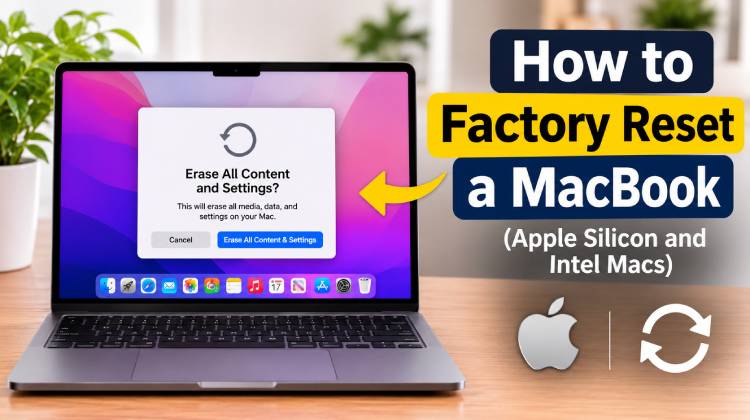
Do you want to sell your Mac, donate it to someone else, or just want to remove unwanted applications and files? Resetting to factory settings is a good way to begin anew. It clears personal data, applications, and system settings to make your Mac feel like a new Mac.
Luckily, the factory reset procedure on newer Macs is much simpler. Even if you have a Mac with Apple Silicon or an older Intel-based Mac, you can delete all data and reinstall macOS in just a few easy steps.
Let’s take a look at how to Factory Reset MacBook using simple steps for both Apple Silicon and Intel-based models.
Requirements (And Tips for Older Macs)
The convenient Erase All Content and Settings feature is available on all Macs with Apple Silicon hardware, as well as on Intel Macs with macOS Monterey (macOS 12 or later) and an Apple T2 Security Chip.
This is an inbuilt feature through System Settings or System Preferences, depending on your macOS version. It’s like the factory reset feature on an iPhone or iPad, but it lets you remove data from your phone without manually deleting files or reinstalling the operating system.
If your Mac does not have an Intel processor with a T2 Security Chip or is running macOS Big Sur or earlier, though, you’ll need to perform a more traditional factory reset. This includes backing up your data, signing out of Apple, erasing the startup disk using macOS Recovery, and reinstalling macOS.
Before you begin, determine your Mac model or macOS version. To get this information, click and select Apple Menu About This Mac.
Also read: MacBook Memory Cleaner Guide: 10 Best Tools to Free Up RAM
How to Factory Reset MacBook on Apple Silicon Macs
Owners of Apple Silicon processors (M1, M2, M3, M4, and newer) may use Apple’s factory reset tool, Erase Assistant, to reset their Mac.
It’s also supported by compatible Intel Macs running macOS Monterey or later.
Always back up any important files before using Time Machine, iCloud, or other trusted backup service. Thereafter, all your personal data, applications, and user accounts will be deleted.
You can also use Apple’s Migration Assistant to move your files, apps, and settings over to your new Mac before you wipe your old Mac.
The way you use Erase Assistant will vary based on your Mac’s operating system.
If you are using macOS Ventura, Sonoma, Sequoia, or later, go to the Apple menu in the top-left corner and click System Settings. Go to General > Transfer or Reset.
Choose Erase All Content and Settings to start erasing.
When prompted for the Mac administrator password, enter it. This will start the Erase Assistant.
When Erase Assistant appears, you will see a report on the items that will be deleted from your Mac. These include user accounts, user settings, system settings, applications installed, and personal files.
You’ll also be logged out of your Apple Account, your Touch ID fingerprints will be deleted, paired Bluetooth accessories will be disconnected, and your Mac will no longer be connected to Find My.
If you’re happy to continue, click Continue.
To secure your computer, your Mac might request your Apple Account password to sign out. Please read and follow the on-screen instructions.
In addition, depending on your Mac and macOS version, you can be offered a final Time Machine backup. Before continuing, if you don’t have important files backed up, do it now!
When you’re ready, verify that you wish to delete all content and settings.
To reset factory settings, click Erase All Content & Settings.
Your Mac will restart and show you a progress bar as Erase Assistant removes your personal information. After completion, the Setup Assistant will appear.
You can now reset your Mac as a new device or shut down if you’re selling or giving away.
How to Factory Reset MacBook on Older Intel Macs
If you have an older Mac with an Intel Processor, and don’t have a T2 Security Chip, or are running macOS on an earlier version (before Monterey), you will need to take a few extra steps to remove your Mac and reinstall macOS.
The first step is to back up your important files using Time Machine or another backup service. Make sure the backup has completed successfully and that you can access your files from the external storage device.
If you don’t have a backup, you will lose the information on your Mac permanently if you delete the startup disk.
Then log out of your Apple services. This is especially crucial if you intend to sell or give away your Mac.
- Log out of iCloud: Go to System Preferences, choose Apple ID, click on Overview, and click on Sign Out. The exact steps may vary depending on your macOS version.
- Sign out of iMessage: Open the Messages app, go to Messages > Settings (or Preferences) > iMessage and choose Sign Out.
- Deauthorize iTunes: If you have an older version of macOS that is using iTunes, open the app and go to Account > Authorizations > Deauthorize This Computer.
After you’ve done these steps, it is time to enter macOS Recovery.
Turn off your Mac using the Apple Menu > Shut Down. Turn it on and press and hold Command (⌘) + R until the Apple logo or Recovery screen appears.
You might have to choose an administrator account and enter the administrator’s password before you can use the recovery tools.
When the macOS Recovery window appears, choose Disk Utility and click Continue.
In Disk Utility, you’ll see your startup disk, typically called Macintosh HD, in the sidebar.
Select the disk in the left pane and click Erase in the toolbar. If the disk is configured as a volume group and you’re running a newer version of macOS, you’ll also see an Erase Volume Group option.
Also read: MacBook Won’t Power On? 5 Easy Troubleshooting Tips
Be sure to back up all your data first, because stored data will be removed during this process.
Choose the appropriate format for your Mac. APFS is recommended for newer macOS versions, whereas Mac OS Extended (Journaled) is recommended for older macOS versions.
Follow the on-screen instructions to complete the erase process.
When the disk is erased, click the Disk Utility menu bar button to exit Disk Utility and return to the macOS Recovery window.
Select Reinstall macOS and follow the instructions to download and install a compatible version of the operating system.
Once you are done with the installation, your Mac will restart.
If you are setting up the Mac for another user, please do not do it. Or go to the Set Up Assistant, press Command (⌘) + Q, and select Shut Down.
You’re now ready to hand over the Mac to the next owner to configure.
Final Thoughts
Knowing how to Factory Reset MacBook can help you prepare your device for resale, remove unwanted files, or start fresh with a clean macOS installation
Apple’s Erase All Content and Settings option quickly and easily wipes your Mac clean if you have an Apple Silicon Mac or an Intel Mac with a T2 Security Chip.
For older Intel Macs, you need to take some extra steps: Sign out of Apple services, delete the startup disk using Apple’s Disk Utility, and reinstall macOS.
Either way, ensure a backup of important files first. After erasing your Mac, recovering personal data can be tricky or even impossible.
With a little preparation, you can do it safely and prepare your Mac for a fresh start or a new owner.
How to Factory Reset MacBook: FAQs
Does factory resetting a MacBook delete everything?
Yes. A factory reset removes personal files, installed applications, user accounts, and system settings. Make sure to back up your important data before starting.
Can I factory reset a MacBook without an Apple ID password?
It depends on your Mac model and security settings. Some reset methods may require Apple Account credentials, particularly when Activation Lock is enabled.
How do I factory reset a MacBook Air?
To factory reset a MacBook Air, open System Settings, navigate to General > Transfer or Reset, and select Erase All Content and Settings if your model supports it. Follow the on-screen instructions to complete the reset.
How do I factory reset a MacBook Pro?
You can reset a MacBook Pro using Erase All Content and Settings on supported models. Older Intel models may require macOS Recovery and Disk Utility to erase the startup disk before reinstalling macOS.









Leave a comment