





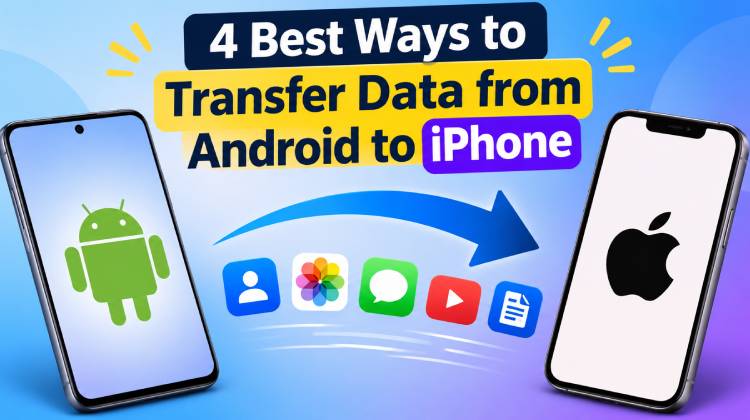
Moving your Android to iPhone is an exciting task. However, if you have already configured your new iPhone, you will not need to use Apple’s ‘Move to iOS’ guide. There are many different ways to transfer your data to your new iPhone, including your contacts, photos, videos, messages, and more.
4 Best Ways to Transfer Data from Android to iPhone
Method 1. Transfer Data After Setup Using Cloud Services (No Reset Required)
Using cloud services (iCloud, Google Drive, Dropbox, etc.) is a great way to transfer your data. If you are transferring single files such as photos, videos, and documents (PDF, Excel & Word files), you can do this without resetting your phone.
Follow the steps below to transfer data from Android to iPhone without resetting.
- Upload your data (Photos, Videos, Documents & Contacts) to your cloud (Google Drive or Dropbox).
- Make sure you are logged into the same account on your iPhone.
- Open the app on your iPhone and download your files.
- Sort your files into the right apps.
Also read: How to Clone an iPhone: Quick and Easy Guide
Method 2. Transfer Data After Setup Using Email or Messaging Apps (No Reset Required)
For small files or documents, photos, email or messaging apps allow you to transfer your data without resetting your phone. This is an easy option if you use your email often.
Follow the steps below to transfer data from Android to iPhone using Email.
- Attach your files or contacts to an email or message using WhatsApp/Telegram.
- Send the email or message to your own account.
- Open the email on your iPhone and download your attachments.
- Move your files into the right apps (Photos, Files, Contacts, etc.)
Method 3. Transfer Data After Setup Using Third-Party Tools
If you want to transfer files from Android to iPhone without resetting your phone, using third-party software is the best option. Using third-party software (EaseUS MobiMover, iMobie AnyTrans, Wondershare MobileTrans, Syncios Data Transfer, and Tenorshare iCareFone Transfer), you can transfer your contacts, photos, videos, music, and more directly. Simply connect your iPhone & Android to your computer and use the program to transfer your data.
The free version will transfer up to 20 files. Follow the steps below to transfer data from Android to iPhone.
- Download & install the software.
- Connect your Android & iPhone via USB and allow any permissions.
- Change to Phone to Phone mode. Select your Android as the Source and iPhone as the Destination.
- Select the data you want to transfer and press Transfer.
- Wait for your data to transfer. Your data will appear on your iPhone without wiping your data.
Also read: 8 Best iPhone Data Recovery Software: Recover Lost Data
Method 4. Transfer Data After Setup Using Move to iOS (Reset Required)
You can use Apple’s official ‘Move to iOS’ app to transfer your contacts, messages, photos, videos, bookmarks & calendars. However, you will need to reset your phone.
Follow the steps to transfer data from Android to iPhone.
- Backup your iPhone.
- Go to Settings > General > Reset > Erase All Content & Settings.
- Set up your iPhone until you get to the Apps & Data screen. Select Move Data from Android.
- Download & open the Move to iOS app on your Android.
- Press Continue on both devices and input the code shown on your iPhone.
- Select what data you want to transfer and press Next.
- Wait for your data to be transferred.
Final Thoughts
Transfer data from Android to iPhone can be easy. However, the best method depends on what you want to achieve.
If you don’t mind resetting your phone, then using Apple’s Move to iOS app lets you Transfer Data from Android to iPhone.
If you want to keep your current data or just transfer specific files, using a cloud service, email, or messaging app is a good option.
For a quicker and more thorough data transfer without resetting your iPhone, using a third-party app like EaseUS MobiMover or AnyTrans is a good option.
FAQs: Transfer Data from Android to iPhone
Can I transfer data from Android to iPhone without resetting it?
Yes. You can transfer data from Android to an already-set-up iPhone using cloud storage services, email, messaging apps, or third-party transfer software. These methods generally don't require you to erase your iPhone.
Can I transfer WhatsApp messages from Android to iPhone after setup?
WhatsApp officially supports chat history migration from Android to iPhone through Move to iOS during the initial iPhone setup. If your iPhone is already set up, you generally need to erase it and repeat the setup process to use the official migration method.
What is the easiest way to transfer data from Android to iPhone?
Apple's Move to iOS app is one of the easiest ways to transfer supported data. However, it generally requires setting up a new or erased iPhone.
Is it safe to use third-party Android to iPhone transfer tools?
Generally, reputable transfer tools can be safe to use. However, download software from official websites, review its permissions, and back up your data before starting the transfer.





Leave a comment