







A laptop not turning on when you require it is frustrating. However, the problem doesn’t occur in just a couple of days. If a laptop gets into the aforementioned situation, it will show warning signs. Below, we’ll help you recognize the signs and provide the steps to fix the laptop not turning on.
If your laptop not turning on and shuts down instantly, but then shuts itself down, this article is for you.
Let’s begin!
Why Is My Laptop Not Turning On?
There could be serious problems when your laptop won’t turn on or isn’t working. Sometimes it’s an issue with the battery. This is a normal thing. But if the problem is caused by software, it could take a while to resolve because your laptop is not booting.
The most common reason why my laptop is not opening could be:
- Faulty Power Supply
- Malfunctioned Start Button
- Unnecessary Overheating
- Discharged/Disabled Battery
- Display Adapter Errors
- Problems with the Motherboard
- Errors in Processing Units/ RAM
The most common problems Laptop not turning on after shutdown. But there’s no reason to be concerned, since the issues can be solved once you’ve identified the problem.
If your laptop isn’t responding to any commands, it is recommended that you go to a service center, as there’s no way to fix it on a bricked device. There is a possibility of a solution if your device responds when you press the power button. You can fix a Laptop not turning on but power light is on.
Also read: PS5 Not Turning On? 8 Easy Fixes to Get It Working
How To Fix a Laptop Not Turning On
1. Check the Power Supply
The first thing to check is whether the power source is properly connected. When we say power supply, means the battery or the power source from which your device gets energy to function. Sometimes the laptop does not charge. Here are some things to be aware of
- The charger cable is securely connected.
- The wall outlet is working.
- There is no visible damage to the charging cable.
- The battery is properly inserted (for removable batteries).
- The charging indicator light turns on.
2. Remove External Devices
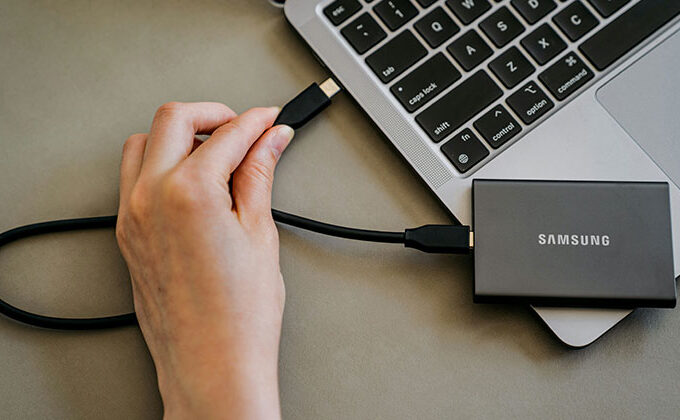
Perhaps you’re having problems with your laptop not turning on after connecting another external USB device or another connected port. In this case, the problem lies in the connected hardware.
Remove the external hardware from the device, and restart your laptop. If your device has been off for a long time, then connect it to your charger and then press the power button on the laptop.
The problem could occur more frequently if you are using local USB drives or other cables connected to your computer.
3. Fix Overheating Issues
Knowing your system capabilities will make life easier. For every user, knowing the maximum amount they can put into their device is crucial, as it could lead to overheating problems.
If you’ve recently used your device but now your laptop not turning on, the chances are that your system’s motherboard and other components are overheated.
In this situation, the best option is to leave your laptop to cool down. Do not push it to run or begin. Allow it to cool down, and it will automatically begin working properly once it is. Sometimes, the problem occurs when gamers play games without optimising their laptops for gaming.
If you are also playing heavy online games with your laptop, then these errors are likely to take over.
4. Clean the Cooling Vents
If you’re using a gaming laptop that is showing the error, your laptop’s cooling vents are likely blocked. It could be caused by dust or other causes. Cleansing the vents for cooling and ensuring that they work effectively to disperse heat can help solve the laptop not turning on error.
Air intake vents are essential. Be sure that the vents function properly.
5. Resolve Battery Issues
Laptop battery issues are more prevalent than any other. There is a chance that the battery in your laptop isn’t connected.
Laptop not turning on but charging, particularly those with removable batteries. If you move the device from their desk to their lap, and then back to their desk, the battery may become loose and cause the laptop not turn on.
The other thing you should keep in mind is that, like every other component, your laptop battery’s performance decreases with time. The chemicals may dry up and not completely charge the battery.
So it is suggested that you have it checked regularly.
6. Leave the Laptop on charge
If you switch on your laptop after being unoccupied for several days or even weeks, it may not respond as you would like. The battery might take a while to recover and regain power. The laptop should be charged for a long period to activate the battery cells and the power source.
Many people make the error of connecting their device to the power source and then using it without charging their battery. An old battery and low battery health may be the reason the laptop not powering on.
7. Understand LED Lights and Beep Sounds
If your laptop isn’t displaying anything but the power indicator or the beep sound from the motherboard, chances are you’ve encountered serious issues.
Fortunately, there are specific blinking patterns and sound beeps you can use to figure out what is wrong within the system. But they are limited to a select few brands, and every brand has different patterns to indicate different issues.
Check the official support site or the user’s manual to determine the problem that may be occurring with your laptop.
8. Perform a Hard Reset
If the keyboard starts to turn on but there’s no display or activity from the processor, then resetting the laptop could be an excellent option. Resetting your system hard involves removing all electric charge from the laptop to ensure that all components boot up from scratch and provide you with the correct feedback.
Steps:
- Hold and press your power button on for 10 minutes ( up to the point that you can hear the click off the drive)
- Now, remove the battery from your laptop.
- Then, press and hold the power button to remove any remaining current in the system.
- If you’re unable to remove the battery, press the power button for 30 seconds straight, and it will work in the same way.
- After you have completed re-connecting your laptop’s battery, try turning it on.
Also read: Laptop Touchpad Not Working? 4 Simple Ways to Fix It
9. Update Graphics Drivers
If the power indicator, keyboard, and processor are showing signs of running, but there’s no output on the screen, or your PC is constantly crashing after booting up, and not turning on completely. In this case, the problem lies in the display driver.
The display does not handle the laptop’s processing capabilities, and you may need to upgrade the driver.
10. Contact Hardware Support
You can contact hardware support if none of the previous solutions can resolve the issue. There’s not much you can do to fix your laptop does not turn on.
All of these fixes will work when your computer has energy or is recuperated. It is important to determine whether your system is working or not. If your laptop not turning on, calling professional assistance is the best option to fix the issue.
Final word
We don’t suggest opening the computer’s hardware to check for any errors. It could cause more problems for you if you don’t have the correct tools. So, use the Laptop troubleshooting steps below to resolve the issue. We hope these 10 tips will fix the laptop not turning on.
FAQs: Laptop Not Turning On
What should I do first if my laptop won’t turn on?
First, check if the charger is properly connected and the power outlet is working. Then remove all external devices and hold the power button for 30 seconds to perform a hard reset.
Why is my laptop not turning on but the power light is on?
If the power light is on but the screen is black, the issue could be with the display, RAM, or graphics driver. Try connecting the laptop to an external monitor to test if the screen is faulty.
How do I fix a laptop that won’t turn on after an update?
If your laptop won’t turn on after an update, try booting into Safe Mode or using system recovery. A corrupted update may cause startup failure.
Is it worth repairing a laptop that won’t turn on?
It depends on the cause. Battery, charger, or RAM issues are affordable to fix. However, motherboard repairs can be expensive and may not always be worth the cost.







Leave a comment