






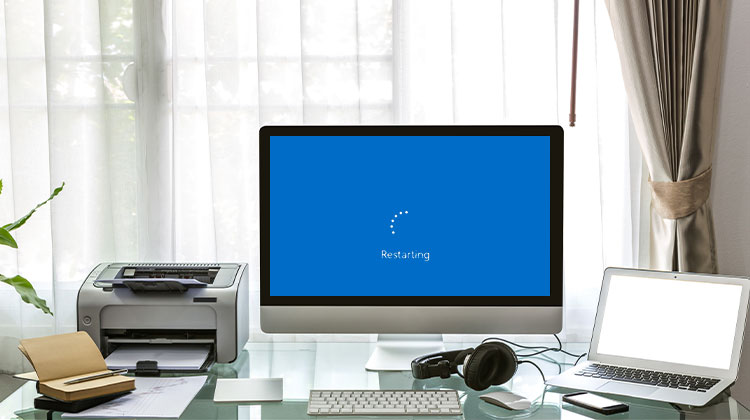
If something is wrong with your computer, or it is running slowly, experts suggest restarting it. However, things become complicated if Windows does not restart or the computer stuck on restarting. If you, like many others posting about the issue on Reddit and other sites, are having trouble with a PC stuck in a boot loop, you’re in the right spot. In this article, we discuss how to fix a computer stuck on restarting screen.
Why is My Computer Stuck on Restarting?
Before jumping into solutions, it’s important to understand the root causes. A computer stuck on restarting usually happens due to:
- Corrupted or pending Windows updates
- Outdated or faulty drivers
- Background processes not responding
- Hardware issues (RAM, CPU overheating)
- Malware or system file corruption
- External devices interfering with the boot process
How to Fix a Computer Stuck on Restarting Screen
Before we move to advanced solutions to fix the computer stuck on restarting problem, let’s start with some simple fixes to see if they fix the issue.
1. Force Shutdown
As mentioned above, a variety of causes could trigger this loop to restart. But the problem is easily solved with an easy forced shutdown.
A forced shutdown is often the quickest fix.
- Press and hold the power button for 5–10 seconds until the PC turns off
- Wait a few seconds and turn it back on
For desktop users:
- Unplug the power cable after shutdown
- Wait 10 seconds
- Plug it back in and restart
This can break the restart loop instantly.
Also read: Computer Turns On But No Display? Here’s the Easy Fix (2026 Guide)
2. Disconnect All Peripherals
Sometimes, the connected peripherals, USB, and other devices may interfere with restarting the process. To ensure this is not the case, you must force a Windows shutdown. Unplug the USB drive or HDD, smartphone, or any SSD or SD card, and disconnect the mouse and keyboard. If everything is working fine, connect each device separately to identify the issue.
3. Check CPU Overheating
In desktops, CPU overheating goes unnoticed. If you encounter Windows 10 restating a stuck loop, it’s advisable to check your CPU fan and reduce overheating. Make the CPU fan adjustable and uninstall any software used to overclock the CPU. After that, restart your PC. Windows will not be stuck anymore.
Advanced Ways to Fix a Computer Stuck on Restarting
If these simple fixes don’t aid, there’s nothing to be concerned about. There are advanced solutions to help you resolve the Computer Stuck on restarting issue.
4. Update Outdated Drivers
If none of the initial solutions work, make sure you update the drivers. They’re the main reason for the computer stuck on restarting. For this, follow these steps:
- Press Windows + X to access the Quick menu.
- Select Device Manager from the menu options.
- Right-click outdated drivers → Click Update driver
- Choose Update driver. From this window, which pops up, click Search automatically for drivers. Windows will now search for the latest compatible updates.
- Follow the on-screen directions and upgrade the driver.
- Similarly, update all outdated drivers
6. Update Windows
We frequently think that Windows is updated. However, the updates aren’t working and cause the computer stuck on restarting. To fix this, follow these steps:
- Click Windows + R to open the Run window.
- Press Windows + R, type cmd, press Ctrl + Shift + Enter
- If you are presented with the User Account Control message, click Yes.
- Paste and copy the following command, then press Enter. Enter key.
net stop wuauserv - Copy and paste the commands one by one. (Press Enter key after each command.)
CD systemroot”%”
ren SoftwareDistribution SD.old
net start wuauserv
It is expected that the Windows Update process can be restored and should be beneficial.
6. Run SFC and DISM Scans
If your system’s files are corrupted or there’s an issue with the disk, then you’ll encounter a computer stuck on restarting. To fix it, take these steps:
- Open the Command Prompt.
- Copy and paste the following command: sfc /scannow > press Enter option, and then let it run.
- After the process has been completed, you can copy the command below: Dism /Online /Cleanup Image
- RestoreHealth
- Let it run.
These commands can help fix damaged Windows system files that could cause Windows stuck on restarting.
7. Perform a Clean Boot
To resolve the problem and end all unwanted software from running at start-up. To fix this, take these steps:
- Use Windows + R to open the Run window.
- Type msconfig and press the Enter key.
- Click on the Services tab.
- Select the checkbox beside “Hide all Microsoft services.”
- Uncheck all third-party service providers and then click Apply > OK.
- Restart your PC to check how it is working. If this resolves the issue, then it is the third-party application and an outdated driver.
- Removing the application and updating the driver to avoid issues.
8. End Unresponsive Processes
There are times when processes running in the background fail to respond, Windows fails to restart, and then enters into a loop. To fix this problem, take these steps:
- Press Ctrl + Shift + Del keys to open Task Manager.
- Click on the Processes tab.
- Check for processes that aren’t responding. Right-click them and choose Stop task.
9. Disable Fast Startup
Fast Startup helps quickly boot the system after a cold shutdown. But there are times when it causes problems during the system restart. To determine whether it’s the cause, we recommend disabling it. Follow these steps:
- Open Control Panel
- Go to Power Options
- Click Choose what the power buttons do
- Disable Turn on fast startup
10. Run Windows Troubleshooter
Windows offers a built-in troubleshooter to identify and fix software and hardware issues automatically. To fix the loop problem, let’s run the troubleshooter.
- Click Windows + R to open the Run window, type Control Panel, and then click OK.
- Select the Troubleshooting option.
- Choose View All and Choose System Maintenance
- Follow the on-screen directions to finish the procedure.
- Restart the computer. The problem with random restarts will now be solved.
Also read: How to Fix Windows Update Errors: 12 Quick Fixes to Try
11. Scan for Malware
Malware infections are another cause for the restart loop error. So, it is recommended to scan your PC for malware. To conduct a thorough search, you can use T9 Antivirus, a powerful and highly advanced security software that provides protection.
12. Check RAM Issues
Bad RAM is the main cause of the computer restart loop problem. To resolve the issue, unplug all connected devices and launch Windows Memory Diagnostics. This tool will help you identify any RAM issues. To start it, you must follow these steps:
- Press Windows + S and type Windows Memory Diagnostics.
- Select the top search result, then press the Enter key.
- Click Restart now and look for any issues.
- The tool will search for problems and correct them if they are found.
13. Boot into Safe Mode
Even after completing these steps, if the computer remains stuck when it tries to restart, then try booting in Safe Mode. This is a diagnostic mode that will only run the necessary software to diagnose issues. To boot into Safe Mode, follow these steps:
- Force shutdown your PC 2–3 times during boot
- Windows will start in recovery mode. From here, select the Safe Mode by using the Arrow keys.
- Start the PC in Safe Mode, and then restart computer to check if it fixes.
- If it does not work, follow the same steps, but this time, select the Troubleshoot option >Startup Repair.
- Select Advanced Options and restore the PC.
14. Perform System Restore
You could also try System Restore. The feature will reset your system to the point you choose. To activate it, take these steps
- Press Windows + S and then type System Restore.
- Select System Restore > Choose the restore date (the day on which the computer was running smoothly)
- Follow the on-screen instructions and then restart the system.
- Then restart the system to check whether the issue has been resolved.
15. Update BIOS
BIOS aids in hardware initialization and starts the boot process. So, to resolve the issue, update the BIOS. This is an extremely important procedure. So, we recommend you perform it with professional direction.
- Click Windows + R to open the Run window.
- Type msinfo32, then press Enter.
- You’ll now have all the details related to BIOS Version/Date.
- Visit the manufacturer’s website to download the latest version.
- The downloaded file should be run, and your PC should restart normally.
- You can also find guidelines on the OEM’s site.
Also read: BIOS ID Check Error: 6 Easy Ways to Fix It During BIOS Update
16. Reset PC
If all else fails to fix a PC stuck on restarting screen, resetting the PC can be helpful. Resetting the system means all data will be deleted. So, before you reset your PC, take a backup of important data. After that, take these actions:
- Press Windows + I to open Windows Settings.
- Select Update and Security settings.
- Select Reset > Recovery. PC.
Summing Up
In conclusion, this article addresses the perennial issue of the “computer stuck on restarting” and offers practical solutions. It is now possible to take on this task with this knowledge.
FAQs: Computer Stuck on Restarting
Can Windows updates cause a computer stuck on restarting issue?
Yes. Incomplete or failed updates are one of the most common reasons behind a computer stuck on restarting. Fixing or resetting Windows Update components often resolves the issue.
How long should I wait before forcing a shutdown?
You should wait around 10–15 minutes. If your computer is stuck on restarting screen for longer than that with no progress, it’s safe to perform a force shutdown by holding the power button.
Can faulty drivers cause restart problems?
Absolutely. Outdated or incompatible drivers—especially graphics and chipset drivers—can lead to a computer stuck on restarting screen. Updating drivers often resolves the problem.
How do I fix a computer stuck on restarting without losing data?
You can try Safe Mode, System Restore, SFC scan, or Startup Repair. These methods help fix the issue without deleting personal files.
Is it possible that a recent app installation caused the issue?
Yes. Newly installed or incompatible software can interfere with system processes and lead to a computer stuck on restarting problem. Performing a clean boot can help identify it.






Leave a comment