






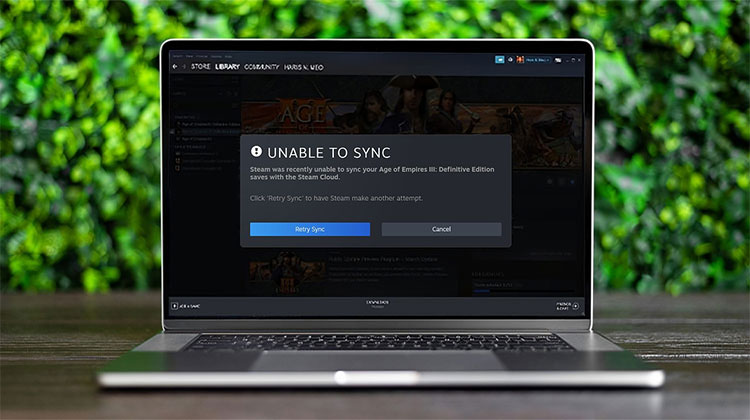
If you’re using Steam and show a “Steam Cloud Sync error,” you must be aware. If you click “Launch anyway,” you will lose your progress since the last sync. It is believed that the Steam Cloud sync error is mostly due to server-related issues. Also, you should close the game and then wait a couple of hours to determine whether the issue is fixed. If this doesn’t resolve the issue, let’s discuss how to fix Steam Cloud error.
What is Steam Cloud?
Steam is an online game hosting platform for game creators. It assists distribution games and servers for gamers on the Steam Cloud. Game developers use Steam Cloud to store information, settings, and game files.
Furthermore, Steam helps developers maintain and update their games. Cloud technology improves access and login information. Users sign in and play any game on the same level.
Apart from server-related issues, the Steam issue occurs when a Steam account is used across devices. Gaming on multiple devices with the same account can cause a Steam cloud sync error due to differences.
Common Causes of Steam Cloud Sync Errors
There are several reasons for the Steam cloud sync error. Below are common causes:
- Internet connectivity issues
- Conflicting local and cloud files
- Corrupted game files
- Steam client problems
- Antivirus/firewall interference
Also read: Fix Steam Games Not Launching: 5 Easy Troubleshooting Tips
How to Fix Steam Cloud Sync Error
Let’s see how we can fix the Steam cloud sync error.
1. Check The Steam Server Status
Before trying to fix the Steam Cloud sync error, check the Steam servers. If they’re down due to maintenance or there’s an outage, cloud sync won’t work until they’re back online.
You can test the Steam servers with a general outage detector such as Downdtector.
2. Restart Steam and Retry Synchronization
When the Steam Cloud unable to sync the game, you must restart Steam. Server-related issues with Steam are not uncommon. If the issue is on their side, it can be fixed. You can also go for Take Manage, terminate Steam-related processes, and then restart Steam.
If that doesn’t stop Games sync on the Steam cloud, let’s manually enable the Steam Cloud sync feature.
- Open Stream software. Then, click Steam on the top left to open the Steam menu.
- Select Settings and then choose Cloud on the left side panel.
- Look for your Enable Steam Cloud sync search for any applications that can support it, and then click OK.
This can be done if you’ve removed the cloud sync manually or if it fails. However, if you experience problems with sync on certain games, they don’t have support for Steam Cloud sync. If you experience a sync error for a particular game, follow the steps below.
- Start Steam and then open the game sync problem. Find the cloud status option next to the Play button and click out of sync.
- Click Retry Sync and then wait for the cloud status to change to Update.
3. Verify the Integrity of Game Files
Cloud sync issues can be caused by damaged game files when uploading or updating. If this is the case, Steam cannot sync the game save files to the Cloud. Fortunately, Steam offers a function to verify the game’s file. The feature replaces all corrupted files with new ones to resolve the problem. Learn how to use this function to verify the integrity of your game’s files.
- Open Steam and go through the Library section.
- Choose the Games tab, then right-click on the game’s file that can’t be synced with the Cloud.
- On the right pane, select Properties and then click Local Files or Installed Files.
- Click Verify the integrity of game files and allow the program to check for the integrity of the file. When the process is complete, you can play the game to test whether sync is working.
4. Repair Steam Library Folder
The downloaded data from games and saved files are stored inside the Steam Library folder. If the directory is damaged, it becomes extremely difficult to sync data to the Steam Cloud, resulting in the Steam Cloud sync issue.
Steam has built-in repair capabilities to repair damaged files in the Library folder. Let’s look at how to use this feature.
- Open the Steam client.
- Navigate to Steam > Settings > Storage.
- Select the 3 dots that are next to the storage graph and click Repair Library Folder.
- If a prompt appears, wait for the process to finish before clicking the Close button.
5. Run Steam as an Administrator
Insufficient admin rights can stop an application from running. If Steam cloud not syncing data correctly due to admin rights, we should run Steam with administrator privileges.
Find the Steam application on your computer and then select Run as Administrator instead of opening it directly.
Also read: How to Fix Steam Disk Read Error in 2025: Step-by-Step Guide
6. Check and Enable Network Connection
If none of the previous solutions solve the Steam cloud sync error. Some users suggested the issue may be due to the Steam Client handling IPv6 to IPv4 fallback. If the fallback fails, that means show the Steam Cloud error.
If you’re still experiencing a Steam cloud sync error even after attempting all the fixes, you should attempt to deactivate the IPv6 protocol. Follow the steps below:
- Start the Control Panel, and change the View By setting to Category.
- Go to Internet and Network, the Network Sharing and Connection Center > Change adapter settings.
- In the Network Connections, right-click on the network connection and choose Properties.
- Remove your Internet Protocol Version 6 (TCP/IPv6) connection, then press OK to save the changes.
Restart your computer and open Steam to check whether the Steam cloud sync error disappears.
Final Words
Steam servers can be erroneous due to the load they must manage when hosting hundreds of games. If the issue is that these fixes solve the Steam Cloud unable to sync error.
FAQs: Steam Cloud Sync Error
Why is Steam Cloud not syncing my game?
This usually happens due to internet issues, server problems, corrupted game files, or conflicts between local and cloud saves.
Why does Steam Cloud say “Out of Sync”?
It means your local save files don’t match the cloud version, usually due to recent changes or failed uploads.
Can I manually force Steam Cloud to sync?
Yes, you can click Retry Sync from the game’s cloud status or restart Steam to trigger syncing.
Do game updates affect Steam Cloud syncing?
Yes, updates can sometimes cause sync conflicts if save files change during the update process.
How do I fix Steam Cloud Sync Error quickly?
You can fix it by restarting Steam, checking your internet connection, verifying game files, or re-enabling Steam Cloud sync in settings.






Leave a comment