






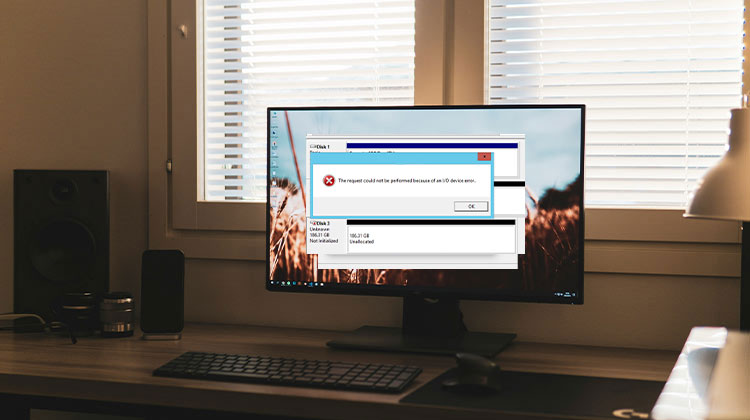
An I/O device error occurs when a computer is unable to access a connected drive. This problem can trigger the following error message:
“The request could not be performed because of an I/O device error.”
Although these issues may be alarming, they don’t indicate the immediate risk of permanent data loss. This guide will provide detailed steps for resolving I/O device errors and also explain how to manage situations when solutions don’t work.
What Is an I/O Device Error?
An I/O (Input/Output) Device Error can occur when a computer encounters an issue while trying to write or read data to a connected device. In essence, it indicates the failure of communication between the system and storage media.
This issue isn’t limited only to external hard drives. It can affect a broad array of storage devices such as external HDDs and SSDs, USB flash drives, CDs/DVDs, and SD cards.
Before we look at ways to solve I/O device errors, let us first identify the underlying causes.
Common Causes of External Hard Disk I/O Device Error
The most frequent causes of I/O device errors on hard drives are:
- Faulty USB ports
- Damaged or loose connection cables
- Outdated or corrupted drivers
- Drive letter conflicts in Windows
- Unsupported or incompatible file systems
- Bad sectors on the drive
- Physical damage to the hard disk
A combination of any one or more reasons mentioned above can result in the message being displayed: ” The request could not be performed because of an IO device error.”
Also read: DiskPart Virtual Disk Service Error? Solve It with 7 Easy Fixes
How to Fix External Hard Drive I/O Device Error
In this section, you’ll discover nine solutions to resolving this I/O device error and accessing your hard disk. The solutions, presented in ascending order of difficulty and complexity, are categorized under subheadings: simple hardware fixes, such as driver updates, Windows utility tools and advanced techniques.
1. Check Connections and Power Supply
I/O device errors typically result from weak or insecure connections. When your hard disk is connected to the USB hub, it might not have sufficient power. Disconnect your drive from the hub, then connect it directly to your computer.
2. Try a Different USB Port or Cable
If the issue persists, you can eject the drive, reboot your computer, and then connect the drive to a different USB port. If you suspect a defective cable, replace it with a new one.
3. Test the Drive on Another Computer
If the input/output error persists, you should examine the hard drive with an alternative laptop or PC. This will help determine if the problem is with the drive or the present system.
4. Reinstall or Update USB Drivers
Incorrect or outdated USB drivers could result in I/O errors and make your external hard drive inaccessible. To upgrade your USB drivers, take these steps:
- Press Windows + X and select Device Manager.
- Expand Universal Serial Bus Controllers.
- Locate your external drive.
- Right-click the device and select Update Driver.
- Choose Search automatically for drivers.
- Restart your computer after installation
5. Update SATA Controller Drivers
To update the SATA driver, you must use the same procedure for updating USB controller drivers. USB controller driver upgrades:
- Open Device Manager.
- Expand Storage Controllers.
- Double-click SATA Controller.
- Open the Driver tab.
- Click Update Driver.
- Select Search automatically for drivers.
- Restart your system.
If you use a USB-to-SATA adapter, the USB side is connected to your PC’s USB port, and the SATA side connects to an external HDD. Therefore, unlike pen drives, the two USB and SATA controller drivers must be upgraded in external HDDs.
6. Change IDE Channel Settings
If the I/O device error persists, altering the IDE channel settings can help resolve the issue. Take these actions:
- Open Device Manager.
- Expand IDE ATA/ATAPI Controllers.
- Right-click the channel connected to the drive.
- Select Properties.
- Open the Advanced Settings tab.
- Change the transfer mode to PIO Only.
- Click OK and restart the computer.
Examine the drive to see whether the error message is fixed.
7. Change the Drive Letter
Sometimes your computer might not recognize the drive letter correctly, which could cause an input/output error. Changing the drive letter can solve the problem. here steps to do it.
- Press Windows + X and select Disk Management.
- Right-click the affected drive.
- Choose Change Drive Letter and Paths.
- Click Change.
- Select a new drive letter.
- Click Apply and then Yes.
Restart your system with the drive connected. Check whether the IO error message is displayed.
Also read: How to Check SSD Health: 5 Free Methods for Windows & Mac
8. Run the CHKDSK Utility
If you continue to encounter input/output errors, the issue is most likely with your drive and not your computer.
The next step is to use the chkdsk tool to solve an external hard disk.
- Search for CMD in the Windows search bar.
- Right-click Command Prompt and select Run as administrator.
- Click Yes if prompted by User Account Control.
- Type the following command and press Enter:
- chkdsk H: /f /r /x
Replace H: with your drive letter. Windows will scan the drive and automatically fix any detected errors
9. Perform a Clean Boot
If none of the previously mentioned solutions solve this I/O device error, performing a clean boot may help to determine the source of the problem. Take these actions.
- Type msconfig in Windows search
- Open System Configuration
- Go to Services tab
- Check Hide all Microsoft services
- Click Disable all
- Open Startup tab → Task Manager
- Disable all startup items
- Restart your computer and check if the error persists.
Conclusion
An I/O device error can be quite dangerous as important information is related. We have considered this and are determined to provide you with the complete information on the issue. This guide will provide the necessary steps to resolve this issue.
External Hard Disk I/O Device Error FAQs
Can I fix External Hard Disk I/O Device Error without losing data?
Yes, in many cases you can fix it using methods like CHKDSK, changing USB ports, or updating drivers without losing data.
Is External Hard Disk I/O Device Error a sign of hard drive failure?
Not always. It can be caused by minor issues, but if it repeats frequently, it may indicate hardware failure.
What does “The request could not be performed due to an I/O device error” mean?
It means your system is unable to communicate properly with the external hard drive because of connection, driver, or hardware issues.
What should I do if my external hard drive is physically damaged?
If physical damage is suspected, stop using the drive immediately and consider professional data recovery services to avoid permanent data loss.






Leave a comment