






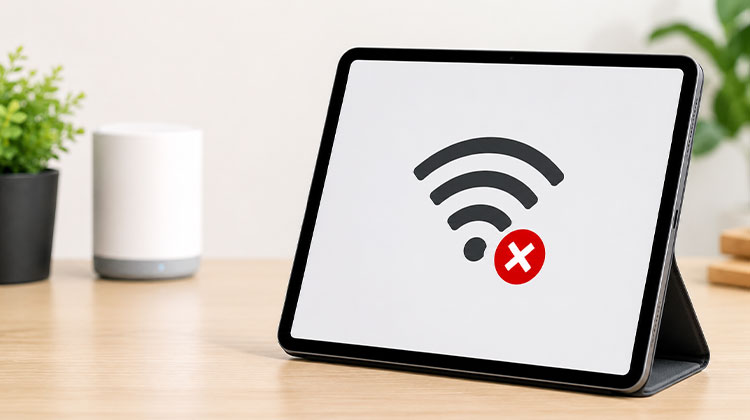
Recently, several users have reported that their iPad won’t connect to WiFi after updating to iPadOS 17. If you’re currently reading this blog and you’re experiencing the same problem. Don’t worry; it’s a common problem for all and can be solved with just a few steps. Here, we’ll explain how to fix iPad WiFi issue.
Why Won’t My iPad Connect to WiFi?
Several factors can prevent your iPad from connecting to a wifi:
- Incorrect WiFi password
- Temporary software glitches
- Router or modem problems
- Outdated iPadOS version
- Network configuration errors
- VPN or security app interference
- Weak WiFi signal
- Corrupted network settings
Now let’s look at the fixes.
Also read: WiFi Connected But No Internet? 10 Ultimate Fixes Guide
How to Fix iPad Won’t Connect to WiFi
1. Verify the WiFi Password
If your iPad won’t connect to WiFi, it is important to check if you entered the correct WiFi password. It’s easy to make typing mistakes, especially when entering passwords quickly. The first thing to do is verify the WiFi password. Also, be sure the Wi-Fi network you connected to is functioning.
2. Turn WiFi Off and Back On
In most cases, minor software issues could affect WiFi connectivity to your iPad. Switching off WiFi and then turning it on is likely a common way to fix iPad won’t connect to WiFi issues.
Go to the iPad Settings and then tap WiFi and flip the switch button to turn it off. Take a couple of minutes before turning the switch on once more. Also, you can turn off “Auto-Join” under your Wi-Fi network’s name.
3. Toggle Airplane Mode On and Off
Most WiFi issues can be fixed by turning Airplane Mode on and off. Check out the instructions below:
- Open Settings.
- Turn on Airplane Mode.
- Wait for about 30 seconds.
- Turn Airplane Mode off again.
- Try reconnecting to WiFi.
4. Restart Your iPad
If the 3 previous strategies didn’t work, try restarting your iPad again. This can help remove issues that prevent the iPad from connecting to WiFi.
- For an iPad with no Home button, press and hold the Top button, or the Volume button until you see the power off slider.
- For an iPad with a Home button, press and hold the Home button until “slide to power off” appears on the screen.
- Slide from left to right until you turn off your iPad. After about 8-10 seconds, continue pressing the top button to turn the device on.
5. Restart Your WiFi Router
If your iPad won’t connect to WiFi, the issue could be caused by external factors like the router. To confirm if the issue is due to the router, you can follow the steps below:
- Turn off your router.
- Unplug it from the power source.
- Wait for one minute.
- Plug it back in and restart it.
The router should be turned on until your iPad detects its WiFi signal and connects automatically.
You should also move your iPad closer to the router because a weak signal can prevent a successful connection.
6. Update the Router’s Firmware
If the WiFi router isn’t the primary reason for an iPad not connecting to WiFi issue, verify the router is running the latest firmware. In reality, the router has its own system like a mobile.
Go to the router manufacturer’s website and upgrade the router’s software to the latest version to boost your router’s performance.
7. Forget WiFi Network and Rejoin
If the iPad won’t connect to WiFi issue persists, then you might be unsure if software bugs are affecting the WiFi connection on your iPad. It’s time to leave your WiFi network and connect again to restart your WiFi connection. These are the steps to follow:
- Open Settings > Wi-Fi.
- Tap the i icon next to your network.
- Select Forget This Network.
- Reconnect by entering the password again.
This fix works particularly well if your iPad won’t connect to WiFi after changing router settings.
Also read: WiFi Calling Not Working on iPhone? Try These 7 Quick Solutions
8. Reset Network Settings on iPad
Another troubleshooting step to use to resolve the issue when your iPad won’t connect to WiFi is to set the network to its default settings. It will only restore the network settings. Other settings and data stored on your iPad will not be affected.
- Open Settings.
- Tap General.
- Select Transfer or Reset iPad.
- Tap Reset.
- Enter your iPad password and then confirm the reset.
If you often encounter various iPad issues, you could opt to reset all settings on your device.
9. Update iPadOS to the Latest Version
If your iPad is running an old version of iPadOS, it could be unable to connect to the Wi-Fi network. If this is the case, you’ll be better off updating your iPad.
- Open Settings.
- Tap General.
- Select Software Update.
- Install any available update
10. Factory Reset
Did the solutions mentioned above solve your iPad won’t connect to WiFi issue? If not, an alternative solution is to factory reset your iPad. This will update all iPad settings, including the WiFi connection.
Before resetting your iPad, make sure to create a complete backup of your important data, as all data will be erased after resetting the iPad. Following the reset, adhere to these instructions to erase your iPad and then set it up as a brand new one:
Reset your iPad:
- Open Settings.
- Tap General.
- Select Transfer or Reset iPad.
- Tap Erase All Content and Settings.
- Follow the on-screen instructions to set up your device again.
What If Your iPad Still Won’t Connect to WiFi?
If your iPad won’t connect to WiFi after trying all the fixes above, consider these possibilities:
- Your router may have hardware issues.
- The WiFi network may be experiencing an outage.
- Your iPad’s wireless hardware may be damaged.
- A recent software update may have introduced a bug.
Try connecting your iPad to another network. If it works elsewhere, the issue likely lies with your router rather than the device.
How to Prevent Future WiFi Problems on iPad
To reduce the chances of connection problems:
- Keep iPadOS updated.
- Restart your router regularly.
- Avoid installing unreliable VPN apps.
- Update router firmware when available.
- Use strong but compatible WiFi security settings.
These simple steps help maintain a stable and reliable connection.
Final Thoughts
If you’ve found that your iPad won’t connect to WiFi reliably, do not be afraid to try these 10 simple methods we have listed in the article. We hope your iPad is connected to WiFi once more. If you’re not, your iPad could have a hardware issue. It is recommended to visit an Apple Store to get your iPad repaired.
FAQs about iPad Won’t Connect to WiFi
Why does my iPad say Unable to Join Network?
The iPad unable to join network error usually appears due to an incorrect password, router configuration issues, software bugs, or damaged network settings.
Why won't my iPad connect to WiFi after an update?
Some iPadOS updates can introduce temporary WiFi bugs or compatibility issues. Updating to the latest version or resetting network settings often resolves the problem.
Why won't my iPad connect to my home WiFi but connects elsewhere?
If your iPad connects to other networks, the issue is likely with your home router settings, signal strength, or internet service provider.
Should I reset network settings if my iPad won't connect to WiFi?
Yes. Resetting network settings is one of the most effective fixes when other troubleshooting methods fail..










Leave a comment