





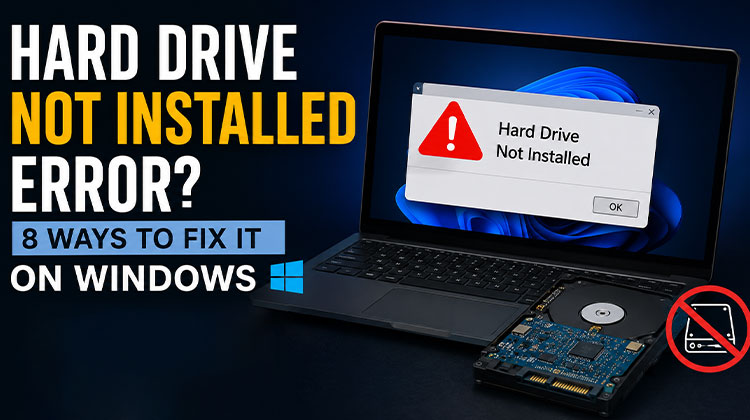
If you’re getting an error message hard drive – Not Installed on a Windows 11 or 10 PC, this article is intended to assist you. In this article, we’ll identify the possible causes of ” Hard Drive Not Installed ” and provide the best solutions to fix the ” Hard Drive Not Installed ” error.
What Causes the Hard Drive Not Installed Error?
There are many reasons your PC is reporting that no hard disk installed, or identified, or is lacking an operating system at startup:
- Loose or disconnected hard drive cables
- Incorrect BIOS or UEFI settings
- Corrupted BIOS configuration
- Failed or damaged hard drive
- Outdated BIOS firmware
- Improper boot order settings
- SSD or HDD hardware failure
- Recent Windows updates are causing conflicts
- Physical damage caused by overheating or impact
Troubleshooting Tips Before You Begin
If you’re facing the Hard Drive Not Installed ” problem in Windows 11, first try these suggestions:
- Unplug the system and remove the cover on the base. Remove the hard drive and battery. After that, press your power button down for 30 seconds. Reconnect the two devices and turn on the power, and check whether the drive has been recognized.
- If not, and your system is covered by warranty, contact Dell to request a replacement drive.
If you’d like to solve the problem yourself, try the solutions listed below in any order you like and see if it can resolve the issue.
Also read: Solve External Hard Drive I/O Device Error in 9 Simple Methods
How to Fix Hard Drive Not Installed Error
1. Continue to press the F1 key.
If your PC displays an HDD not installed ” error, use F1 to proceed. This is a BIOS Error message. Pressing F1 is a contingency procedure that may help you get around an issue, and the computer might load into Windows properly after pressing F1.
2. Check BIOS setting
BIOS manages the initial settings and boot process for your computer and prepares its operating system to boot. Hard drives are typically connected to an onboard SATA or IDE port. If the port to which the hard drive is connected is disabled, the drive cannot be detected by the computer, and you will receive the Hard Drive Not Installed warning message. In this instance, you must verify or reset the BIOS configuration following the steps below.
To verify your BIOS settings:
- Restart your computer.
- Press F2, F10, F12, or Delete during startup to enter BIOS.
- Open the Storage, Drives, or System Configuration section.
- Verify that your SSD or HDD appears in the list.
- Ensure the SATA controller is enabled.
- Save your changes and restart the computer.
If necessary, restore the BIOS to its default settings and try again.
3. Perform a PC hard reset
A forced or hard reset erases all data on your computer’s memory and may restore functionality. Resetting your computer causes the system to erase and re-establish the software connectivity between the BIOS and the hardware.
Do these things:
- Turn off your computer.
- Remove the computer from any docking station.
- Remove any external devices connected to your computer. Unplug the AC adapter from your computer.
- Take the battery from the battery compartment.
- Press and hold the button for 15 seconds, releasing any remaining electrical charge from the capacitors, which protect the memory.
- Plug in the battery and then connect the AC adapter back to the computer. Do not connect any other peripheral devices, like USB display devices, storage units, or printers.
- Turn on the computer.
- If the Start menu appears, then select Start Windows normally using the arrow keys, and press Enter.
4. Check the Hard Drive Cable Connections
Hard drive not installed ” error could occur if your computer isn’t physically connected to the drive. Check the cable connecting to the hard drive to see if it is loose or if the SATA or power cable could be worn out. If this is the case, you can connect the cables to each drive and your MOBO and replace it with a fresh one.
5. Run Hardware Diagnostics
Another method to check for problems is to perform hardware diagnostics to determine the issue. It is important to know that Dell computers have an inbuilt software for hardware diagnostics. This program can be used to test whether the PC’s hardware is working properly.
Restart your Dell computer, and then press F12. After that, select Diagnostic from the BIOS menu, and then press Enter. Follow the prompts displayed on the screen, and then respond appropriately to complete the diagnosis. The process can take some time.
Also read: External Hard Drive Not Showing Up in Windows 11? Here’s How to Fix It
6. Check the Hard Drive for Physical Damage
Take the hard drive out of the laptop and reconnect it to a different computer to see whether it’s still working. If not, it is recommended to replace the hard drive with a new one. If it is, test the drive to determine whether there are bad sectors.
7. Perform a Windows Repair Install
A faulty Windows installation can cause errors and prevent Windows from loading. In turn, the Dell system may display a hard drive not installed error during booting. If this happens, you could try running a repair install to fix the issue. If Windows recognizes the drive as being in use when you run a repair installation, then the drive is not damaged.
If the repair installation isn’t working, your drive could be infected by a boot sector virus, which you must fix by formatting the hard drive.
8. Correct the BIOS Date and Time
In some cases, this issue could be due to incorrect dates and times being set in the timer. That is why you should use BIOS to set the right date and time.
To fix this:
- Enter BIOS settings.
- Locate the Date and Time section.
- Set the correct values.
- Save the changes and restart your computer.
How to Prevent the Hard Drive Not Installed Error
You can reduce the chances of the hard drive not installed issue occurring again by:
- Keeping BIOS firmware updated
- Avoiding sudden power shutdowns
- Monitoring hard drive health regularly
- Backing up important files
- Keeping your laptop cool during heavy workloads
- Protecting your device from physical shocks and drops
Bottom Line
In the end. A hard disk not installed error is a common startup problem for computers and laptops. However, there are several simple methods to fix this error while starting your computer.
FAQs: Hard Drive Not Installed
Why does my computer say Hard Drive Not Installed?
This message appears when the BIOS or UEFI firmware cannot detect the internal HDD or SSD during startup.
Can a bad SSD cause the Hard Drive Not Installed error?
Yes. A failed SSD or HDD is one of the most common causes of this problem.
Should I replace my hard drive if BIOS cannot detect it?
If cable checks, BIOS resets, and diagnostics fail to detect the drive, replacement is usually necessary.
Can I recover data from a hard drive that is not detected?
If the drive has not suffered physical damage, data recovery software or professional recovery services may help recover your files.






Leave a comment