






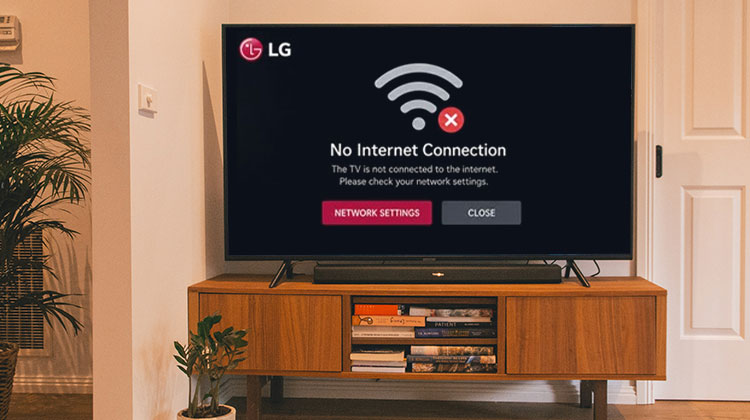
This article provides more than ten options to resolve the “LG smart TV not connecting to WiFi” issue: disable quick start, change location settings, disable auto date and time or auto optimization, and update/reset the firmware.
LG TV manufacturers produce ultra-high-definition (UHD) TVs. Smart TVs can provide high-quality and immersive experiences. However, they may be challenging, such as LG TV not connecting to WiFi.
Why is my LG TV not connecting to WiFi?
LG TV not connecting to WiFi isn’t just a problem for the specific model. In certain situations, this issue can happen to a device that is out of the box and working properly. Why is my LG TV keeping disconnecting from wifi? The reason could be one of the following causes.
- Temporary TV or router glitches
- Weak WiFi signal
- Incorrect WiFi password
- Router or modem problems
- DNS or network configuration issues
- Outdated LG TV software
- Too many devices connected to the router
- 5GHz compatibility or signal problems
- Interference from other wireless devices
- Problems with the TV’s network hardware
Also read: YouTube TV Not Working? 9 Quick Fixes That Work in 2026
How to Fix LG TV Not Connecting to WiFi
1. Restart Your LG TV
A temporary software or network glitch can prevent your LG TV from connecting to WiFi. Power cycling the television refreshes its system and network connection. This simple fix is worth trying first if you find your LG TV not connecting to WiFi.
Steps:
- Turn off your LG TV.
- Unplug it from the power outlet.
- Wait 60 seconds.
- Plug it back in.
- Turn on the TV.
- Try connecting to WiFi.
2. Restart Your WiFi Router
Router problems can prevent your television from establishing a stable internet connection. Restarting the router refreshes the network and can resolve temporary connectivity issues. This is especially useful when your LG TV not connecting to WiFi while other devices also experience problems.
Steps:
- Turn off your router.
- Unplug it from the power.
- Wait 30–60 seconds.
- Plug it back in.
- Wait for the connection to return.
- Connect your TV to WiFi.
3. Check Your WiFi Password
An incorrect WiFi password is one of the simplest reasons an LG TV won’t connect to WiFi. Carefully check the password, including uppercase letters, numbers, and special characters. Re-entering the correct credentials can restore the connection without changing other network settings.
Steps:
- Open Settings.
- Go to Network.
- Select Wi-Fi Connection.
- Choose your wireless network.
- Re-enter the correct password.
- Select Connect.
4. Move Your Router Closer
A weak wireless signal can cause connection failures, slow internet, or frequent disconnections. Walls, furniture, and electronic devices may interfere with WiFi signals. Moving the router closer to your television can improve wifi signal strength and help resolve LG TV WiFi not working issues.
Steps:
- Move the router closer to the TV.
- Remove obstacles between the router and TV.
- Keep the router away from other electronics.
- Restart the router.
- Try connecting again.
5. Forget and Reconnect to WiFi
Saved network information can sometimes become incorrect or corrupted. Removing the existing WiFi connection allows your television to create a fresh network configuration. This can help when your LG TV not connecting to WiFi issue continues despite having a working router.
Steps:
- Open Settings.
- Go to Network.
- Select Wi-Fi Connection.
- Select your WiFi network.
- Choose the available forget/remove option.
- Select the network again.
- Enter your WiFi password.
- Connect to the network.
6. Connect to a Different WiFi Network
Testing another network helps identify whether the problem is caused by your TV or home router. A mobile hotspot is useful because it provides a separate connection. If the TV connects successfully, your home network may be causing the problem.
Steps:
- Enable a hotspot on your phone.
- Open your TV’s network settings.
- Select Wi-Fi Connection.
- Choose your phone’s hotspot.
- Enter the hotspot password.
- Check whether the TV connects.
7. Disable Quick Start+
Quick Start+ allows your LG TV to start faster, but temporarily disabling it may help resolve certain connectivity glitches. Turning it off and completely restarting the television gives the network system a fresh start and may fix connection problems.
Steps:
- Open Settings.
- Select All Settings.
- Open General.
- Find Quick Start+.
- Turn it Off.
- Unplug the TV for 60 seconds.
- Turn it back on.
- Test the WiFi connection.
8. Change DNS Settings
If your TV connects to WiFi but cannot access the internet, DNS problems could be responsible. Manually entering a public DNS server may help resolve internet access issues and is worth trying if your LG TV not connecting to WiFi problem actually appears as a “connected but no internet” message.
Steps:
- Open Settings.
- Go to Network.
- Select your WiFi connection.
- Open Advanced Settings or Edit.
- Disable automatic DNS if available.
- Enter 8.8.8.8.
- Save the settings.
- Test the internet connection.
9. Update LG TV Software
Outdated TV software can sometimes create compatibility or connectivity problems. Installing available software updates can improve system stability and fix known bugs. If your LG TV not connecting to WiFi after other basic troubleshooting, checking for an update is worthwhile.
Steps:
- Open Settings.
- Select All Settings.
- Go to Support.
- Select Software Update.
- Choose Check for Updates.
- Install an available update.
- Restart the TV.
- Test the connection.
Also read: Best DNS Server for Gaming in 2025: Boost Speed & Reduce Lag
10. Reset LG TV Network Settings
If none of the previous solutions work, resetting the network configuration can remove incorrect settings affecting your connection. After the reset, reconnect your TV to your wireless network using the correct password and check whether the problem has been resolved.
Steps:
- Open Settings.
- Go to Network.
- Select Wi-Fi Connection.
- Look for the network reset or reconnect option.
- Confirm the reset.
- Select your WiFi network.
- Enter the password.
- Test the connection.
Quick Comparison: What the WiFi Problem Tells You
| What You See | Likely Cause | What to Try |
|---|---|---|
| WiFi network not visible | Router/signal/TV issue | Restart router and TV |
| Wrong password | Incorrect credentials | Re-enter password |
| Connected but no internet | Router/DNS/ISP issue | Restart router or change DNS |
| WiFi keeps disconnecting | Weak signal/interference | Move router closer |
| Hotspot works but home WiFi doesn’t | Router/network issue | Check router settings |
| No networks detected anywhere | Possible TV issue | Contact LG Support |
Prevention Tips
To prevent your LG TV Not Connecting to WiFi problem from happening again:
- Keep your TV and router within a good range.
- Restart your router regularly.
- Keep your LG TV software updated.
- Use a strong and stable WiFi connection.
- Avoid blocking the router with furniture.
- Check your WiFi password before reconnecting.
- Disconnect unused devices from your network.
- Avoid placing the router near other electronics.
Conclusion: Solved LG TV not connecting to WiFi issue
If your LG TV Not Connecting to WiFi, don’t worry. Start by restarting your TV and router, then check your WiFi password and signal. If it still doesn’t work, try updating the TV, changing DNS settings, or resetting the network to reconnect.
FAQs: LG TV Not Connecting to WiFi
Why can't my LG TV find any WiFi networks?
Restart your TV and router and check whether other devices can detect your network. If the TV cannot detect any WiFi networks, test it with a mobile hotspot to identify whether the issue is network-related.
Why is my LG TV not connecting to WiFi after an update?
A software update can sometimes change network settings or cause temporary glitches. Restart your TV and router, reconnect to WiFi, and check whether another software update is available.
Can changing DNS fix LG TV WiFi problems?
Yes. If your LG TV connects to WiFi but cannot access the internet, changing the DNS server may help. You can try a public DNS such as 8.8.8.8.
How do I know if my LG TV WiFi hardware is broken?
If the TV cannot detect any WiFi networks, including a phone hotspot, after restarting and updating the TV, there could be a hardware issue. LG Support or a qualified technician can diagnose it.









Leave a comment