






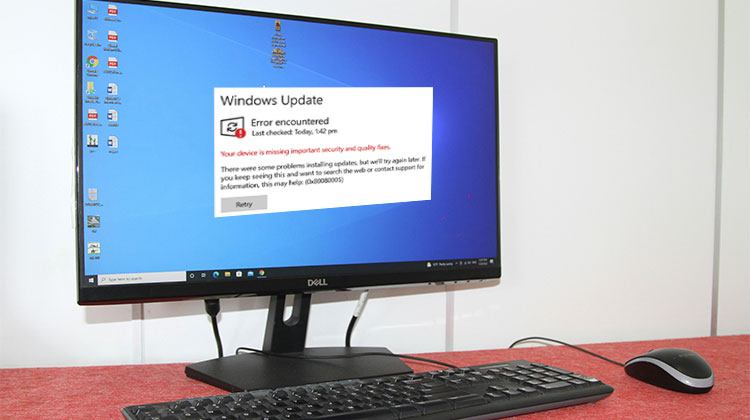
Since the release of Windows 10 and Microsoft’s shift to a software-as-a-service model for their flagship operating system, the updates have been coming thick and fast. Every year, Microsoft releases major updates compatible with Windows 10, whether you want update or not. There are also numerous small updates, ranging from crucial security patches to less important and minor updates.
When everything is running smoothly, it’s hard to tell that you’re experiencing any issues. If Windows updates failed, however, the results could range from blocked updates to a system that no longer functions!
Common Causes of Windows Update Errors
Corrupted or Missing System Files
Damaged Windows system files often prevent updates from downloading or installing correctly.
Insufficient Disk Space
Windows updates require free storage for temporary files, backups, and installation data.
Unstable or Slow Internet Connection
Interrupted or weak connections can cause Windows Update downloads to fail or freeze.
Windows Update Services Disabled
If required Windows services are turned off, updates cannot run properly.
Incorrect Date and Time Settings
Wrong system time can interfere with update authentication and downloads.
Antivirus or Firewall Interference
Third-party security software may block Windows Update processes.
Outdated or Incompatible Device Drivers
Old drivers—especially network or graphics drivers—can cause update conflicts.
Corrupted Windows Update Cache
Broken files in the SoftwareDistribution folder can trigger repeated update failures.
Metered Network or Proxy Settings Enabled
Windows may restrict updates when a metered connection or proxy is active.
Recently Installed Faulty Windows Update
A bad or buggy update can cause future updates to fail or get stuck.
Also read: Windows Search Bar Not Working in Windows 11: Causes & Easy Fixes
Check if You Have an Update Error
If you suspect that there’s some type of Windows Update error on your PC, you can verify the issue by examining your status on updates:
- Open the Start Menu.
- Enter “Check For Updates,” and then choose it.
- Check the status of Windows updates. If there are any Windows Update errors, they are listed here.
If there isn’t, you’ll see the green checkmark and a message indicating that you’re current. While it’s unlikely to be an error in the open, you might see the indication that your previous update is pending and hasn’t downloaded or failed to install. The solutions we’ll go over below will allow you deal with Windows Update error issues.
Note the Windows Update Error Code
When checking the update status, make a list of all Windows update error codes that you can observe. You can search for these codes to discover the exact reason your updates aren’t working.
Error codes typically include a code such as “0x80070070, 0x800f081f, or 0x8024402c,” and there may be more than one. If you enter these into the Google search, then you’re most likely to receive precise information on the issue.
Check for Stuck or Failed Updates
Even if you don’t see an actual error and Windows Update error code, it doesn’t mean you’re not experiencing an issue. Windows keeps a record of your update history, making it easy to determine what’s happened while you’ve been away.
- Open your Start Menu and then select the settings cog.
- Select Update and Security and then Windows Update.
- Then, click View Update History.
You can see the extent to which anything attempted to download or install, and then failed. Sometimes, the nature of the update will give you an indication of the problem.
How to Fix Windows Update Errors
Restart Your PC
You’ve verified your update status and have noticed errors that could be popping up, but what do you first do to correct a Windows update error? Rebooting your system could be the solution.
Sometimes an update isn’t downloaded and installed due to an unresolved dependency for a time, until Windows is booted up. It can be completely pending an update to install first, but it will not be completed until the next restart.
If you click on the Start Menu and then press the power button, you could find “Update and then restart” as an option. This is a clear indication that you are pending updates that need to be restarted before the process can begin.
Check Your Windows Update Settings
If you aren’t able to spot errors, and your version of Windows isn’t auto-updating, it may be because the settings for your updates are not correct:
- Open the Start Menu.
- Click on Windows Update Settings and then click on it once it is displayed.
- Verify whether your updates are paused or if your active hours are set according to your preferences.
Select Advanced Settings to explore more options for configuration. If you’ve set your Internet connectivity to “metered,” you’ll have to turn off the switch that allows updates to download using myriad connections. ensure that you’re ready to cover the data costs or any charges.
Run the Windows Update Troubleshooter
Microsoft is aware that its update system is prone to going off track at times, and that’s why it has included an application specifically designed for Windows to identify and fix Windows Update errors. How you can run it:
- Start the Start Menu and click on the Settings cog.
- Choose Update and Security.
Select troubleshoot and select additional troubleshooting tools. - In the final step, under Get up and running, choose Windows Update and run the Troubleshooter.
- Follow the screen-based instructions.
The Update Troubleshooter can resolve minor issues related to Windows Update without you needing any additional actions.
Also read: How to Fix Video Scheduler Internal Error in Windows 10/11
Free Up Disk Space
If Windows launches an upgrade and downloads it, it will require storage space on your hard drive, and lots of it! To download update information, it requires storage space to update files and store backups so that you can roll back problematic updates.
If you do not have enough space to allow Windows Update to complete its task, you can start by going to the Create Additional Disk Space option within Windows 10 to build extra space.
Delete the Software Distribution Files
These files that Windows Update works with are stored in a distribution directory. The most straightforward option is to delete the folder. It isn’t possible to do this when your Windows Update service is running, and you must restart in Safe Mode and do the following:
- Go to your Windows folder using Windows Explorer.
- Choose from the SoftwareDistribution folder.
- Remove the entire folder.
- Restart Windows normally.
It won’t affect your system in any way and can force Windows Update to rebuild the update’s working files from scratch.
Scan and Repair Corrupted System Files
According to reports from some users, it seems that corrupted or missing files in your system can disrupt the update process and lead to Windows update errors. There are many reasons why system files are corrupted or lost; however, what is important is how easily the issue can be resolved. Windows has a tool called System File Checker.
Make Sure Hardware Drivers are Up To Date
Although Windows Update can update most things on its own, certain third-party hardware drivers or utilities aren’t under its control. If you’ve been waiting for a long time since upgrading your GPU drivers or another important component, you might be preventing the latest Windows update.
Conducting an audit of all your drivers isn’t easy, but DriverBooster can automate and speed up the process.
Try Rolling Back Your Last Update
Your most recent update could be in error because your previous update was flawed in some way. There is a 10-day window in which you can make the changes made by the last update. This means that it is likely you’ll be unable to do this again if the next update arrives. But if a broken update is followed shortly by an improvement, you may need to roll back your changes in certain conditions.
- Open the Start Menu.
- Enter Windows Update Settings and then click Open when it opens.
- Choose “Recovery” in the menu on either side.
- Search for the older version of Windows 10.
- Select the Get Started button if available.
Follow the steps. If you’re late, you can find a different method to eliminate certain updates directly by uninstalling them.
Uninstall Specific Updates
You can uninstall unwanted or unsafe updates right in Windows 10. It’s simple; however, we advise you to ensure that a specific update is the cause. For instance, if other users have reported that an updates are causing issues on Windows Update or is otherwise affected. How to get rid of updates:
- Open the Control Panel.
- Select Programs.
- Select View installed updates.
You will see a list of installed updates that can be wiped out. Some updates may not be on the list, but a few updates are likely to be present. Simply right-click any update you’d like to remove and select uninstall.
Manually Download and Install Updates
While the automatic update option is useful, there are times when you need to handle things by yourself. Most users might not realize that Microsoft provides its cumulative updates as separate downloads. If you consider it, it makes complete sense.
Because not all PCs that run Windows 10 have adequate internet connectivity. Some users have multiple computers to update, and offline installers make it unnecessary to download the exact update files for each computer.
To download and install a Windows 10 update, go to the Microsoft Update Catalog and type in the KB number for the most recent update. You can find your KB number by searching Google for it.
After that, simply click the Download button for the relevant update and then install it just like you would any other downloaded application.
Also read: How to Fix Acer Monitor No Signal Error: 8 Quick Fixes
Perform a Repair Install of Windows
If you see a Windows Update error, you can utilize this Windows 10 installer to repair your Windows installation without losing any data or software. All you need to do is launch the setup process on the Windows 10 media. If you do not already have Windows 10 media, you can download it for free from Microsoft.
If asked, select the option to “upgrade” your Windows installation, and then choose to preserve your data and programs. This can fail in some instances; therefore, it is recommended to consider it as a last option.
Contact Microsoft Support
If all else fails, make a point to chat with Microsoft Support. In our experience, their chat support is speedy and effective. They can even assume control of your computer and quickly identify and fix problems.
This is particularly useful if the reason your last Windows update failed is due to a known issue that Microsoft needs to address on its own end. The expert will notify you if there’s anything else you can do to fix the Windows Update error.
FAQs: Windows Update Error
Why do Windows updates fail or show errors?
Windows updates can fail due to corrupted update files, insufficient disk space, interrupted internet connections, software conflicts (like antivirus), outdated drivers, or issues with the update service itself.
What should I do if I see a specific Windows Update error code?
Make a note of the error code and search it online — many codes like 0x80073701, 0x800f0988 or 0xC1900101 have documented causes and fixes. Often, running the troubleshooter or retrying the update will resolve the issue.
How can I fix Windows Update errors automatically?
Run the Windows Update Troubleshooter: Go to Settings → System → Troubleshoot → Other troubleshooters → Windows Update → Run. The tool detects and fixes many common issues automatically.
Can corrupted update cache cause errors?
Yes. Corrupted files in the Windows Update cache can prevent installations. Clearing the cache by deleting the SoftwareDistribution folder can often fix these issues.
Can I skip a failed Windows update?
You can pause or delay updates temporarily via Windows Update settings, but skipping critical security patches long‑term is not recommended for security reasons.









Leave a comment