






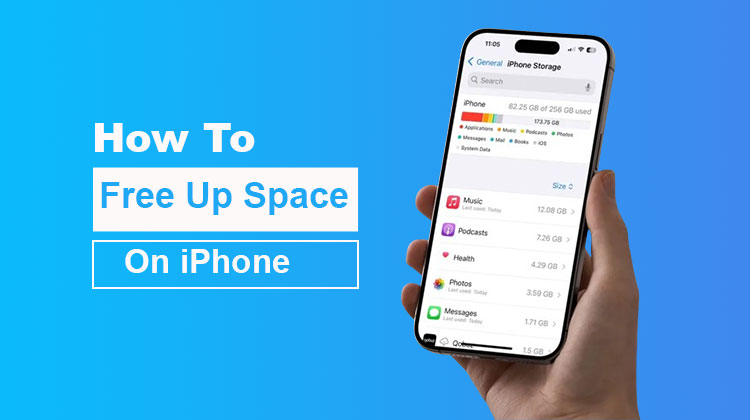
Is your iPhone storage full? Do you need solutions to free up space without needing to purchase additional storage from iCloud? In this post, you learn how to free up space on iPhone.
How to Free Up Space on iPhone: 10 Best Storage Cleanup Tips
Here are the 10 best ways to free up space on iPhone:
1. Delete Unused iPhone Apps
Most users have tons of apps installed on their iPhones that they do not even use.
These apps take up storage to download to your phone, but they also conserve valuable storage space locally on your iPhone.
2. Clean Up Your Camera Roll
If you’ve been using your iPhone for a long time, probably have a plethora of photos and videos saved in the Photos app.
One way to clean up the camera roll is to go in and delete all your old images, videos, screenshots, and other data that you haven’t seen for a long time. This method can easily free up space on iPhone and make your iPhone fast.
Important note:
The fastest and simplest method to clear iPhone storage is to erase huge HD or 4K movies.
You can manually open your camera roll and begin deleting the items you don’t use (which can take a long time).
Also read: Why Is My iPhone So Slow? 12 Fixes to Speed Up The iPhone
3. Delete Large Files in Messages
Another easy and quick method to free up space iPhone storage is to delete old and large files within your iMessage application.
How to delete a large file in iMessages and free up space on iPhone
- Go to Settings
- General
- iPhone Storage
- Scroll down, then hit “Messages” (give it a time to load)
- Tap “Review Large Attachments”
From this point, you can navigate through your most important images and videos that are stored within your Messages app. You can then delete the videos and photos that you do not need to keep.
4. Remove Downloaded Podcasts
If you subscribe to podcasts, a lot of them have regularly scheduled, often daily, episodes that automatically download to your mobile.
Over time, these 1-2 hour-long episodes can occupy an enormous amount of space on your phone.
Log in to your Apple Podcasts app and Spotify app to uninstall the podcasts that free up space on iPhone.
5. Clean Cookies on iPhone
How do you define cookies? Cookies are tiny files that let websites keep information about you in case you visit the website next time.
For example, when you log into Facebook, Twitter, or any other site… Cookies will keep you logged in the next time you access the site.
Regularly clearing your cookies will make a huge difference to the memory on your phone.
How to clear cookies on your iPhone:
- Open Settings
- Tap Safari
- Select Advanced (at the lower)
- Website Data
- Tap “Remove All Website Data”
You can do this individually and remove cookies for each website you want to clear as well.
6. Delete Other storage on iPhone
What is Other Storage iPhone? When you open the storage on your phone, iPhone groups all of the data and files on your phone that can’t be categorized as “Other”.
That is, if the device isn’t sure what to label the item, it will simply put it in the “Other” category.
How do I clear the other storage on iPhone?
- Go to Settings
- General
- iPhone Storage
- Scroll to the bottom, and then click “Clear data for individual apps.”
Once your phone has had time to load and then calculate your storage size, tap “Clear app data for individual apps,” and all trash files will be removed from your iPhone.
Important note:
You can also delete any “Other” storage and cache on your iPhone by performing a soft reset on your device. It can free up space on iPhone
How to factory reset your iPhone:
- Tap Settings
- General
- Transfer or Reset iPhone
- Reset
From here, you can choose which settings you would like to clear and reset.
What happens when you click “Reset All Settings”?
Your iPhone won’t be completely erased, but you can keep your messages, apps, pictures, notes, and much more.
Your information will remain the same, but settings similar to these will be removed:
- Wifi
- Bluetooth
- Do Not Disturb
- Notifications
- General settings
- Sound and brightness settings
All of your messages, data, emails, your photo library, and much more will be available when your iPhone powers back on.
7. Offload Unused Apps
When you delete unused apps that aren’t used in this way, you’re actually deleting the app from your phone, but you’re saving the data whenever you decide to download it.
What is this referring to?
For instance, if Instagram is not loaded on your device, the app will be removed from your phone to conserve precious storage space. However, come back to install the app again. You won’t lose the accounts that you’re signed in and your drafts will be available, and so on.
Also read: How to Clone an iPhone: Quick and Easy Guide
8. Optimize Photos on Your iPhone
What is it that you mean when you activate “Optimize Photos” on your iPhone?
When you turn on this feature, it will automatically upload and save all of the HD images and videos from the camera roll to your iCloud.
You can access all these images and videos stored on your camera roll, but the quality will be compressed and less than the high-resolution versions that are stored on cloud storage.
Does this make sense?
I believe that the compression Apple uses to compress your videos and photos isn’t noticeable.
The fact that you can free up space on iPhone with this feature is huge.
For instance, if I were to optimize my photos for my phone, it would reduce 229.22 12 GB of data stored on my phone.
How to turn on “Optimize Photos.”
- Go to Settings
- Photos
- Tap “Optimize iPhone Storage.”
That’s it.
Your phone will automatically optimize the camera roll size and keep the high-resolution versions on iCloud.
How do I disable optimizing images for iPhone?
- Go to Settings
- Photos
- Tap “Disable Optimize iPhone Storage.”
Your phone will automatically start loading high-quality videos and photos back onto the camera roll of your iCloud.
9. Clear Cache on iPhone
The cache on the iPhone is the temporary data that a website saves on your iPhone after visiting the website. The reason caches exist is to ensure that the site will load faster when you next browse to that site.
How do you clear data on Google Chrome?
- Open the Chrome app
- Click the three dots (bottom right)
- Settings
- Privacy
- Clear Browsing Data
- Then tap “Confirm.”
How do I clear the cache on Safari?
- Go to Settings
- Safari
- Clear History and Website Data
10. Upgrade iCloud Storage (Optional)
Do you want to upgrade iCloud storage on your iPhone?
How to do this
- Go to “Settings”
- Tap your name on the screen.
- Tap “iCloud.”
- Scroll to the bottom and click “Manage Your Plan.”
- Select the new iCloud plans for storage, and purchase more iCloud storage
What is iCloud Storage? iCloud storage from Apple is its official “cloud storage” technology.
Data stored in iCloud makes sure that you don’t lose your videos or photos (even if you lose your iPhone or Mac).
Access your iCloud data on any Apple device you like (as long as you’ve an Internet access).
Apple offers four options for iCloud storage:
- Free 5GB of storage
- $0.99 monthly – 50GB storage
- $2.99 per month – 200GB storage
- $10.99 per month – 2TB storage
These prices are accurate as per Apple’s official website at the time of publishing this blog.
FAQs: Free Up Space on iPhone
How do I check what is taking up space on my iPhone?
Go to Settings > General > iPhone Storage to see a detailed storage breakdown.
How do I free up space on iPhone quickly?
Delete unused apps, remove large photos and videos, clear Safari cache, and delete large message attachments.
Can I free up space without deleting apps?
Yes. Enable Offload Unused Apps, optimize photos, clear browser cache, and delete large files.
Is upgrading iCloud necessary to free up space?
Not always. Most users can free several GB by deleting unused apps, clearing cache, and removing large files without upgrading iCloud.









Leave a comment