






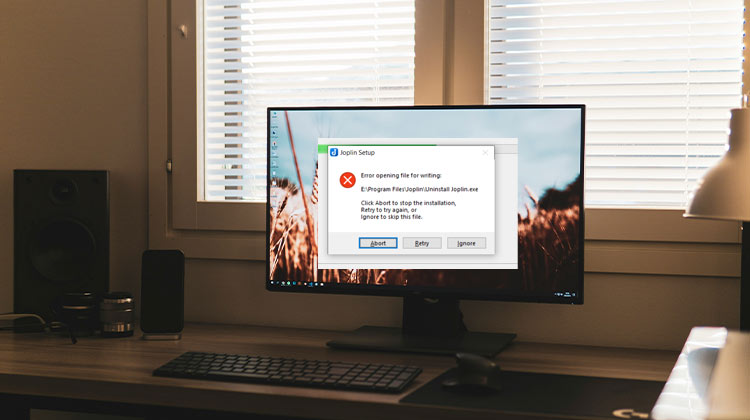
Installation errors occur when users attempt to install specific desktop software applications. For instance, the “Error opening file for writing” error is among the most frequently encountered installation issues reported on support forums. Users who want to address this issue are greeted with the “Error opening file for writing” message when they select install software in the setup wizards.
Common reasons for Error Opening File for Writing:
Here are some common reasons for the error opening file for writing during installation on Windows PC.
- Lack of administrator permissions
- Antivirus or security software is blocking the file
- Corrupted or incomplete installation files
- Folder or file set to read-only permission
- Insufficient disk space on the system
- Restricted user account permissions
- File path or directory access issues
This means users can not install Windows software due to this error. Do you have to fix the same error in your installation? If so, here’s how to fix this “opening file for writing” error on Windows 10 and 11.
Also read: Windows Update Stuck: 9 Easy Ways to Solve It
Fix Error Opening File for Writing on Windows 10 & 11
1. Download the Setup File Again
First, you can download the setup file another time. The second time, you can choose to save the setup file in another location. Also, ensure you’ve downloaded the right file for your computer, as the software is compatible with different platforms and supports 32 or 64-bit versions.
2. Run the Installer as Administrator
It’s a quick solution for the “opening file for writing” error that many users have reported working. To implement it, go to the File Explorer (the Taskbar’s button) and then go to the directory that contains the wizard to set up the software that you cannot install. Right-click the software’s installer file and select “Run as Administrator”.
3. Change Your Account to Administrator
The “opening file for writing” error is more likely to occur in a non-administrator account with limited access rights. If your user account is standard, switch to an administrator account. It will have higher permissions to install software such as this:
- Open the Control Panel, and click Users Accounts in the window that opens.
- Click the Change the account type option.
- Select the Administrator radio button.
- Choose the change account type option to change to an administrator account.
4. Change the Installation Drive
Some users have resolved this installation issue by selecting the alternative installation drive C. Therefore, it would be worth trying for users who have partitioned drives or external storage devices. If you can choose an alternative, then select Browse in the wizard software to change the installation drive. You can then select an appropriate folder to install before selecting the installation.
5. Run the Program Compatibility Troubleshooter
This “opening file for writing” error could be caused by a problem with setup files. Running the Program Compatibility Troubleshooter will resolve the issue. This is the way to test the troubleshooter on the setup file for Windows:
- First, open the folder in Explorer that includes the software setup file causing this error.
- Right-click on the file’s setup EXE file to open its context menu, then select the properties option.
- Then, click Compatibility on the window’s tab bar.
- Then, next, press the Run compatibility troubleshooter button.
- Select Try recommended settings to display the test this program option.
- Click Test this program to open the setup wizard, which will display the compatibility settings. After that, try installing the software again.
6. Delete Temporary Files
Another possibility is that corrupted temporary data on your computer causes this issue. Therefore, it is advised to eliminate temporary files. It’s possible to do this using the Disk Cleanup tool, Settings app, and Command Prompt, or other methods to delete temporary files on Windows.
7. Grant Full Control Permissions to the Installer
Sometimes, an installation file’s security settings could require to be changed to increase its permissions. To accomplish this, add a new Everyone user group and select full control. You can modify the security settings in the installation file using the steps below:
- Press Win + E to open File Explorer
- Locate the installation file
- Right-click and select Properties
- Open the Security tab
- Click Edit → Add
- Add the Everyone group
- Enable Full Control permissions
- Click Apply and OK
Also read: BIOS ID Check Error: 6 Easy Ways to Fix It During BIOS Update
8. Disable User Account Control (UAC)
User Account Control is a security feature in Windows that prevents applications from making changes to a computer. This feature may create an installation issue when set to high.
Try temporarily turning off User Account Control with one of the methods we have listed in our guide for disabling UAC for Windows. Select to disable UAC completely and then try to install the program again.
9. Disable Controlled Folder Access
Controlled access to folders is a security feature that can cause an “error opening file for writing” issue on Windows 10 and 11. The feature blocks access to and changes protected folders. This is how to disable Controlled Folder Access if it’s activated:
- Start Windows Security by double-clicking a shield icon in the system tray, which opens the application.
- Next, select the Security & Virus tab in Windows Security’s navigation bar.
- Select, Manage ransomware protection navigation option to access the Access control folder settings.
- Click on the Controlled folder access toggle to turn the option off.
10. Uninstall the Software Old Version
If you’re trying to download a new version of the software that’s already installed on your computer, you must uninstall the current (old) version of the program. Uninstall the software using the Programs and Features application as described in our tutorial on removal of Windows programs.
Wrap up
These solutions address a variety of common causes for the “error opening file for writing”, ranging from insufficient permissions to a security feature being blocked. One of these solutions can likely solve the “opening file for writing” error on your PC. After that, you can install the application you need to fix the issue in Windows.
FAQs: Error Opening File for Writing
What is the “Error Opening File for Writing” in Windows?
This error appears when a software installer cannot write files to your system during installation. It usually happens due to permission issues, antivirus restrictions, or corrupted setup files.
Why does the “Error Opening File for Writing” occur?
This error usually happens due to permission issues, antivirus blocking the installer, corrupted setup files, or restricted folder access.
Can antivirus software cause the “Error Opening File for Writing”?
Yes, antivirus or security software may block installers from modifying files, which can trigger this error.
Does deleting temporary files help fix installation errors?
Yes, clearing temporary files can remove corrupted data that may block installations.
How can I fix the “Error Opening File for Writing” error?
You can fix it by running the installer as Administrator, downloading the setup file again, clearing temporary files, or adjusting file permissions.









Leave a comment