






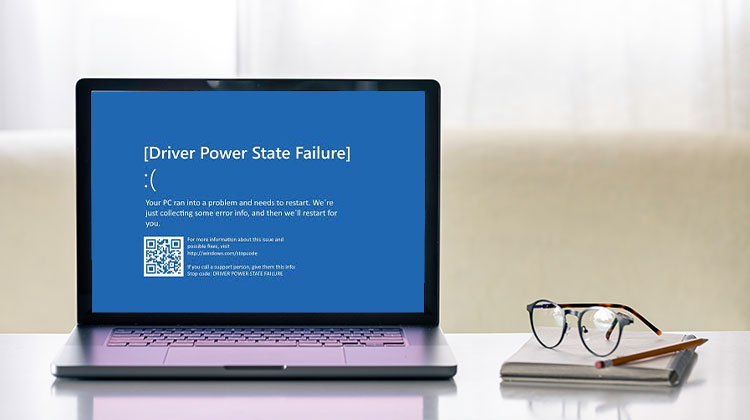
There’s a real fear in the world of Windows OS and the ‘Blue Screen of Death’ (BSOD), mostly because of the legacy issues that result from Windows OS, which is a source of danger for infamous system crash errors. One of these is the driver power state failure in Windows 10. Most often, it’s caused by an incompatible driver installation or a modification to the power settings.
Driver_power_state_failure is normally resolved by reboot. 9 times out of 10, the issue is not a big problem. It’s figuring out the cause of the problem, which is the problem. Do not worry, we’ve provided some excellent solutions below to fix the driver power state failure that causes Windows 10 BSOD.
Common Causes of Driver Power State Failure Error
- Outdated or incompatible drivers
- Recently installed hardware drivers
- Incorrect power management settings
- Corrupted system files
- Graphics or network driver conflicts
How to Fix Driver Power State Failure
Remove Recently Installed Drivers In Safe Mode
One of the most efficient ways to troubleshoot the Power State Failure Windows 10 error is to remove any recently installed or upgraded drivers. It is recommended to boot into Safe Mode, as it loads Windows 10 with the required drivers.
Navigate To ‘Advanced Start-Up’
Users must select the Settings icon in the Windows 10 start menu, then select ‘Recovery’ on the right side of the Settings. Under the Advanced Start-Up heading, click the restart button.
Boot into ‘Safe Mode’
After restarting Windows 10, users will be greeted by a blue screen error with several options. Try the following steps: Troubleshoot, Advanced Settings, Set-up Settings for Start and Restart. This will launch Windows 10 in ‘Safe Mode’.
Also read: Kernel Data Inpage Error: 9 Easy Fixes for Windows Users
Open Device Manager
We’re aware that Safe Mode can look a little intimidating, but it’s actually simple Windows 10, with all the tools and programs that you’re familiar with. The next step is to open “Device Manager”. Enter ‘devmgmt. msc into the Run window (Windows key + r) to open it.
Uninstall the Problematic Driver
Then, find the hardware connected to the updated driver, right-click, and select Uninstall. If this resolves the problem, you can check the manufacturer’s site for a new driver, which is likely to solve the issue. You can also double-click your preferred hardware and then go to the Driver tab, then click “Roll Back Driver’ to see whether a previous driver version can solve the issue.
Run an SFC
It is always a practice to run System File Check when encountering driver power state failure in Windows 10, or any other Windows 10 blue screen error.
Open ‘Command Prompt’ As Administrator
Enter CMD in the Windows 10 Search bar and select “Run As Administrator’. You can also open the Run window by pressing the Windows key + R, and pressing Ctrl+Shift+Enter instead to launch with an administrator. Enter “sfc/scannow” in your command prompt and hit enter. It will detect any corrupt files and fix them. The entire procedure typically takes about 10 minutes or so.
Run A DISM Scan If Needed
The “Run Deployment Image Servicing And Management’ tool may help when System File Check doesn’t return any errors or is unsuccessful. Applying the same process previously mentioned, execute “DISM /Online /Cleanup /ScanHealth’ to establish any problems. Follow this with “DISM / Online /Cleanup /RestoreHealth’ to fix any established issues.
Change Power Settings
In the power state failure driver Windows 10 error description, this could be caused by unexpected power settings from the hardware and driver. Here are some general guidelines, but it’s worth trying with different settings to fix driver power state failure in Windows 10.
Open ‘Power Options’
To begin, type “Control Panel’ in the Windows 10 search bar, then click on ‘Power Options or enter ‘powercfg.cpl’ in the Run window.
Turn Off Shutdown Settings Options
Then, select the following: ‘Choose what the power buttons are for’ (Right-hand side) > ‘ Change settings that are currently not available’. Uncheck ‘Turn off fast start Sleep’ and the option to ‘Hibernate’. Be sure to save the changes!
As mentioned, hibernation and sleep could cause the driver power state failure, resulting in Windows 10 errors. By following these simple steps, you can ensure that this issue is taken out of the problem-solving equation.
Navigate To Advanced Power Settings
In the Power Options window, click on the Change Plan Settings link beside your selected plan. After that, click on “Change Advanced Power Settings” to open the ‘Advanced Settings’ window.
Do Nothing and Never
The two settings that you’ll be able to consider when looking through dropdowns for Sleep, Sleep and Hibernation, and Power Buttons and Lid dropdowns. If you don’t have these options, set the time limit to 99999.
Also read: Bluetooth Driver Error: Easy Fixes to Restore Connectivity
Update Drivers by Device Manager
Instead of choosing “Uninstall Driver when you right-click, click “Update Driver followed by “Search Automatically”. If you’re running the latest version of Windows 10 but you’re experiencing a driver power state failure, it might be worthwhile checking the manufacturer’s website for the latest drivers. Hardware like graphics cards usually comes with its dedicated software for updates.
Change Device Power Management Options
If you double-click on the device you are interested in, choosing the ‘Power Management tab, you will be able to deactivate ‘Allow the computer to shut off this device to conserve energy’. This resolves the diver power state failure issue in Windows 10, but this procedure must be followed for the affected hardware to work properly. Make sure to save!
Conclusion
Your power settings can be blamed for causing the Windows Driver Power State Failure issue. You can follow the above-described methods to resolve the driver power state failure in Windows 10.
FAQs: Driver Power State Failure
What is Driver Power State Failure in Windows 10?
Driver Power State Failure in Windows 10 is a BSOD (Blue Screen of Death) error that usually occurs when a device driver enters an inconsistent power state. This is commonly caused by outdated drivers, hardware conflicts, or incorrect power settings.
How long does it take to fix Driver Power State Failure in Windows 10?
Running SFC/DISM scans takes about 10–15 minutes, while updating drivers and changing power settings may take another 10–20 minutes depending on your hardware.
Do I need professional help to fix Driver Power State Failure in Windows 10?
Most fixes can be done at home by following Safe Mode, updating drivers, and adjusting power settings. However, if the error persists, visiting a local Windows repair service in your area is recommended.
Will updating my graphics or network driver fix the BSOD?
Often yes. Many Driver Power State Failures are caused by outdated GPU or network drivers. Updating these drivers from the manufacturer’s website usually resolves the issue.









Leave a comment