






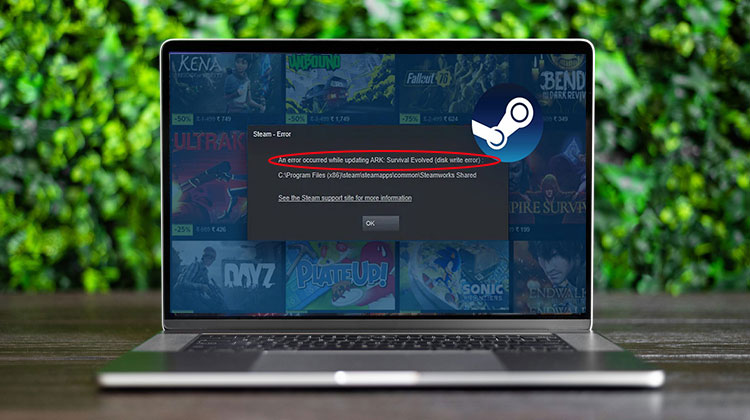
Have you encountered a Steam disk write error while installing or updating your games? If yes, you’re not the only one! This is one of the most frequent issues faced by Steam gamers. The positive side is that there’s a variety of solutions to this issue. In this tutorial, we’ll teach you how to solve disk write errors on Steam. If you’re all set now, let’s start.
What Does Steam Disk Write Error Mean?
Disk write errors on Steam prevent you from downloading and updating games on your hard drive and SSD. You can’t install new games or update existing ones until you correct this error on your disk.
Reasons Why Steam Disk Write Error Occurs
There are many reasons for this Steam downloading disk error. Let’s review the most frequent causes:
- Antivirus or firewall is blocking Steam from writing files
- Corrupted or missing game installation files
- Low storage space on hard drive or SSD
- Damaged or failing storage drive
- Steam does not have proper administrator permissions
- Corrupted Steam download cache
- Drive is set to read-only (write-protected)
- Interrupted downloads or sudden system shutdown
- Outdated Steam client causing compatibility issues
- Corrupted Steam library folder or directory errors
Also read: How to Fix Steam Cloud Sync Error: Step-by-Step Fixes 2026
How to Fix Steam Disk Write Error: 10 Working Fixes
Fixing the disk write error on Steam is typically simple. Follow these steps to fix this Steam Update disk write error.
Fix 1: Restart Steam and Your Computer
Sometimes, disk write errors are caused by temporary issues with the Steam client. This issue can be resolved simply by restarting your Steam application and your computer.
Steps:
- Press Ctrl + Shift + Esc to open Task Manager
- Find Steam under Processes
- Right-click and click End Task
- Restart your PC
- Reopen Steam and try again
After you have closed the program, restart your computer and verify for any indication that it has been fixed. The Steam downloading disk write error is fixed.
Fix 2: Run Steam as Administrator
Running Steam as an administrator allows the program full access to the system, allowing it to write data to the hard drive.
This can help you avoid steam disk write errors and continue to use the platform to complete tasks without interruption.
Steps:
- Search Steam in Windows search
- Right-click on Run as administrator
- Click Yes when prompted apper
Install or update the game on Steam to determine whether the disk write error occurs. If this doesn’t work, then try the next solution.
Fix 3: Check Steam Library Folder Permissions
The disk read error occurs when your account doesn’t have access to your Steam library directory. How to fix this issue:
Steps:
- Open File Explorer
- Go to Steam installation folder (C:\Program Files (x86))
- Right-click Steam folder and tap on Properties
- Uncheck Read-only and click Apply
- Go to the Security tab
- Select your user and click Edit
- Enable Full Control
Fix 4: Verify Integrity of Game Files
You can test the integrity of your game’s files to determine if all needed files are available and in good condition.
This method scans the game’s files to find issues that cause a Steam write disk error. Here’s how to verify the integrity of your game’s files:
Steps:
- Open Steam
- Go to Library
- Right-click the game
- Select Properties
- Go to Installed Files
- Click Verify integrity of game files
Steam will repair and restore the missing files. After verification, you can check if you can download or upgrade the game.
Fix 5: Delete 0 KB Files (If Present)
Sometimes, the 0 KB files on your computer can trigger a Steam Download disk write error. Verify whether there are any 0 KB files and then delete these.
Steps:
- Press Windows + R
- Type: %ProgramFiles(x86)%
- Go to Steam and tap steamapps and select common
- Look for 0 KB files
- Delete them
Check whether you can download or upgrade the game without errors when writing to disk.
Fix 6: Reset Steam Configuration (Flushconfig)
The “flushconfig” command helps to reset Steam’s configuration settings to their default value. Here’s how you can run the command to correct this Steam disc write issue:
Steps:
- Close Steam
- Press Windows + R
- Type: steam://flushconfig
- Press Enter
- Confirm and restart Steam
This command will delete the local download cache and solve the disk write error Steam. Try installing and downloading the game to check whether the issue is fixed.
Fix 7: Check for Corrupted Log Files
Corrupted files can cause a Steam disk write error. You will find these files in the “content_log” file. It tracks every download during the installation. Deleting these files can help solve the issue.
Steps:
- Go to Steam installation folder
- Open logs folder
- Open content_log.txt
- Search for “failed to write”
- Delete corrupted file paths mentioned
Restart your computer and begin downloads or updating the game to check whether an error appears.
Fix 8: Disable Write Protection
If your drive is configured as write-protected, it might be causing an error when writing to disk in Steam. Removal of disk write protection can resolve the issue.
Here’s how you can solve the disk write error in Steam by removing the disk write protection:
Steps:
- Press Windows + R, type cmd, and open it as Administrator
- Type diskpart and press Enter
- Type list disk
- Select your disk: select disk 0 (replace number if needed)
- Type: attributes disk clear readonly
- Press Enter and close Command Prompt
- Restart your PC and try Steam again
Fix 9: Disable Antivirus Program
An antivirus software may cause this Steam disk write error. You may need to disable antivirus software to identify the root of the issue. You can remove Steam from your antivirus blocks.
Also read: Best VPN for Steam: Reduce Lag & Bypass Restrictions
Fix 10: Disable Windows firewall
Windows firewall can sometimes prevent Steam from connecting to servers, which can affect its ability to write to the disk. Be sure to turn on the firewall after installing or updating the game.
Steps:
- Press Windows + R to open Run
- Type firewall.cpl and press Enter
- Click Turn Windows Defender Firewall on or off
- Select Turn off Windows Defender Firewall for both Private and Public networks
- Click OK
- Restart Steam and check if the disk write error is fixed
How to Prevent Steam Disk Write Error
- Keep at least 20% disk space free
- Do not interrupt Steam downloads
- Keep Steam updated
- Regularly clear the download cache
- Avoid unstable antivirus settings
Wrap up
Updating or downloading games from Steam is a standard and straightforward process. However, a Steam disk write error can affect your gaming experience. Fortunately, this issue can be fixed using several effective methods.
Follow the solutions mentioned in this guide one by one to identify and fix the problem.
FAQs About Steam Disk Write Error
Why is Steam showing Disk Write Error while downloading games?
Steam usually shows this error because of corrupted files, antivirus conflicts, storage issues, or lack of write permissions.
Will reinstalling Steam fix Disk Write Error?
In some cases, reinstalling Steam can solve the issue, especially if Steam files are corrupted.
Does low storage space cause Steam Disk Write Error?
Yes, if your HDD or SSD is full or has very little free space, Steam may fail to install or update games.
Can corrupted game files trigger Steam Disk Write Error?
Yes, damaged or missing game files are one of the most common reasons behind this issue.
How do I fix Steam Disk Write Error on Windows PC?
You can fix Steam Disk Write Error by restarting Steam, running it as administrator, clearing the download cache, verifying game files, and checking disk permissions.










Leave a comment