





iPhones are our primary devices for all things these days. Be it taking photos, keeping in touch, or just about everything else. The majority of iPhone users rely on their smartphones to wake up at the right time. However, occasionally an iPhone alarm stops functioning. If you’re experiencing an alarm not going off on your iPhone, do not fret, as it’s fixable quickly. Here are 11 solutions to fix your iPhone alarm not going off.
Why Is My iPhone Alarm Not Going Off?
There are several reasons why your iPhone alarm may fail to ring:
- Volume settings are too low or muted
- Incorrect alarm configuration (AM/PM mistake)
- Bluetooth devices interfering with sound output
- Sleep schedule conflicts
- Software bugs or outdated iOS
- Disabled or misconfigured alarm settings
Understanding the cause helps you apply the right fix quickly.
iPhone Alarm Not Going Off? 11 Easy Fixes You Can Try
1. Check the Volume and Alarm Sound
It is the first step to check if your iPhone alarm not going off. It could be that you have decreased or eliminated the “Ringer and Alerts” volume on your iPhone, and this could reduce (or completely silence) the alarm. This article will show you how to raise the volume of your iPhone’s alarm.
- Go to Settings -> Sounds & Haptics. Here is where you can move down the ” Ringtone and Alerts” slider to boost the volume of the alarms on your iPhone.
Note: that this volume can be linked to notifications, alarms, and your iPhone ringtone. You can enable the toggle for “Change with Buttons” to adjust your ringtones and Alerts on your iPhone by pressing the volume buttons.
Also read: 7 Ways to Fix iPhone Flashlight Not Working Issue Quickly
2. Choose a Louder Alarm Sound
A default iPhone alarm sound is extremely harsh. Therefore, most users change it to something more relaxing. But the alarm sounds are too quiet, and you may sleep through these, believing that your alarm stopped working on iPhone. follow the steps
- Open the Clock application and then tap on the “Alarms” tab. Here, click on the alarm you want to change. You want to change the sound.
- Click on ” Sound” and then select the loud volume tone. After that, tap on the back arrow.
3. Ensure You’ve Set the Correct Alarm
Another common but unnoticed reason that your iPhone alarm not going off is that you set it incorrectly. If it’s choosing PM in place of AM or not entering the correct time correctly, here’s how to verify and fix the time of your alarm:
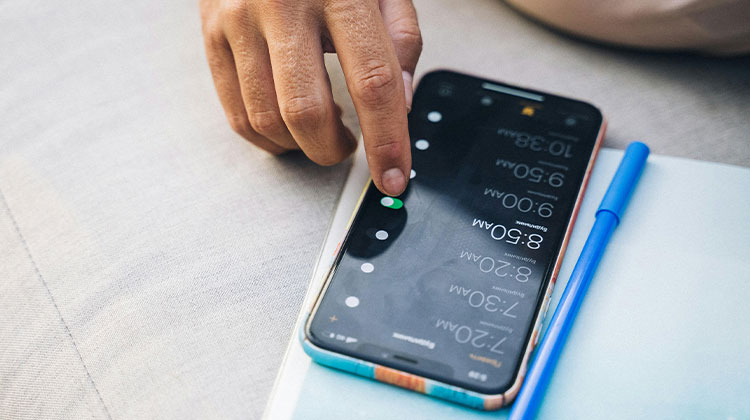
- Open the Clock app and tap on ” Alarms”. Review the time that is displayed for the alarms (including the AM/PM setting).
- If you set the wrong alarm time, tap on the alarm and change the alarm time and the AM/PM settings.
4. Disconnect Bluetooth Devices
If you own Bluetooth earbuds or speakers connected to your iPhone, you won’t hear the alarm, as the alarm sound will go through your headphones instead of the iPhone’s speaker. The best way to ensure that your alarm sounds through the iPhone’s built-in speaker is to disconnect from your Bluetooth devices. Here’s how to determine whether your Bluetooth device is connected to your phone, then disconnect it.
- Go to Settings -> Bluetooth. There will be a list of Bluetooth devices. Tap the “i” icon next to the device that you want to disconnect.
- Tap on ” Disconnect”
- That’s it. The device will be disconnected from the iPhone. Open Control Center and click on”Bluetooth.
- “Bluetooth” tile to disable Bluetooth and then disconnect all connected gadgets in a single step.
5. Check Your Sleep Schedule Settings
If you’ve enabled sleep schedules on your iPhone, it could be causing the iPhone alarm not going off issue, particularly when the wake-up time is set as your iPhone alarm time. To prevent conflict, you can change the alarm or sleep settings. Here’s how to change your iPhone’s Sleep settings
- Go to the Health app and tap on ” Browse”. Tap on ” Sleep”.
- Click on ” Full Schedule & Options” and then click on ” Edit”.
You can use this slider to adjust your wake-up time, or turn off the switch next to “Alarm” to disable the wake-up alarm.
6. Delete All Alarms and Create New Ones
If all of your settings are properly configured and your iPhone alarm not working, this could be an accidental glitch. One of the most effective methods to resolve this issue is to delete all alarms on your phone and set them to work again. Here’s how to remove alarms from your iPhone:
- Open the Clock app and tap on ” Alarms”. Swipe left on each alarm individually and then tap the “Delete” option.
- After you’ve deleted all alarms, you can set up new alarms, and they will work fine.
7. Use the Default Clock App
There are many iPhone applications, like clock and alarm apps; however, certain third-party apps might not work on your iPhone. If you’re using a third-party app to set alarms, consider using the default Clock app instead.
This will ensure that any bugs in the third-party application won’t cause your iPhone alarm not going off as expected.
8. Restart Your iPhone
Naturally, software issues can occur at any time, but you can fix them with ease by rebooting the iPhone. This is a cliché; however, it’s a useful one. Simply try switching it off, then restarting it.
9. Check for Software Updates
While it is unlikely, outdated software can sometimes behave unexpectedly and cause issues like an iPhone alarm not going off. In general, it’s ideal to keep your iPhone updated with the latest iOS version for security and to improve your quality of life. If your alarm does not work on iPhone, make sure you’re using the most recent version of iOS:
- Go to Settings -> General -> Software Update
If you have any updates, you can install them and check whether your iPhone alarm not going off issue.
Also read: iPhone Won’t Turn On? 6 Tested Solutions Without Data Loss
10. Reset All Settings
If none of the steps above have worked, if you’re not satisfied, there’s another option you could try to resolve the issue. Resetting the options on your iPhone can help ensure that accidentally changed settings are not causing the alarm to malfunction. Here’s how you can do it:
- Go to Settings -> General -> Transfer or Reset iPhone
- Click the ” Reset” and then ” Reset All Settings.”
- Enter your password and tap “Reset All Settings” again
That’s it. Your iPhone will now be restored to its factory default settings. This should solve the iPhone alarm not going off issue.
11. Reset Your iPhone (Factory Reset)
If nothing seems to work, then the final option is to reset your iPhone. It will get your iPhone back to its original state, as a new iPhone, meaning all your data, apps, and everything else will be erased from your phone. So ensure you back up your iPhone before you do this.
Final Thoughts
So, these were the top 11 methods to fix the iPhone alarm not going off issue. We hope you get the alarm sound again with the help of one of these fixes. If not, we’d advise you to contact Apple support for assistance. If you have any questions about the alarms on your iPhone, please leave a comment.
FAQs – iPhone Alarm Not Going Off
Why is my alarm silent even when it is set?
This usually happens if the alarm sound is set to “None,” the volume is too low, or your iPhone is connected to Bluetooth devices like headphones or speakers.
Why does my iPhone alarm go off sometimes and not others?
This can happen due to inconsistent settings, software bugs, or interference from Bluetooth devices or Sleep Schedule settings.
Can Sleep Schedule cause iPhone Alarm Not Going Off issues?
Yes, Sleep Schedule settings can sometimes conflict and cause the iPhone Alarm issue if wake-up alarms overlap.
How do I prevent the iPhone alarm not going off problem?
To avoid this issue, keep your iOS updated, use a loud alarm tone, and avoid leaving Bluetooth devices connected overnight.










Leave a comment