






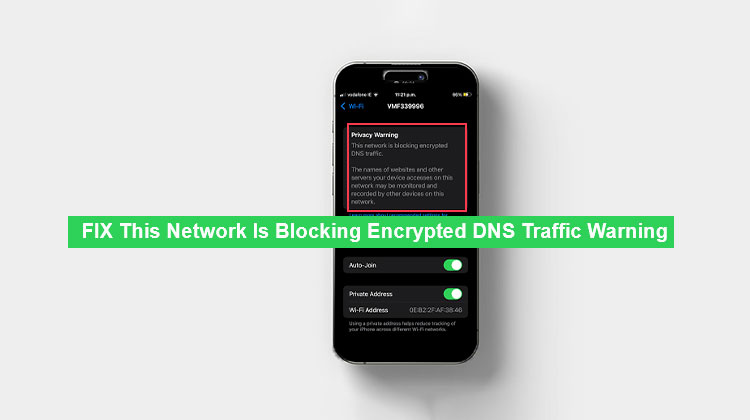
Your connection and notice the message “This network is blocking encrypted DNS traffic.” Further, you’re warned by the message, “The website’s name and other servers your device accesses on this network may be monitored and recorded by other devices on this network.”
Now, you are worried about your privacy. Don’t panic! Here is what it means and how to fix the iPhone DNS Privacy Warning.
What Does “This Network Is Blocking Encrypted DNS Traffic” Mean?
“The message ‘This network is blocking encrypted DNS traffic’ indicates that the server you’re trying to connect to does not meet the security standards for the Apple device. In the absence of the latest security standards, the device is redirected to an unencrypted DNS. The privacy warning could occur when you try to reconnect to a different Wi-Fi network or reconnect to the one you’ve always used.
Why Does the “This Network Is Blocking Encrypted DNS Traffic” Warning Appear?
If iOS devices attempt to use encrypted DNS but it is blocked, they may display a DNS privacy warning on iPhone. Below are the most common reasons behind the “This Network Is Blocking Encrypted DNS Traffic” warning:
- Network restrictions enforcing specific DNS settings.
- ISPs are blocking encrypted DNS for filtering or parental controls.
- Firewalls, VPNs, or antivirus software override DNS settings.
- Malware or adware is interfering with encrypted DNS traffic.
- Public Wi-Fi networks are restricting secure DNS connections.
Also read: iPhone Error 4013: Why It Happens and How to Solve It
How to Fix “This Network Is Blocking Encrypted DNS Traffic”
Find simple, step-by-step instructions to help fix the encrypted DNS traffic warning. Let’s start with the simplest one.
1. Restart Your iPhone and Router
A simple reboot can fix the issue instantly. Restarting your iPhone restarts all processes and applications. Therefore, give it your first attempt:
- Press and hold the power + volume buttons. Slide right to turn off your iPhone.
- Wait 20-30 seconds before turning it off again.
- The same process is applied to the router to refresh network settings or the connection.
2. Forget the Wi-Fi Network and Reconnect
Your Wi-Fi could cause an issue known as the “This network is blocking encrypted DNS traffic” problem. Reconnecting and forgetting the network could be beneficial.
Here is how to accomplish this:
- Open Settings on the iPhone and select Wi-Fi.
- Touch the “i” icon next to your network.
- Tap Forget This Network.
- Then, reconnect the network. Are you still having trouble? Try the next approach.
3. Update iOS and Router Firmware
Outdated software can cause problems, such as a privacy warning for your wireless network. Therefore, ensure that your iPhone and routers are running the latest software. It is crucial to fix bugs or errors and to protect the network’s security and performance.
Following the instructions below, you can upgrade your iOS:
- Open Settings > Tap General > Software Update.
- Click Download and Install to the latest updates.
- Review the Terms and Conditions.
4. Reset Network Settings
While searching for solutions to solve the “this network is blocking encrypted DNS traffic” problem on Reddit and Quora, I saw users blaming the network settings as the root cause. You can try changing the network settings on your iPhone. This can fix any bugs and enable encrypted DNS.
Here’s how to do this:
- Go to Settings and then your iPhone.
- Click General > Transfer or Reset iPhone.
- Tap Reset > Choose Reset Network Settings.
5. Configure DNS Settings
If Wi-Fi’s privacy alert is still visible, the next step is to set DNS settings.
To do so:
- Go to Settings on your iPhone.
- Tap Wi-Fi.
- Tap the “i” icon next to the desired network. Then, configure DNS.
- Select Manual.
- Tap Add Server. Enter an IP address for the DNS server (See below) > Save.
Popular options include:
Google DNS: 8.8.8.8 and 8.8.4.4
Cloudflare DNS: 1.1.1.1 and 1.0.0.1
Also read: Best DNS Server for Gaming in 2025: Boost Speed & Reduce Lag
6. Use a WPA3 protocol
Apple doesn’t work with outdated security protocols. This could be you’re seeing this “this network is blocking encrypted DNS traffic” error. Therefore, you should update your router’s settings to WPA3, the latest Wi-Fi security standard, with numerous options to ensure your data is secure. To use this WPA3 technology, you will need to locate an IP address on your iPhone.
These steps will help you complete this:
- Go to Settings on your iPhone > tap Wi-Fi.
- Click on the network you want to connect to.
- Scroll down to find the router’s IP address.
- Open a browser on the internet and connect to the router’s IP to sign in
- Navigate to Wi-Fi Security Settings. Then select WPA3 or WPA2/WPA3 Mixed Mode.
- Save the changes and apply the new settings.
Your router will be restarted. Login credentials are required for connecting to your network.
7. Use a VPN
When you use a VPN, the DNS traffic is routed through a secure tunnel. It is also a server. No one (except authorized third parties) can monitor your online activities, steal your personal information, or even track your IP address. Make sure you choose the most reliable, trustworthy, and safe VPN service.
Final Thoughts
Seeing the “This Network is blocking encrypted DNS traffic” warning can be frustrating for some people, and for good reason. No one wants their privacy or security at risk.
Sometimes, however, the error can occur regardless of the system you’re using. There are a few quick fixes that you can attempt to get rid of the error. If you’re looking for complete privacy, consider using a VPN instead.
FAQs: This Network Is Blocking Encrypted DNS Traffic
Is the 'This Network Is Blocking Encrypted DNS Traffic' warning dangerous?
Not necessarily. Your internet connection will still work, but your DNS traffic may be less private and could be monitored by the network.
Can public Wi-Fi cause the encrypted DNS warning?
Yes. Many public Wi-Fi networks restrict encrypted DNS traffic to manage, monitor, or filter internet access.
Does encrypted DNS improve privacy?
Yes. Encrypted DNS helps prevent third parties from monitoring or modifying your DNS requests.
Can I ignore the 'This Network Is Blocking Encrypted DNS Traffic' warning?
Yes, but ignoring it may reduce your online privacy because your DNS requests may not be encrypted.







Leave a comment