





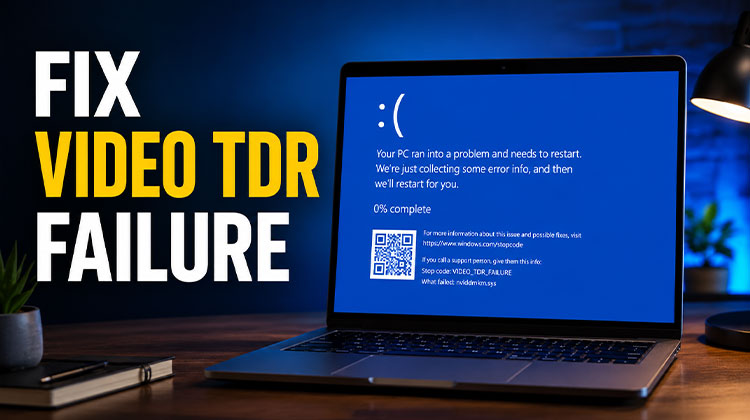
Have you ever had a Windows 10/ 11 blue screen error? A video TDR failure is among the error codes of the BSOD. This error is usually encountered when you attempt to stream or play a video game or perform any operation that is connected to video output, and the error’s name is different according to the manufacturer of the monitor you are using:
nvlddmkm.sys for NVIDIA graphics cards
atikmpag.sys or atikmdag.sys for AMD graphics cards
igdkmd64.sys for Intel graphics
Although the errors shown are different, the reasons and solutions are the same. This article will examine the reasons and solutions to the video TDR error.
Why Does the Video TDR Failure Error Happen
TDR is a shorthand for Timeout, Detect, and Recover. This error indicates that the graphics or video card stops responding, and Windows will cease to resolve the issue.
The following are the causes of the video TDR failure error:
- Outdated or faulty graphics card drivers
- Technical problems with the graphics card
- Multiple applications running simultaneously
- Overheating of computer components
- System overheating
- incompatible component
- Overclocking components
- Corrupt system files
Whatever the cause of your video TDR failure error, follow the steps in the article below to identify and fix the issue.
Also read: How to Fix Video Scheduler Internal Error in Windows 10/11
How to Fix Video TDR Failure on Windows PC
Here are eight ways to fix video TDR Failure error on Windows. Before we can repair the video TDR failure, you need to enter Safe Mode:
- Force shut down your PC twice during startup.
- Allow Windows to open the Recovery Environment.
- Select Advanced Options.
- Open Startup Settings.
- Press F4 for Safe Mode or F5 for Safe Mode with Networking.
After entering Safe Mode, begin to fix the video TDR failure error as follows:
1. Update Video Driver
Outdated or corrupted graphics drivers are the main reasons for video_TDR_failure issues on your PC. Making sure you have the latest version of your graphics card is the first step you should take.
- Press Windows + X and open Device Manager.
- Expand Display adapters.
- Right-click your graphics card.
- Select Update driver.
- Click Search automatically for drivers.
- Restart your computer after installation.
2. Perform a fix for startup
The Video_TDR_failure error may be due to the bootloader not loading properly. The Windows Startup Repair will find and fix the problem.
- Open Settings.
- Navigate to Update & Security.
- Select Recovery.
- Under Advanced Startup, click Restart now.
- Select Troubleshoot → Advanced options → Startup Repair.
3. Scan and Fix a Corrupted File System
System files may become corrupted or altered by faulty files after updates. Luckily, Windows provides a System File Checker. It will identify the required files and correct errors. These are the most important steps:
- Press Windows + R.
- Type cmd.
- Run Command Prompt as Administrator.
- Enter the following command:
sfc /scannow - Wait for the scan to finish.
- Restart your computer after the repair process completes.
4. Fix Intel HD Graphics Driver
If you’re an Intel user, you may attempt the following solutions to solve the video TDR error :
Option 1: Disable Intel HD Graphics Temporarily
- Press Windows + R and type devmgmt.msc.
- Expand Display adapters.
- Right-click Intel HD Graphics.
- Select Disable device.
Option 2: Adjust Intel Graphics Settings
- Open the Intel HD Graphics Control Panel.
- Review your 3D Settings.
- Modify graphics settings and apply the changes.
5. Remove GPU Overclocking
Overclocked graphics cards can become unstable during gaming or heavy workloads.
If you use MSI Afterburner or similar software:
- Reset GPU clock speeds to default values.
- Disable custom voltage settings.
- Restart the system and test again.
6. Replace atikmpag.sys or atikmdag.sys (AMD Users)
AMD graphics cards may cause a BSOD that displays the driver name atikmpag.sys and an error message. If your system is using an ATI or AMD graphics card, do these steps to fix the problem:
- Open C:\Windows\System32\drivers and rename atikmpag.sys or atikmdag.sys to .old.
- Go to C:\ATI and copy atikmpag.sy_ or atikmdag.sy_ to your Desktop.
- Open Command Prompt as Administrator and run:
expand.exe atikmdag.sy_ atikmdag.sys
or
expand.exe atikmpag.sy_ atikmpag.sys - Copy the newly created file back to C:\Windows\System32\drivers.
- Restart your computer and check if the error is resolved.
7. Roll Back the Graphics Driver
If you are using the latest version of the driver, it might also trigger a stop-mode video TDR failure. You can therefore roll back the updates and reinstall the previously installed driver. Here are the easy steps:
- Open Device Manager.
- Expand Display adapters.
- Right-click your graphics card and select Properties.
- Open the Driver tab.
- Click Roll Back Driver.
- Follow the on-screen instructions.
- Restart your computer.
Also read: Your Device Ran Into a Problem and Needs to Restart – Fix in 8 Steps
8. Change Power Management Settings
Power settings can also trigger difficulties with the computer’s graphics processing. It is possible to change your PCI Express power management settings to fix video TDR failure. The following is a step-by-step guide:
- Press Windows + R.
- Type: powercfg.cpl
- Press Enter.
- Click Change plan settings.
- Select Change advanced power settings.
- Expand PCI Express.
- Open Link State Power Management.
- Set it to Off.
- Click Apply and restart your computer.
Tips to Prevent Video TDR Failure
You can reduce the chances of this error appearing again by:
- Keeping graphics drivers updated
- Avoiding aggressive overclocking
- Monitoring system temperatures
- Installing Windows updates regularly
- Closing unnecessary background applications
- Cleaning dust from your PC to improve cooling
Final Thoughts
The Video TDR Failure error can be frustrating, but it is usually fixable with driver updates, system repairs, and power management adjustments. Start with the graphics driver fixes before moving to advanced troubleshooting methods.
In most cases, one of the solutions above will help restore your system’s stability and eliminate the blue screen error.
FAQs: Video TDR Failure
What is the Video TDR Failure error in Windows?
Video TDR Failure is a Blue Screen of Death (BSOD) error that occurs when Windows detects that the graphics card has stopped responding and cannot recover the display driver.
Does Video TDR Failure indicate a failing graphics card?
Not always. In most cases, the issue is software-related and can be fixed by updating or reinstalling graphics drivers. However, persistent crashes may indicate GPU hardware problems.
Is Video TDR Failure common while gaming?
Yes, the error frequently occurs while gaming, streaming videos, or running graphics-intensive applications that put heavy load on the GPU.
Is Video TDR Failure a software or hardware issue?
It can be either. Most cases are caused by driver or software problems, but failing GPUs, RAM, or power supplies can also be responsible.









Leave a comment