






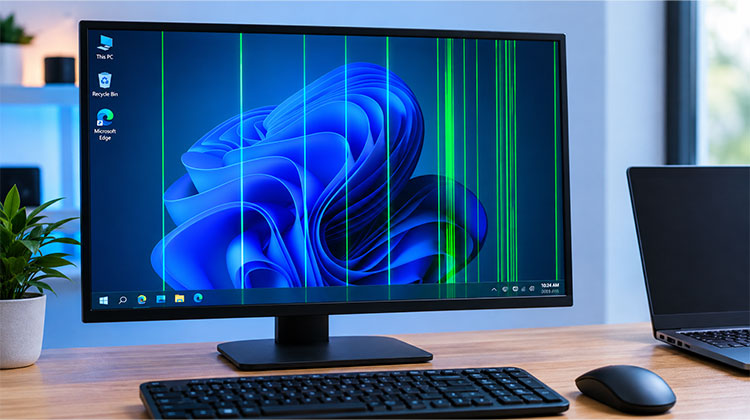
Seeing Green Lines on Monitor displays can be frustrating, especially when you do not know whether the problem is caused by the cable, graphics driver, GPU, display settings, or the screen itself. In many cases, you can identify the cause with a few simple troubleshooting steps.
If you are dealing with green lines on monitor, start with the easiest checks and gradually move toward hardware testing. This can help you find the problem before spending money on repairs or replacement.
Why Are Green Lines Appearing on Your Monitor?
There are several possible causes of green lines on monitor issue:
- Loose or damaged HDMI/DisplayPort cable
- Incorrect resolution or refresh rate
- Outdated or corrupted graphics driver
- GPU overheating or hardware issues
- Damaged monitor panel
- Loose internal laptop display cable
- Physical screen damage
Since the same symptom can have different causes, test each possibility one at a time.
Also read: How to Fix Black Line on Laptop Screen: 7 Easy Solutions For HP Users
How to Fix Green Lines on Monitor Issue
1. Check the Monitor Cable and Connections
The first thing to check when you see green lines on monitor is the video cable. A loose or damaged HDMI or DisplayPort cable can cause screen flickering, unusual colors, and lines across the display.
Steps:
- Turn off the computer and monitor.
- Disconnect the HDMI or DisplayPort cable from both ends.
- Check the connectors and cable for visible damage.
- Reconnect the cable firmly.
- Try another port on the monitor or graphics card.
- Test with a working cable if available.
- Turn the devices back on.
If the lines disappear, the cable or connection was likely the cause. If they remain, continue to the next step.
2. Check the Resolution and Refresh Rate
If the cable is fine, check your Windows display settings. An unsupported resolution or refresh rate can sometimes cause visual problems.
To troubleshoot green lines on monitor issues:
- Open Settings in Windows.
- Go to System > Display.
- Select the affected monitor.
- Set the resolution to the recommended or native setting.
- Open Advanced display.
- Check the refresh rate.
- Select a refresh rate supported by your monitor.
Apply the changes and check the screen again. If the lines disappear, the display configuration may have been causing the problem. If they remain, move to the graphics driver.
3. Update or Reinstall the Graphics Driver
A corrupted or outdated graphics driver can create display artifacts, including green lines on monitor. This is especially worth checking if the problem started after a Windows or driver update.
Steps:
- Press Windows + X.
- Select Device Manager.
- Expand Display adapters.
- Right-click your graphics card.
- Select Update driver.
- Install an available update.
- Restart your computer.
If the update does not help, you can uninstall the driver and restart your computer so Windows can reinstall it. You can also download the latest compatible driver from your GPU or laptop manufacturer’s official website.
For laptops, laptop green lines on screen may sometimes appear after a driver change, so this test can help determine whether the issue is software-related.
4. Test the Monitor With Another Computer
To find out whether the green lines on monitor issue is coming from your monitor or computer, connect the monitor to another laptop or desktop using a working video cable.
Check the result:
- Green lines appear on the second computer: The monitor may have a hardware issue.
- Monitor works normally: Your original computer, graphics driver, or GPU may be responsible.
This test helps identify whether the issue is with your monitor or your computer.
Also read: Chromebook Black Screen: How to Fix It Quickly (Step-by-Step Guide)
5. Check Your Graphics Card and Computer
If the monitor works normally with another computer, investigate your original system. Graphics card issues, overheating, or driver problems can cause display artifacts.
Try these checks:
- Update or reinstall the graphics driver.
- Check whether the GPU is overheating.
- Disable GPU overclocking, if enabled.
- Test another video port on the graphics card.
- Check whether the lines appear during startup or in BIOS.
If the same lines appear on another monitor connected to your computer, the graphics card or system may be responsible. If they only appear after Windows loads, investigate software and driver settings first.
6. Inspect the Monitor or Laptop Screen for Damage
If the lines remain after testing different cables and computers, inspect the display for possible hardware damage.
A persistent green vertical line on monitor may indicate a panel or internal connection issue. Physical impact, pressure, or component failure can cause lines that software troubleshooting cannot resolve.
For laptops, a green line in laptop screen may be related to the internal display cable or screen panel. Avoid pressing the affected area or repeatedly moving the laptop lid to test it.
If you notice cracks, persistent lines, or other signs of damage, check the manufacturer’s warranty or contact a qualified technician for inspection.
Final Thoughts
Seeing Green Lines on Monitor? Don’t replace it yet. First, reseat or replace the cable, reset the resolution and refresh rate, and update the graphics driver. Then test the monitor with another computer. If the lines still appear, check for screen damage and consider professional repair or warranty service.
FAQs: Green Lines on Monitor
Why do green lines appear on my monitor when gaming?
Gaming can expose GPU overheating, driver issues, or unstable graphics settings. Check GPU temperature and update the graphics driver.
Do green lines mean my monitor needs to be replaced?
Not necessarily. Check the cable, settings, drivers, and another computer first. If the lines remain across different setups, the monitor hardware may need repair or replacement.
Can overheating cause green lines on a computer screen?
Yes. GPU overheating can cause visual artifacts, including lines, flickering, or unusual colors. Check GPU temperatures and ensure the cooling system is working properly.
How do I fix green lines on monitor after changing the resolution?
Go to Settings > System > Display and restore the recommended resolution and a refresh rate supported by your monitor. Restart the computer and check the screen again.







Leave a comment