






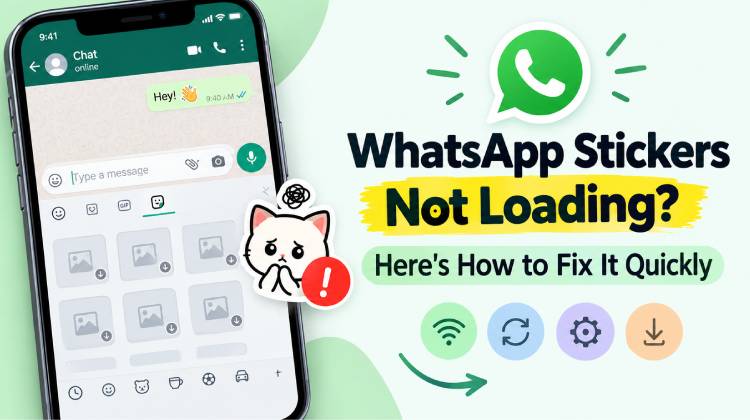
Are your WhatsApp stickers not loading when you try to send them in a chat? Whether your stickers appear blank, disappear from the sticker panel, or get stuck while downloading, this issue can quickly ruin your chatting experience.
The good news is that you don’t need to uninstall WhatsApp or lose your favourite sticker collections to fix it. From internet connection problems to outdated apps and corrupted cache files, several common issues can prevent stickers from working properly on Android and iPhone.
In this guide, you’ll discover 10 easy and effective ways to fix WhatsApp stickers not loading, including solutions for missing sticker packs, download errors, and stickers that aren’t showing up.
Why Are WhatsApp Stickers Not Loading?
Knowing the cause can save you time, because it points you to the right fix. Here are the most common reasons:
- Weak or unstable internet connection
- Outdated version of WhatsApp
- Corrupted cache files
- Low phone storage
- Missing permissions for sticker apps
- Damaged or incomplete sticker packs
- Temporary app glitches
Most of these are easy to fix. Let’s go through them one by one.
Also read: Genmoji Not Showing Up? Here’s How to Fix It on iPhone
10 Ways to Fix WhatsApp Stickers Not Loading
1. Check Your Internet Connection
A weak internet connection is one of the most common reasons behind WhatsApp stickers not loading. When your network drops in and out, stickers may show up as blank squares or take forever to appear. It can also leave you with WhatsApp stickers not downloading at all.
Here’s what to try:
- Turn off Wi-Fi.
- Switch on mobile data.
- Open WhatsApp and check your stickers.
- If nothing changes, reconnect to Wi-Fi.
You can also turn on Airplane Mode for a few seconds, then turn it off. This often refreshes a stuck connection.
2. Restart WhatsApp
Sometimes the app just needs a fresh start. Small glitches can leave you with WhatsApp stickers not working even when everything else seems fine. Closing and reopening the app clears these temporary hiccups.
On Android and iPhone:
- Close WhatsApp completely.
- Swipe it away from your recent apps.
- Wait a few seconds.
- Open WhatsApp again.
- Go to any chat and tap the sticker icon.
Check whether your stickers now appear as usual.
3. Update WhatsApp to the Latest Version
An old version of WhatsApp can carry bugs that affect stickers. If you’re facing WhatsApp stickers not showing, an update may be all you need. New versions often include bug fixes and performance improvements.
On Android:
- Open the Google Play Store.
- Search for WhatsApp Messenger.
- Tap Update if it’s available.
On iPhone:
- Open the App Store.
- Search for WhatsApp.
- Tap Update.
Once the update finishes, restart WhatsApp and check your stickers again.
4. Clear WhatsApp Cache on Android
Over time, WhatsApp builds up temporary files. If some of them become corrupted, they can cause odd problems. If you notice WhatsApp stickers not loading on Android, clearing the cache is a safe next step. It won’t delete your chats.
Follow these steps:
- Open your phone’s Settings.
- Go to Apps.
- Select WhatsApp.
- Tap Storage or Storage & cache.
- Tap Clear Cache.
- Now reopen WhatsApp and test your stickers.
Important: Don’t tap Clear Data or Clear Storage. That can remove local app data, which is not the same as clearing the cache.
5. Free Up Phone Storage
WhatsApp needs space to save and display media, including stickers. If your phone is almost full, you may see WhatsApp sticker packs not loading or failing partway through.
To check your storage:
- Open Settings.
- Go to Storage (on iPhone, General > iPhone Storage).
- See how much space is left.
- Delete files you don’t need or remove unused apps.
- Restart WhatsApp.
Keeping some free space also helps WhatsApp run more smoothly overall.
Also read: How to Free Up Space on iPhone: 10 Best Storage Cleanup Tips
6. Check WhatsApp Permissions
If WhatsApp or a third-party sticker app can’t access your media, stickers may not work as expected. This is common with custom sticker apps. Reviewing your permissions only takes a moment.
On Android:
- Open Settings.
- Tap Apps.
- Select WhatsApp.
- Tap Permissions.
- Review the photo, video, and media permissions.
- Allow access for the features you use.
- Repeat these steps for any sticker app you’ve installed.
On iPhone: Go to Settings > Privacy & Security and check WhatsApp’s access to Photos.
7. Remove and Re-Add the Problem Sticker Pack
Sometimes the issue is just one pack. It may be corrupted or may not have finished downloading. If you only see WhatsApp stickers not showing for a single collection, removing and re-adding it can help.
Here’s how:
- Open WhatsApp and go to any chat.
- Tap the emoji icon, then select Stickers.
- Tap the plus (+) icon.
- Open My Stickers.
- Find the problem pack and remove it.
- Download or import the pack again.
This fix works best when your other sticker packs load normally.
8. Restart Your Phone
A quick phone restart can clear background glitches that apps can’t fix on their own. If you’re still seeing WhatsApp stickers not loading after the steps above, try this next.
Turn off your phone, wait about 30 seconds, then turn it back on. Open WhatsApp and check your stickers.
It sounds simple, but it solves more problems than you might expect.
9. Fix Sticker Problems on WhatsApp Web or Desktop
Stickers can act up on your computer too. If you’re seeing WhatsApp stickers not loading on WhatsApp Web or Desktop, the cause is often an outdated browser, old cache files, or a sync issue with your phone.
Try these steps:
- Refresh WhatsApp Web.
- Check your computer’s internet connection.
- Clear your browser cache.
- Log out and link your device again.
- Update WhatsApp Desktop if you use the app.
These steps fix most sticker issues on computers.
Also read: Instagram Stories Not Loading: Why It Happens and How to Fix It
10. Reinstall WhatsApp (Last Resort)
If nothing else has worked, a fresh install can fix corrupted app files. This works whether you’re dealing with WhatsApp stickers not loading on iPhone or Android. But always back up your chats first so you don’t lose anything.
To back up and reinstall:
- Open WhatsApp Settings.
- Go to Chats.
- Tap Chat Backup.
- Create a new backup.
- Uninstall WhatsApp.
- Reinstall it from the official app store.
- Verify your phone number and restore your backup.
Your chats and media should come back once the restore is complete.
Final Thoughts
Still facing the WhatsApp stickers not loading issue? Don’t let missing stickers interrupt your conversations! In most cases, this problem can be fixed without uninstalling WhatsApp or losing your chats.
Whether you’re dealing with blank stickers, missing sticker packs, or download errors, the right troubleshooting method can get things working again. Try these 10 simple fixes, starting with your internet connection and WhatsApp updates. If the problem persists, clearing the app cache or reinstalling the affected sticker pack may help restore your favourite stickers.
FAQs: WhatsApp Stickers Not Loading
Why are WhatsApp stickers not loading in group chats?
Temporary app glitches, network problems, or outdated versions may affect stickers in group chats. Restart WhatsApp and check for available updates.
Why can't I add new sticker packs on WhatsApp?
You may have insufficient storage, an unstable internet connection, or an outdated WhatsApp version. Free up space and update the app before trying again.
Can VPN settings affect WhatsApp sticker downloads?
Yes. A VPN may sometimes interfere with network connections and slow down sticker downloads. Try disconnecting the VPN and downloading the stickers again.
How do I fix WhatsApp stickers not loading on WhatsApp Web?
Refresh WhatsApp Web, check your internet connection, and reconnect your device. You can also clear your browser cache or try another browser.








Leave a comment