






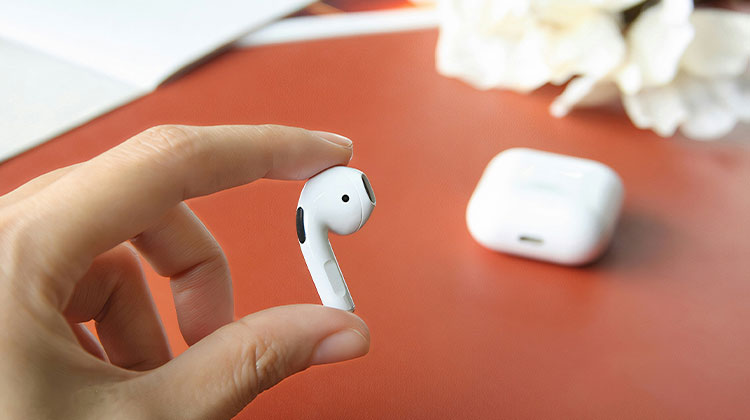
AirPods are the best earphones out there due to their capabilities; however, when the AirPods microphone not working, it can be extremely inconvenient for frequent callers who rely on this device. If your AirPods microphone is not working, I have some recommendations that could restore your hearing.
Why Is My AirPods Microphone Not Working?
Several factors can cause your AirPods microphone not working properly, including:
- Dust or debris blocking the microphone mesh
- Incorrect microphone settings
- Outdated iOS or firmware versions
- Bluetooth connection issues
- Low battery levels
- Audio routing problems
- Damaged AirPods hardware
- Temporary software glitches
Also read: How to Fix Siri Not Working on iOS Devices
How to Fix AirPods Microphone Not Working
There can be any number of reasons why your AirPods microphone not working as intended. Just read over these solutions and select the best fixes for your situation. If something you tried doesn’t work out, try another approach, as we have provided many techniques you can use.
1. Put Your AirPods Back in the Charging Case
AirPods require some rest as well; to do this safely and seamlessly, place them back into their case for around 30 seconds and let them all soak. When ready, power off, then quickly turn on Bluetooth to reconnect your AirPods.
Check that your microphone is functioning as expected and, if not, don’t fret; we have plenty of solutions in store to assist. Let’s have a closer look.
2. Clean the AirPods and Microphone
Dirt and dust accumulation on AirPods could hinder their microphone from operating efficiently. Here’s how you can clean AirPods and restore proper microphone functionality:
Use a cotton swab to clean your microphone and consider using a soft toothbrush to remove dirt. I would recommend using mesh for your speakers now and then to ensure a smooth listening experience.
3. Turn Automatic Ear Detection Off and On
The AirPods include an automatic ear recognition feature. This can cause the microphone not working when it’s required. Make sure to switch it off in Settings. You can do so by:
- Open Settings on your iPhone.
- Tap Bluetooth.
- Tap the i icon next to your AirPods.
- Turn Automatic Ear Detection off.
- Wait a few seconds and enable it again.
Reconnect your AirPods and check if their microphone begins functioning again.
If you have iOS 16 or later, the main Settings page provides access to AirPods settings directly.
4. Update Your AirPods Firmware and iPhone
Certain firmware versions have an issue where AirPods microphones do not function; Apple will immediately release a fix for the glitch and other issues. If you suspect that your AirPods microphone not working, upgrade to the latest firmware.
Upgrade the firmware versions on both of your AirPods and iPhones immediately.
5. Charge Your AirPods
Humans can function even when dead inside; this isn’t the case with AirPods. Check the battery level on your AirPods. If they’re at a low level, then it’s time to recharge.
And if your AirPods are not charging properly, we have an in-depth guide about that as well. When charging, however, we advise charging it fully first before checking again to see how it’s performing.
6. Check the AirPods Microphone Settings
AirPods offer an excellent set of features, including customization. You can select which microphone should activate during times when necessary – these steps make accessing them simple:
- Open Settings > Bluetooth.
- Tap the “i icon beside AirPods.
- Scroll down, then press Microphone.
- This is where you can change to any of the choices below:
Automatically Switch AirPods
Always Left AirPod
Always Right AirPod - Play around with it to see whether the microphone comes back to its original state.
You can navigate to the AirPods settings directly via your Settings page if you’re already connected. This feature is, however, only available on iOS 16 and later.
Also read: Best Noise Canceling Earbuds in 2026: Which One Should You Buy?
7. Reset and Reconnect Your AirPods
Cache data could be to blame, leading to microphone issues on AirPods. For optimal performance, reset and reconnect your AirPods. Check whether the issue persists after doing this step; if so, proceed with the next option as necessary.
To reset your AirPods:
- Place your AirPods in the charging case.
- Close the lid for 30 seconds.
- Open the lid.
- Press and hold the setup button on the back of the case for about 15 seconds.
- Release the button when the status light flashes amber and then white.
Reconnect the AirPods to your iPhone and test the microphone.
8. Check Your Bluetooth Settings
Settings is an indispensable feature on every mobile device, and users should take notice when issues arise with their devices. You can also check and fix your AirPods microphone in Settings. Go to your Settings and choose Bluetooth, and select AirDrop’s name from the list. Tap its information icon. Finally, select Microphone, then choose either left or right depending on available options.
9. Contact Apple Support
If none of the solutions above fix your AirPods microphone not working issue, contact Apple Customer Support immediately for further assistance. If you subscribe to AppleCare+, then there may be a chance for a free replacement!
Final Thoughts
AirPods microphone not working issues typically stem from software glitches, improper settings or low battery levels, or debris blocking microphone openings. Most users can resolve the problem within minutes by cleaning their AirPods, updating devices, or resetting the connections.
If all other solutions fail and your microphone still doesn’t function as it should, professional help may be required to diagnose hardware damage and identify its cause.
FAQs About AirPods Microphone Not Working
Why is my AirPods microphone not working during calls?
If your AirPods microphone isn't working during calls, make sure your AirPods are selected as the microphone input, microphone permissions are enabled, and the Bluetooth connection is stable. Restarting your device may also help.
Why does only one AirPod microphone work?
AirPods can automatically switch between the left and right microphones. If only one microphone works, manually select the left or right AirPod under Settings > Bluetooth > AirPods > Microphone to identify whether one earbud has a hardware issue.
Why is my AirPods microphone not working on Zoom or Teams?
Ensure your AirPods are selected as both the input and output device in the app's audio settings. Also, verify that the app has permission to access your microphone.
Should I replace my AirPods if the microphone is not working?
You should only replace your AirPods if the AirPods microphone not working issue persists after trying all troubleshooting steps and Apple confirms there is a hardware fault.







Leave a comment