





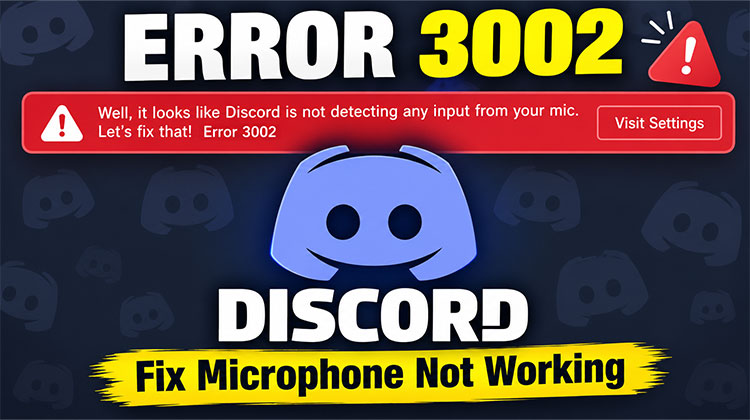
You open Discord, join a call, and start speaking… but nobody can hear any sound. After that, Discord Error 3002 shows on your screen, and your microphone isn’t working.
The worst part is that this microphone works everywhere else. Windows recognizes it, and games recognize it perfectly, and it functions just fine in other apps. Discord will not listen to anything.
Sometimes Discord loses track of the microphone after reconnecting the headset or switching between devices or even updating Windows. In other cases, your volume level or permissions are changed in the background, and you aren’t aware of it immediately.
What Is Discord Error 3002?
The Discord error 3002 message is displayed when Discord detects your microphone but cannot hear any sound. Discord support manual describes the issue as a “Silent Audio Input” issue.
Most of the time, it happens after reconnecting the headset, switching audio devices, or switching between desktop and browser Discord, or updating Windows.
Why Does Discord Error 3002 Happen?
Several things can cause this problem:
- Windows microphone permissions are disabled.
- Discord selected the wrong input device.
- Microphone is muted.
- Push to Talk is blocking voice input.
- Discord cache files are corrupted.
- Multiple audio devices are causing conflicts.
- Browser permissions are blocking microphone access.
- Discord temporarily loses connection to the microphone.
Now let’s fix it.
Also read: RTC Connecting Discord Error: 9 Quick Fixes for Voice Chat
How to Fix Discord Error 3002 Mic Issue
1. Close and Restart Discord
Before you make any changes, try closing Discord completely.
Many people open the application without even realizing that they’re running it in the background. Launch Task Manager and stop each Discord-related task you can see. After that, launch Discord again and check the microphone. This easy fix will solve the Discord microphone issue.
2. Check Microphone Permissions
A Windows update could reset your microphone permissions, which could trigger Discord error 3002 mic. Discord error 3002 error message.
Go to Windows Settings, then to Privacy & Security, then look in the microphones section. Make sure that microphone access is disabled in general and that Discord can utilize it for specific purposes.
If you’re using Discord within a browser, check that the browser has permission to use the microphone.
3. Ensure Discord is Using the Right Mic
Discord may switch to the wrong input device by itself, particularly after plugging in USB headphones, Bluetooth headsets, or external microphones.
Start by opening Discord settings, then go to Voice & Video, and select the microphone that you want instead of setting it to “Default.” Then run Discord’s microphone test and see whether it can hear you.
Many 3002 errors and Discord issues are found simply by Discord listening to an incorrect device.
4. Check If Your Microphone Is Muted
Make sure you have the physical mute button on your headset (if it comes with one). Check Windows audio settings and Discord’s input slider. Discord specifically mentions silent or muted audio input as being one of the most common causes of the ” error 3002 Discord mic.
Also, check your microphone input level in Windows audio settings. If your volume level appears very small, Discord might detect the device but fail to hear any sound from it.
5. Disable Push to Talk Temporarily
Sometimes the microphone is fine, and it’s the Push to Talk that’s the problem.
Change the mode to Switch temporarily to Voice Activity and try again. The push-to-talk may make it appear as if the microphone is not working, particularly if the keybind isn’t working properly, making it seem like the microphone is dead.
6. Run the Windows Recording Troubleshooter
Windows comes with a built-in recording troubleshooter. Even though it’s basic, it may detect odd audio issues.
Find “Troubleshoot settings” from the Start menu, then open the audio troubleshooters, then start the Recording Audio check.
It can assist you in identifying disabled recording devices and audio conflicts or malfunctioning microphone settings.
7. Clear Discord Cache Files
You may not even be aware of it, but Discord’s local filesystems can become messy after upgrades or crashes.
Close Discord fully first. Press Windows + R, then select %appdata%, then remove the Discord folder within. Once Discord is launched again, it will rebuild fresh local files on its own.
This is among the most common fixes for Discord error 3002.
Also read: Discord Update Failed? 6 Easy Fixes to Get It Working Again
8. Disconnect Extra Audio Devices
You can confuse Discord if you connect multiple audio devices at once.
As with USB headsets, Webcams equipped with microphones, Bluetooth headsets, capture cards, and other audio equipment, these could be a source of interference for microphone detection. Disconnect the additional devices temporarily and try it again. Discord’s own troubleshooting guides mention audio input conflicts as a possible cause.
9. Clear Browser Cache and Permissions
If you are using Discord in Chrome and another browser, the cached permissions may occasionally cause problems with microphone access.
Change your browser settings, clear cached files and site permissions, then open Discord and enable microphone access when asked.
How to Prevent Discord Error 3002
You can reduce the chances of seeing this error again by:
- Keeping Discord updated.
- Checking microphone permissions after Windows updates.
- Disconnecting unused audio devices.
- Clearing Discord cache occasionally.
- Avoiding frequent audio device switching during calls.
Final Thoughts
Discord Error 3002 is a frustrating issue. However, it’s rarely serious. In most cases, the issue is attributed to the microphone’s permissions, a muted input, or Discord selecting the incorrect audio device.
When you determine the reason for the change, whether it’s an issue with a Windows setting or a Discord input issue, the microphone will usually work normally once again.
FAQs About Discord Error 3002
Why is Discord detecting my microphone but not my voice?
This usually happens because Discord is using the wrong input device, the microphone is muted, or Windows microphone permissions are disabled.
Can multiple audio devices cause Discord Error 3002?
Yes. Having multiple microphones connected at the same time can confuse Discord and lead to microphone detection issues.
Does Discord Error 3002 affect voice chat only?
In most cases, yes. The error mainly affects microphone input during voice calls, meetings, and server chats.
Why did Discord switch to a different microphone automatically?
Discord may automatically change the input device when you connect a USB headset, Bluetooth headphones, webcam microphone, or external audio device.
Can virtual audio software cause Discord Error 3002?
Yes. Applications like Voicemod, OBS Virtual Camera, NVIDIA Broadcast, and VoiceMeeter can interfere with Discord's audio input settings.








Leave a comment