


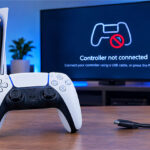


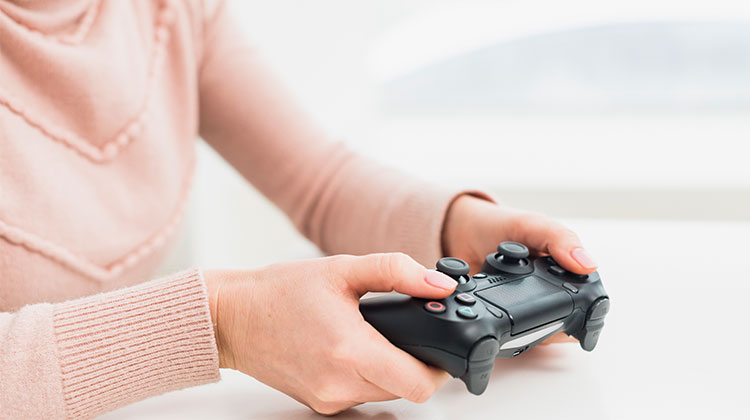
If your Xbox controller won’t connect to PC, the problem can be caused by several common issues, including low battery, Bluetooth pairing errors, faulty USB cables, outdated drivers, or Windows problems. Fortunately, most connection issues can be fixed without replacing your controller.
Fortunately, you usually don’t need to replace the controller. In this guide, we’ll explain six practical solutions to help fix an Xbox Controller Won’t Connect to PC problem and get your controller working again.
Why Is My Xbox Controller Not Connecting to PC?
Your Xbox controller won’t connect to PC because of:
- Low or dead battery.
- Bluetooth pairing issues between the controller and PC.
- A faulty or charging-only USB cable that doesn’t support data transfer.
- A damaged or problematic USB port on your computer.
- Outdated or corrupted controller drivers.
- Outdated Windows software causing compatibility problems.
- Previous pairing conflicts with another device.
- Wireless interference affecting the Bluetooth connection.
Before trying anything complicated, check how you’re connecting the controller. If your Xbox controller won’t connect to PC, the troubleshooting steps can be different depending on whether you’re using Bluetooth or a USB connection.
Also read: Why Is My Xbox Controller Blinking? 10 Easy Fixes To Try
6 Ways to Fix Xbox Controller Won’t Connect to PC
1. Check Your Xbox Controller’s Battery
A low battery is one of the first things to check when your Xbox controller won’t connect to pc. A controller may turn on but fail to maintain a wireless connection when the batteries are almost empty. Rechargeable battery packs can also lose their charge over time.
How to fix it:
- Turn off your Xbox controller.
- Replace the AA batteries with fresh batteries.
- If you’re using a rechargeable battery pack, charge it fully.
- Press the Xbox button to turn the controller on.
- Try connecting it to your PC again.
- If possible, connect the controller using a USB cable to test whether it works.
If the controller works via USB but not wirelessly, the issue is more likely related to Bluetooth or wireless pairing rather than the controller itself.
2. Reconnect the Xbox Controller to Your PC
Windows can occasionally have trouble maintaining an existing controller connection. Removing the controller and connecting it again gives Windows a fresh connection and can fix temporary pairing problems.
How to fix it:
- Open Windows Settings.
- Select Bluetooth & devices.
- Find your Xbox controller in the device list.
- Click the three-dot menu next to it.
- Select Remove device.
- Turn the controller off.
- Turn it back on.
- Press and hold the Pair button.
- Select Add device in Windows.
- Choose Bluetooth.
- Select your Xbox controller when it appears.
After pairing, check whether the controller responds correctly. If it connects but immediately disconnects, continue with the Bluetooth troubleshooting steps below.
3. Fix Xbox Controller Bluetooth Connection
Bluetooth is convenient because it eliminates the need for a cable, but wireless interference, disabled Bluetooth settings, outdated Bluetooth drivers, or other connected devices can cause problems.
If your Xbox controller won’t connect to pc via Bluetooth, first make sure Bluetooth is enabled and the controller is close to your computer.
How to fix it:
- Open Settings on your PC.
- Go to Bluetooth & devices.
- Make sure Bluetooth is turned on.
- Turn off unnecessary Bluetooth devices temporarily.
- Keep the controller close to your PC.
- Press and hold the controller’s Pair button.
- Select Add device.
- Choose Bluetooth.
- Select the Xbox controller from the list.
- Wait for Windows to confirm the connection.
If the controller does not appear, restart Bluetooth by turning it off and back on. You can also restart your PC before trying the pairing again.
4. Check the USB Cable and USB Port
If you’re connecting your Xbox controller with a USB cable, the cable itself may be responsible for the problem. Not every USB cable supports data transfer. Some cables are designed mainly for charging, so Windows may not detect the controller properly.
A damaged USB port can cause the same symptoms.
How to fix it:
- Disconnect the controller from your PC.
- Try another USB cable that supports data transfer.
- Connect the controller directly to your PC.
- Try a different USB port.
- Avoid using a USB hub while troubleshooting.
- Wait several seconds for Windows to recognize the controller.
- Test the controller in a game.
If another cable works immediately, the original cable was likely the problem. If none of the USB ports detect the controller, continue with driver troubleshooting.
5. Update Xbox Controller Drivers and Windows
Outdated drivers can prevent Windows from recognizing your controller properly. This is especially worth checking if your Xbox controller won’t connect to pc after a recent Windows update or system change.
To check the controller driver:
- Right-click the Start button.
- Open Device Manager.
- Look under Bluetooth, Human Interface Devices, or related controller devices.
- Find the Xbox controller.
- Right-click it and choose Update driver.
- Select Search automatically for drivers.
You should also open Windows Update and install any available updates. This can be particularly useful if your Xbox Wireless Controller Won’t Connect to PC after upgrading Windows.
Also read: PS4 Controller Not Connecting to PC? Try These Easy Fixes
6. Remove and Re-Pair the Xbox Controller
If the controller was working previously but suddenly stopped connecting, its saved pairing information may have become corrupted or conflicted with another connection. Completely removing the controller from Windows and pairing it again can resolve this issue.
How to fix it:
- Open Settings on Windows.
- Select Bluetooth & devices.
- Find the Xbox controller.
- Select Remove device.
- Turn off the controller.
- Restart your PC.
- Turn the controller back on.
- Hold the Pair button.
- Select Add device.
- Choose Bluetooth.
- Select the controller.
- Wait until Windows shows that it is connected.
After pairing, test the buttons, triggers, and analog sticks in a game or Windows controller settings.
If your Xbox Controller Won’t Connect to PC even after these steps, try connecting it to another compatible PC or Xbox device. This can help determine whether the problem is with the controller or your computer.
Quick Checklist
If your Xbox controller won’t connect to pc, quickly check these things:
- Is the controller battery charged?
- Is Bluetooth turned on?
- Did you remove and re-pair the controller?
- Are you using a data-capable USB cable?
- Have you tried another USB port?
- Are your Windows and controller drivers updated?
Start with the easiest fixes first. There’s usually no need to reset Windows or replace the controller immediately.
Conclusion
If your Xbox controller won’t connect to pc, start with battery and connection checks before trying more advanced fixes. Re-pairing Bluetooth, testing another USB cable, and updating drivers can solve many common problems. If the controller still fails on multiple devices, the issue may be related to the controller’s hardware.
FAQs: Xbox Controller Won’t Connect to PC
Why is my Xbox controller connected but not working on PC?
Windows may recognize the controller but fail to load the correct driver. Try updating the controller driver through Device Manager, then restart your PC and test the controller again.
My Xbox controller won’t connect to PC. What should I try first?
Start with the basics: check the battery, make sure Bluetooth is enabled, and try reconnecting the controller. If you're using USB, try another data-capable cable and USB port.
Could an outdated Xbox controller driver be causing this
Yes. An outdated or corrupted driver can prevent Windows from communicating properly with the controller. Check Device Manager for the controller and install any available driver updates.
What if none of these Xbox controller fixes work
Test the controller on another compatible device. If it fails there too, the controller may have a hardware problem. If it works elsewhere, focus on your PC's drivers, Bluetooth, USB ports, or Windows settings.





Leave a comment