






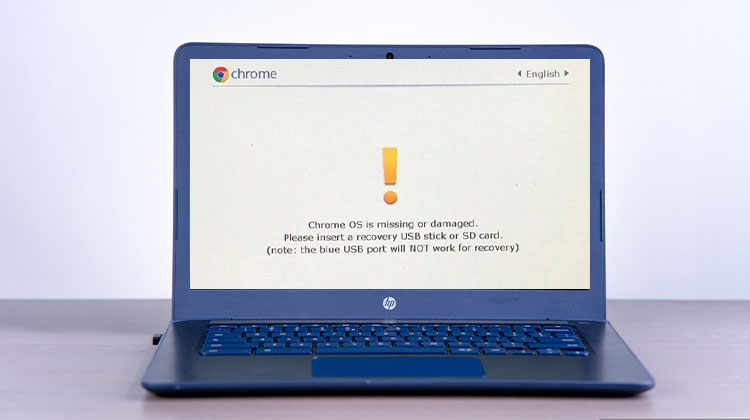
Seeing “Chrome OS is Missing or Damaged” typically indicates that your operating system cannot start properly due to corrupt system files, an interrupted update, storage problems, or other boot-related issues.
However, you have several fixes before visiting a nearby repair store. This guide explains the safest ways to fix the Chrome OS is Missing or Damaged error and get your Chromebook working again.
Why Does ChromeOS Display the “Chrome OS Is Missing or Damaged” Error?
Several issues can trigger the Chrome OS is Missing or Damaged error:
- Corrupted ChromeOS system files
- An interrupted ChromeOS update
- Problems with internal storage
- Failed or incomplete system recovery
- Unexpected shutdown during an update
- Boot or partition errors
- Hardware-related storage problems
Also read: Chromebook Black Screen: How to Fix It Quickly (Step-by-Step Guide)
How to Fix ChromeOS Is Missing or Damaged
1. Restart Your Chromebook
A simple restart can sometimes resolve a temporary boot problem that causes the Chrome OS is Missing or Damaged message. If the error appeared after an unexpected shutdown or minor system glitch, restarting may allow ChromeOS to load normally without affecting your personal files or settings.
Steps:
- Turn off your Chromebook.
- Wait 10–15 seconds.
- Press the Power button.
- Check whether ChromeOS starts normally.
2. Perform a Hard Reset
A hard reset can help when your Chromebook is stuck on the Chrome OS is Missing or Damaged screen because of a temporary hardware or startup issue. This process refreshes the Chromebook’s hardware without reinstalling Chrome OS, so it is worth trying before moving to recovery.
Steps:
- Turn off the Chromebook.
- Press and hold the Refresh key.
- Press the Power button.
- Release the Refresh key when the Chromebook starts.
3. Enter Chromebook Recovery Mode
If restarting does not fix the Chrome OS is Missing or Damaged error, entering recovery mode can help you determine whether Chrome OS needs to be reinstalled. Recovery mode provides instructions for repairing the operating system and is especially useful when the Chromebook cannot boot normally.
Steps:
- Turn off the Chromebook.
- Press and hold Esc + Refresh.
- Press the Power button.
- Release the keys when the recovery screen appears.
- Follow the instructions displayed.
4. Use Chromebook Recovery Utility
If ChromeOS files are corrupted or missing, using the Chromebook Recovery Utility can reinstall the operating system. This is one of the most reliable ways to fix Chrome OS is missing or damaged, when basic troubleshooting does not work. You will need another computer and a USB flash drive.
Steps:
- Use another working computer.
- Open Google’s Chromebook recovery tool.
- Select your Chromebook model.
- Insert a USB flash drive.
- Create the recovery media.
- Connect it to the affected Chromebook.
- Follow the recovery instructions.
Important: Recovery can erase locally stored data.
5. Reinstall ChromeOS Using a Recovery USB
If the Chrome OS is Missing or Damaged error continues, reinstalling ChromeOS using a recovery USB can restore the operating system. You first create recovery media on another computer, then use the USB drive to reinstall ChromeOS on the affected Chromebook. This method can resolve serious software and boot problems.
Steps:
- Use another working computer.
- Create a ChromeOS recovery USB.
- Turn off the affected Chromebook.
- Enter recovery mode using Esc + Refresh + Power.
- Insert the recovery USB.
- Follow the on-screen instructions.
- Wait for ChromeOS to reinstall.
- Restart the Chromebook.
Important: Chromebook recovery can erase locally stored data.
6. Check for Hardware Problems
If ChromeOS recovery repeatedly fails, the issue could lie within your Chromebook’s internal storage device or another hardware component. A damaged drive could prevent ChromeOS from loading properly and lead to messages like Chrome OS is Missing or Damaged even after reinstalling the operating system.
Check for these signs:
- Recovery repeatedly fails.
- The Chromebook cannot detect internal storage.
- Unexpected shutdowns continue.
- Chrome OS installation cannot complete.
- The device has suffered physical damage.
Also read: Why Is My Chromebook So Slow Compared to Before? 9 Easy Solutions
7. Contact Chromebook Support
When recovery methods fail repeatedly, professional assistance may be necessary. Persistent Chrome OS is Missing or Damaged errors can sometimes indicate a hardware problem rather than corrupted software. Contact your Chromebook manufacturer if the device is under warranty or if recovery cannot successfully reinstall Chrome OS.
Before contacting support:
- Note the Chromebook model.
- Record the error message.
- Explain which recovery methods you tried.
- Check your warranty status.
- Contact the manufacturer’s support team.
How to Prevent the Chrome OS Missing or Damaged Error
You can reduce the likelihood of future boot problems by following a few simple practices:
- Keep Chrome OS updated.
- Avoid shutting down the Chromebook during system updates.
- Maintain regular backups of important files.
- Use Google Drive for files you cannot afford to lose.
- Avoid removing or modifying system files.
- Use reliable USB recovery media when recovery is necessary.
Conclusion
Although the ” Chrome OS is missing or damaged error is a common issue that many Chromebook users encounter at some point or another, it can be quickly fixed using the right techniques. These troubleshooting techniques may help you eliminate this annoyance once and for all, though be wary that performing a complete OS reinstallation or factory reset could result in data loss.
FAQs: Chrome OS Is Missing or Damaged
Will Chromebook recovery delete everything?
Recovery can erase locally stored data. Files synchronized with your Google Account or stored in Google Drive should remain available, but local-only files may be lost.
How long does Chromebook recovery take?
The time varies depending on your internet connection, Chromebook model, USB drive, and recovery process. The download and installation can take several minutes.
Why won't my Chromebook enter Recovery Mode?
Make sure the Chromebook is completely powered off and press the correct key combination. If Recovery Mode still does not appear, there may be a keyboard, power, or hardware problem.
What should I do if Chromebook recovery fails?
Try recreating the recovery USB or using another USB drive. If recovery continues to fail, the Chromebook may have a hardware or storage problem and should be checked by the manufacturer or a repair professional.





Leave a comment