






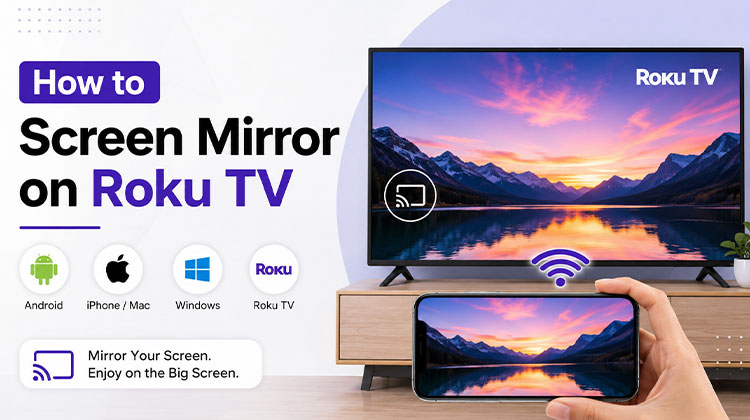
Want to mirror your smartphone, tablet, or computer’s screen directly onto a bigger display? Roku TV makes this possible by directly mirroring compatible devices onto your television screen. Screen mirroring offers an effective and convenient solution for viewing photos, watching videos, giving presentations, or using your phone on larger displays.
In this guide, we’ll outline how to screen mirror on Roku TV using Android, iPhone, Windows, and Mac devices. Additionally, we will cover common connection problems and solutions.
What is Screen Mirroring?
Screen mirroring establishes a wireless connection between any mobile device you are using and a Roku TV, displaying the entire screen on the TV. Unlike casting, which only sends certain types of media, such as YouTube videos, to the television, mirroring shows exactly what appears on the mobile device immediately on a larger TV screen.
Also read: Screen Mirroring Not Working? How to Fix It in 5 Minutes
Before You Start: Turn On Screen Mirroring on Roku TV
To enable screen sharing on Roku devices, first enable it on each of them – this takes just seconds!
- Press the Home button on the Roku remote.
- Navigate to Settings > System.
- Select Screen Mirroring.
- Select screen mirroring mode and set it to Prompt. This is the safest option as it requires you to accept each connection request. You can also select Always Allow if you prefer.
- Once you’ve enabled the setting, you’re all set to connect your device.
How to Screen Mirror on Roku TV From Android
Many Android phones support wireless screen mirroring, though the name can differ depending on your manufacturer. You might see options such as Smart View, Screen Cast, Cast Wireless Display, or Screen Share available to you.
Follow these general steps:
- Turn on your Roku TV.
- Open Settings on your Roku TV.
- Select System and look for the screen-mirroring settings.
- Choose the appropriate screen-mirroring mode.
- On your Android phone, open the quick settings panel.
- Find the screen-casting or screen-mirroring option.
- Select your Roku TV from the available devices.
- If Roku asks for permission, accept the connection.
Your Android screen should then appear on the Roku TV.
These options may differ based on Android manufacturers and software versions.
How to Screen Mirror on Roku TV From iPhone
iPhones typically use Apple’s AirPlay technology to wirelessly stream content on compatible Roku devices. However, its availability varies based on both the model and the software version of each Roku device.
To try connecting an iPhone:
- Make sure your iPhone and Roku TV are connected to the same Wi-Fi network.
- Open Settings on your Roku TV.
- Look for the Apple AirPlay and HomeKit settings.
- Enable AirPlay if it is available.
- On your iPhone, open Control Center.
- Tap Screen Mirroring.
- Select your Roku TV.
- Enter the AirPlay passcode on your iPhone if one appears on the TV.
Your iPhone display should appear on the television after the connection is established.
If Roku TV or your AirPlay doesn’t appear in your list of available devices, check whether all Roku devices support AirPlay and whether both devices have the latest available software.
How to Screen Mirror on Roku TV From Windows
You can also connect some Windows computers to a compatible Roku TV using wireless display technology.
Here’s the general process:
- Turn on your Roku TV.
- Open the Roku screen-mirroring settings.
- Set the screen-mirroring mode according to your preference.
- On your Windows computer, press Windows + K.
- Wait for available wireless displays to appear.
- Select your Roku TV.
- Follow any instructions shown on the TV or computer.
Once connected, your Windows desktop may appear on the Roku screen.
Available options depend upon your Windows version, computer hardware configuration, wireless adapter capability, and Roku model number.
How to Screen Mirror on Roku TV From Mac
Mac users can use AirPlay when their Mac and Roku device support the feature.
To connect a Mac:
- Connect the Mac and Roku TV to the same Wi-Fi network.
- Make sure AirPlay is enabled on the Roku TV.
- Open the Control Center on your Mac.
- Select Screen Mirroring.
- Choose your Roku TV.
- Enter the AirPlay code if requested.
Your Mac screen should then be displayed on the TV.
If your Roku TV doesn’t appear, check its AirPlay settings, Wi-Fi connectivity, and device compatibility.
Also read: How to Browse the Internet on Roku: Best Roku Web Browser in 2025
Screen Mirroring vs. Casting: What’s the Difference?
Although both terms may sometimes be used interchangeably, screen mirroring and casting are not always the same.
Screen mirroring displays your device’s display on a TV. As soon as an application opens or screens switch, or you navigate your phone through different areas, that action may also appear on the screen.
Casting allows users to send compatible content from the app to the television. In many instances, you can continue using your phone independently while the content plays on the television!
Which option best serves your purpose?
Final Thoughts
Learning how to screen mirror on Roku TV makes it easy to view content from your phone or computer. Android phone with built-in casting/mirroring capabilities when supported, an iPhone/Mac with AirPlay on compatible Roku devices. Windows PC with compatible wireless display features.
FAQs: How to Screen Mirror on Roku TV
Can I screen mirror a Windows PC to Roku TV?
Yes, if the Windows PC and Roku TV support compatible wireless display technology. You can generally start the connection from Windows' wireless display options and select the Roku TV.
Does Roku TV support iPhone screen mirroring?
Compatible Roku devices can support iPhone screen mirroring through Apple AirPlay. Availability depends on the specific Roku model and software.
Why is my Roku TV not showing up for screen mirroring?
If your Roku TV isn't appearing, check that both devices are connected to the same Wi-Fi network. Also make sure screen mirroring or AirPlay is enabled, restart both devices, and check for software updates.
How do I fix Roku screen mirroring that keeps disconnecting?
Start by checking the Wi-Fi connection and moving the devices closer to the router. Restart the Roku TV and source device, install available updates, and check whether both devices support the required mirroring technology.






Leave a comment