






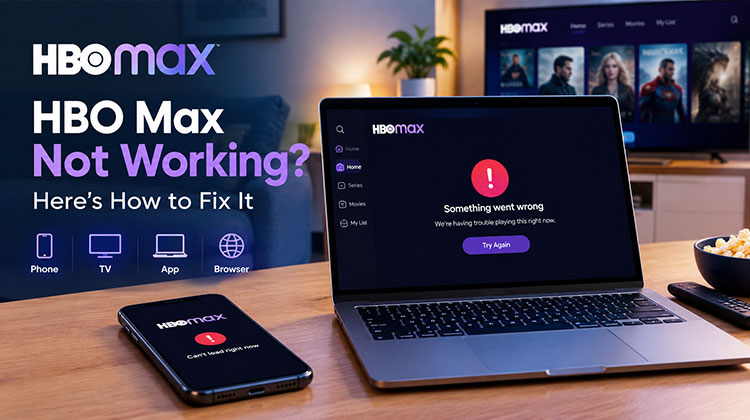
HBO Max is a popular streaming platform for watching movies, TV shows, documentaries, and exclusive entertainment content. However, many users sometimes face problems where the service stops working properly. The issue may appear as videos not playing, the app freezing, login problems, buffering, or a blank screen.
When HBO Max not working issues occur, the reason can be related to internet connection problems, outdated applications, device errors, or temporary service interruptions. In this guide, we will explain the common causes and provide simple solutions to fix the problem.
Why Is HBO Max Not Working?
Before fixing the issue, it is important to understand what may be causing the problem. Some common reasons include:
- Slow or unstable internet connection
- HBO Max server outage
- Outdated app version
- Corrupted cache files
- Device compatibility issues
- Account or login problems
- VPN or proxy interference
- Browser errors
- Pending device updates
- Too many connected devices
How to Fix HBO Max Not Working Problem
Follow these troubleshooting methods to solve HBO Max issues.
1. Check Your Internet Speed
A poor internet connection is one of the most common reasons users experience streaming problems. If your network speed is slow, HBO Max may keep buffering, fail to load videos, or stop working suddenly. Checking and improving your connection can help restore smooth streaming performance.
Steps to Fix:
- Restart your Wi-Fi router.
- Check your internet speed.
- Disconnect devices that are not in use.
- Move your device closer to the router.
- Try using a wired connection if available.
2. Restart HBO Max App
Temporary application glitches can prevent the service from working correctly. If you notice HBO Max not working or the app becoming unresponsive, restarting it can refresh the connection and remove minor errors affecting playback.
Steps to Fix:
- Close the HBO Max app completely.
- Remove it from recent applications.
- Wait for a few seconds.
- Open HBO Max again.
- Try playing a movie or show.
Also read: Paramount Plus Not Working? 9 Ways to Fix Streaming Issues
3. Restart Your Streaming Device
Sometimes the problem is caused by temporary system errors on your device. Restarting your device clears background issues and helps applications run properly. This method works for Smart TVs, smartphones, tablets, streaming devices, and gaming consoles.
Steps to Fix:
- Turn off your device.
- Disconnect it from power.
- Wait for 30 seconds.
- Connect the power again.
- Turn on the device and open HBO Max.
4. Update HBO Max App
An outdated application can create compatibility problems and cause crashes, loading errors, or playback issues. Keeping the app updated ensures that you have the latest improvements and bug fixes. If you are facing HBO Max not loading, updating the application may solve the problem.
Steps to Fix:
- Open your device’s app store.
- Search for HBO Max.
- Check for available updates.
- Install the latest version.
- Restart the application.
5. Clear HBO Max Cache and Data
Cache files help applications load faster, but damaged temporary files can sometimes create problems. Clearing cache removes old data and allows the app to create fresh files, which can fix app freezing, slow loading, and performance-related issues.
Steps to Fix:
- Open your device Settings.
- Select Apps.
- Choose HBO Max.
- Open Storage options.
- Select Clear Cache.
- Restart the app.
6. Sign Out and Sign Back Into HBO Max
Account-related problems can sometimes prevent users from accessing their content. Incorrect login sessions, subscription issues, or temporary account errors may cause streaming problems. Signing out and signing back in refreshes your account connection.
Steps to Fix:
- Open the HBO Max app.
- Go to account settings.
- Select Sign Out.
- Close the application.
- Open it again.
- Log in with your account details.
7. Try Playing Another Title
Sometimes the problem may affect a specific movie or show rather than the entire service. Trying another title can help determine whether the issue is limited to particular content.
Steps to Fix:
- Open HBO Max.
- Select another movie or show.
- Start playback.
- Check whether the new title works.
- Try the original title again later.
8. Check Account Subscription
An expired subscription or account-related issue can prevent access to streaming content. Checking your account details can help determine whether the problem is related to your subscription rather than your device.
Steps to Fix:
- Open your HBO Max account.
- Go to account settings.
- Check your subscription status.
- Review payment information if needed.
- Sign out and sign in again.
9. Disable VPN or Proxy Connection
VPN and proxy services can sometimes interfere with streaming platforms. They may affect your network location or connection speed, which can stop HBO Max from working properly. Disabling these services can help improve compatibility.
Steps to Fix:
- Open VPN settings.
- Turn off your VPN connection.
- Disable proxy settings if enabled.
- Restart HBO Max.
- Check if streaming works normally.
HBO Max Not Working on Smart TV
Smart TV users may experience problems because of outdated software, app errors, or network issues. If HBO Max not working on TV happens, restarting the television and updating the application can often solve the problem.
Try These Fixes:
- Restart your Smart TV.
- Check for system updates.
- Update the HBO Max app.
- Remove and reinstall the app.
- Check your Wi-Fi connection.
HBO Max Not Working on Roku
Roku devices may sometimes face app crashes, loading issues, or playback errors. These problems can usually be fixed by restarting the device, updating software, or reinstalling the application.
Steps to Fix:
- Restart your Roku device.
- Open Roku settings.
- Check for system updates.
- Remove HBO Max.
- Install the app again.
- Restart your internet connection.
Also read: How to Screen Mirror on Roku TV: A Complete Step-by-Step Guide
HBO Max Not Working on Fire TV Stick
Fire TV Stick users may experience problems due to cache errors, outdated software, or limited storage space. Clearing app data and updating the device can improve performance and fix many common streaming issues.
Steps to Fix:
- Restart your Fire TV Stick.
- Open Settings.
- Go to Applications.
- Select HBO Max.
- Clear cache.
- Update Fire TV software.
HBO Max Not Working on Chrome or Browser
Browser-related issues can stop HBO Max from opening or playing videos correctly. Outdated browsers, blocked cookies, and extensions may affect streaming performance. Updating your browser settings can help fix these problems.
Steps to Fix:
- Update your browser.
- Clear cookies and cache.
- Disable unnecessary extensions.
- Restart the browser.
- Try opening HBO Max again.
Prevention Tips to Avoid HBO Max Problems
To avoid facing HBO Max not working issues in the future, follow these simple prevention tips. Regular app updates, a stable internet connection, and proper device maintenance can help you enjoy smooth streaming without frequent interruptions.
- Keep the HBO Max app updated to the latest version.
- Maintain a stable and fast internet connection.
- Update your device software regularly.
- Clear app cache to avoid performance issues.
- Avoid using VPN while streaming.
- Remove unused devices from your account.
- Restart your device regularly to prevent temporary errors.
Final Thoughts
When HBO Max not working becomes a problem, it is usually caused by simple issues like internet connection errors, outdated apps, cache problems, or device settings. Following the troubleshooting steps above can help fix most streaming problems quickly.
Whether you are facing HBO Max app not working, login issues, buffering, or playback errors, these solutions can help you get back to watching your favorite movies and shows. If the problem continues, it may be related to your account or a temporary service issue.
FAQs: HBO Max Not Working
Why is my HBO Max not working on my phone?
Restart your phone and make sure the HBO Max app is updated. If the problem remains, clear the app cache, check your internet connection, or reinstall the app.
Why is HBO Max saying Something went wrong?
This message can appear because of temporary network, app, or account problems. Restart the app, check your connection, and sign in again.
HBO Max not working on Roku after an update?
Restart your Roku and check for additional system updates. If HBO Max still has problems, remove the app and install it again before testing playback.
What is the easiest way to fix HBO Max?
Start by checking your internet connection and restarting the HBO Max app. If the problem continues, update the app, clear its cache, and restart your device.






Leave a comment