






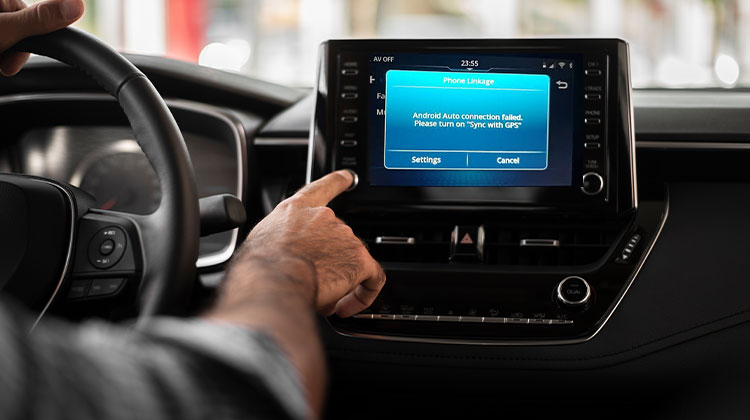
Are you having trouble with Android Auto not connecting to Car? This article can help you fix this issue. Android Auto not connecting to your car is a common issue. There are several reasons for this problem, and most can be fixed with these steps. In this blog, you will see easy methods to get Android Auto working again and solve the problem.
Reasons Why Android Auto Not Connecting
Android Auto may stop working for a range of reasons, ranging from connectivity and pairing issues to software and compatibility concerns. If Android Auto won’t connect to your car via either a USB cable or wirelessly, one or more of the following may be contributing:
- Faulty or incompatible USB cable
- Bluetooth pairing or connection problems
- Disabled Android Auto permissions
- Corrupted app cache or data
- Outdated Android Auto or phone software
- Car USB port or infotainment system problems
- Wireless Android Auto compatibility issues
The quickest way to identify the cause and fix the issue.
Also read: Why Is My Apple CarPlay Not Working? Try These Easy Fixes Now
7 Ways to Fix Android Auto Not Connecting
1. Replace the USB Cable
If Android Auto not connecting via USB, the cable should be the first thing you check. A cable can charge your phone normally while failing to transfer data properly. Using a reliable, high-quality data cable can often fix connection failures between your phone and car.
Steps:
- Disconnect your phone from the car.
- Replace the existing cable with a high-quality USB data cable.
- Avoid damaged, loose, or charge-only cables.
- Connect the phone to the car again.
- Check whether Android Auto launches.
2. Re-Pair Your Phone With the Car
Incorrect or corrupted Bluetooth pairing can be a reason Android Auto not connecting to your car. Removing the existing connection and pairing the devices again gives your phone and infotainment system a fresh connection profile.
Steps:
- Open Settings → Bluetooth on your phone.
- Select your car.
- Tap Forget or Unpair.
- Open Android Auto settings.
- Remove the car from previously connected vehicles.
- Restart your phone.
- Pair the phone with your car again.
3. Check Android Auto Permissions
If Android Auto not connecting, restricted permissions may prevent the app from accessing the features it needs. Checking permissions is particularly useful after a software update, app reset, or privacy-setting change.
Steps:
- Open Settings → Apps → Android Auto.
- Tap Permissions.
- Review the available permissions.
- Allow the permissions required by Android Auto.
- Restart your phone.
- Connect the phone to your car again.
4. Clear Android Auto Cache and Data
Corrupted temporary files or stored app data can sometimes cause Android Auto connection problems. Clearing the cache is a simple troubleshooting step that doesn’t normally remove your complete Android Auto setup. If that doesn’t help, clearing app data can provide a more complete reset.
Steps:
- Go to Settings → Apps → Android Auto.
- Open Storage or Storage & cache.
- Tap Clear Cache.
- Try connecting Android Auto again.
- If the problem remains, select Clear Storage/Clear Data.
- Reconnect and set up Android Auto again.
5. Try a Different USB Port
If Android Auto not connecting via USB, the problem may be the car’s USB port rather than your phone. Some vehicles have multiple ports, but not every port supports Android Auto or data transfer. Testing another compatible port can quickly help identify the problem.
Steps:
- Disconnect your phone.
- Find another USB port in your car.
- Choose a port that supports data transfer or smartphone connectivity.
- Connect your phone using a reliable USB cable.
- Wait for Android Auto to start.
- If another port works, use that port for future connections.
6. Reset Wireless Android Auto
When Android Auto not connecting wirelessly, the problem can be related to the Bluetooth or Wi-Fi connection used for wireless setup. Removing the old connection and starting the pairing process again can resolve connection conflicts without changing other phone settings.
Steps:
- Open your phone’s Bluetooth settings.
- Forget or remove your car.
- Open Android Auto and remove the car from previously connected vehicles.
- Turn Bluetooth and Wi-Fi off.
- Restart your phone.
- Turn Bluetooth and Wi-Fi back on.
- Pair your phone with the car again.
- Test wireless Android Auto.
Also read: Best Wireless Android Auto Adapters 2025
7. Update Android Auto and Your Phone
Outdated software can cause compatibility problems and may explain why Android Auto not connecting to your car. Keeping Android Auto, Android, and the vehicle’s infotainment software updated can fix known bugs and improve connection stability.
Steps:
- Open the Google Play Store.
- Search for Android Auto.
- Tap Update if available.
- Open your phone’s System/Software Update settings.
- Install any available Android update.
- Check your car manufacturer’s infotainment system for firmware updates.
- Restart the phone and try connecting again.
Wrap up
If Android Auto not connecting to your car, follow these easy steps. Check the cable, Bluetooth settings, and update apps and software. Restart your devices and change the settings. After a little troubleshooting, you’ll get Android Auto working.
FAQs: Android Auto Not Connecting
Why is wireless Android Auto not connecting?
Wireless Android Auto depends on the phone and car supporting wireless Android Auto and establishing the required Bluetooth/Wi-Fi connection. Forgetting the existing pairing and setting it up again can resolve connection problems.
How do I reconnect Android Auto to my car?
Forget your car from Bluetooth and Android Auto's previously connected cars, restart your phone, and pair the phone with your car again. For USB, connect using a compatible data cable.
Does clearing Android Auto cache fix connection problems?
It can. Corrupted temporary files may interfere with Android Auto. Clearing the cache is a simple troubleshooting step before trying more advanced solutions.
How can I tell whether my phone or car is causing the problem?
Connect another compatible Android phone to your car. If the second phone works, the issue is likely with your original phone or its settings. If it also fails, the car may be responsible.






Leave a comment