






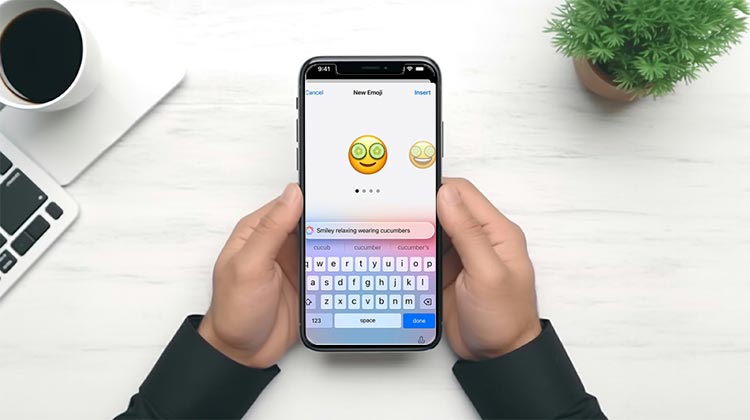
You typed something creative, opened your emoji keyboard, and hit a wall. No Genmoji option. No create button. Just the regular emoji grid staring back at you. If you’re dealing with Genmoji not showing up on your iPhone, you’re in good company — it’s one of the more common complaints since Apple Intelligence launched. The frustrating part? It usually has a straightforward fix.
This guide covers every real cause of Genmoji not showing up and walks you through each solution, step by step. Start from the top and move down until it works.
Why Is Genmoji Not Showing Up?
Before jumping into fixes, it helps to understand why this happens. Genmoji runs through Apple Intelligence — Apple’s on-device AI system that arrived with iOS 18.2. Because it depends on specific hardware and settings, there are several reasons you might find Genmoji not showing up on your keyboard:
- Your iPhone model doesn’t support Apple Intelligence
- Your iOS version is outdated
- Apple Intelligence is off or hasn’t finished downloading
- Your language or region isn’t supported yet
- Keyboard or emoji settings aren’t configured correctly
- Screen Time is blocking image creation
- A temporary software glitch is causing the feature to hide
Most of these are fixable in minutes. Let’s go through them.
Also read: iPhone Not Receiving Texts? Fix the Problem in 10 Minutes
How to Fix Genmoji Not Showing Up on iPhone
1. Check If Your iPhone Supports Genmoji
This is the step most people skip — and it’s often the answer. If your device isn’t compatible, Apple Genmoji not available isn’t a bug. It’s a hardware limit.
Compatible Devices
- iPhone 15 Pro and iPhone 15 Pro Max
- iPhone 16, 16 Plus, 16 Pro, 16 Pro Max, and 16e
- iPhone 17 lineup and newer
- iPad and Mac with M1 chip or later
If you have a standard iPhone 15 or anything older, Genmoji simply won’t work — no setting will change that. If your device is on the list, move on to the next step.
2. Update Your iPhone to the Latest iOS Version
One of the most common reasons Genmoji not working is outdated software. Genmoji launched with iOS 18.2, and Apple has refined it with every update since. Running an older version could mean you’re missing the feature entirely, or dealing with an early bug that’s already been patched.
How to Update
- Open Settings and tap General
- Tap Software Update
- Install any available update
- Restart your iPhone when it’s done
Use Wi-Fi and keep your phone plugged in during the process. A failed mid-update can create more issues than it solves. Once your phone is back on, check the emoji keyboard before doing anything else.
3. Make Sure Apple Intelligence Is Enabled
Here’s something that trips a lot of people up: even on a supported iPhone with the latest iOS, Genmoji not showing up is almost guaranteed if Apple Intelligence hasn’t been turned on — or if it’s still downloading in the background.
How to Enable Apple Intelligence
- Go to Settings > Apple Intelligence & Siri
- Toggle Apple Intelligence on
- Let the download finish — it can take anywhere from a few minutes to over an hour
Two things commonly stall the download: a slow Wi-Fi connection and low storage. Apple Intelligence needs several gigabytes of free space to install properly. If your iPhone storage is full, clear out some photos, apps, or downloads first, then try again.
Also check your language and Siri settings. Apple Intelligence only supports certain languages, and if yours doesn’t match, the feature won’t activate. Go to Settings > General > Language & Region and Settings > Apple Intelligence & Siri to confirm both are set to a supported language.
4. Check Keyboard and Emoji Settings
Sometimes the Genmoji issue on iPhone isn’t a system problem at all — Genmoji is working fine, but it’s just not where you’re looking.
Where to Find Genmoji
- Open Messages and tap into any conversation
- Tap the emoji icon on the keyboard
- Look for the emoji-plus icon in the top-right corner, or type a description in the emoji search bar and tap Create New Emoji
If the emoji button doesn’t appear at all, go to Settings > General > Keyboard > Keyboards and check that Emoji is listed. If it’s not there, tap Add New Keyboard and add it.
Also worth checking: Screen Time. If your device is under a family plan or work profile, go to Settings > Screen Time > Content & Privacy Restrictions > Intelligence & Siri and confirm that Image Creation is set to allowed. This setting can silently block Genmoji with no visible warning.
5. Restart Your iPhone and Try Again
If your settings all look correct but Genmoji not showing up is still the problem, a restart is worth trying before going deeper. Temporary software glitches can hide features unexpectedly, and a fresh boot clears them out.
How to Restart
- Hold the side button and either volume button at the same time
- Slide to power off
- Wait around 30 seconds
- Press the side button to turn it back on
Check your emoji keyboard right after. If Genmoji is there, you’re done. If not, keep reading.
6. Sign Out of Apple ID and Sign Back In
Still dealing with Genmoji missing on iPhone? Signing out and back into your Apple ID can refresh your account connection and nudge Apple Intelligence features that aren’t activating the way they should.
How to Do It
- Go to Settings and tap your name at the top
- Scroll down and tap Sign Out
- Follow the prompts — your data stays safe
- Sign back in with your Apple ID and password
- Wait a minute or two, then check for Genmoji
This isn’t always necessary, but it helps in cases where account-linked settings aren’t syncing properly.
Also read: Fix There Was an Error Connecting to the Apple ID Server: 2026 Ultimate Guide
7. Reset Keyboard Settings
If you’re still here and wondering how to fix Genmoji not showing up after trying everything above, a keyboard reset might clear whatever’s causing the conflict. This only erases words your keyboard has learned — not your photos, apps, or any other data.
How to Reset
- Go to Settings > General > Transfer or Reset iPhone
- Tap Reset
- Tap Reset Keyboard Dictionary
- Confirm when asked
Open Messages afterwards and check your emoji keyboard again.
What to Do If Genmoji Still Isn’t Showing Up
You’ve gone through every step — confirmed your device, updated iOS, enabled Apple Intelligence, checked keyboard and Screen Time settings, restarted, signed out and back in, and reset the keyboard. If Genmoji not showing up is still your reality, it’s time to contact Apple directly.
Here’s how to reach them:
- Apple Support app — quickest way to chat or book a call
- apple.com/support — online support and diagnostics
- Genius Bar — in-person help at an Apple Store
Tell them which steps you’ve already tried. It saves time and helps them move straight to advanced troubleshooting.
Also check Apple’s system status page and any recent Apple Intelligence rollout news. In certain countries, features are still being phased in gradually — if Apple Genmoji not available in your region, a short wait might be all that’s needed.
Final Thoughts
Most cases of Genmoji not showing up come down to three things: your iPhone doesn’t support it, iOS needs an update, or Apple Intelligence hasn’t been fully set up yet. Fix those first, and you’ll solve the problem most of the time.
If you’ve worked through every step in this guide and Genmoji not showing up, Apple Support is the logical next move. But in most cases, people find the fix long before they get there — usually something as simple as an iOS update or flipping on Apple Intelligence in settings.
FAQs About Genmoji Not Showing Up
Why is Genmoji not showing up even though Apple Intelligence is enabled?
This can happen if Apple Intelligence is still downloading, your device language isn't supported, or a temporary software issue is affecting the feature. Connect to Wi-Fi, keep your iPhone charged, check your available storage, and install any available iOS updates. Then restart your iPhone and try again.
Can region or language settings cause Genmoji not showing up?
Yes, unsupported language or regional settings can cause Genmoji not to show up. Check Settings > General > Language & Region and Settings > Apple Intelligence & Siri to ensure your language is supported and Apple Intelligence is enabled.
Why can't I create a Genmoji from the Messages app?
If Genmoji creation isn't available in Messages, confirm that your iPhone supports Apple Intelligence and that setup is complete. Then open a conversation, bring up the emoji keyboard, and look for the creation option. If it's still missing, check your software and language settings.
How do I fix Genmoji not showing up in Messages?
If Genmoji is not showing up in Messages, update your iPhone, turn on Apple Intelligence, check your language settings, and restart your phone. Also, make sure your iPhone supports Genmoji.








Leave a comment