





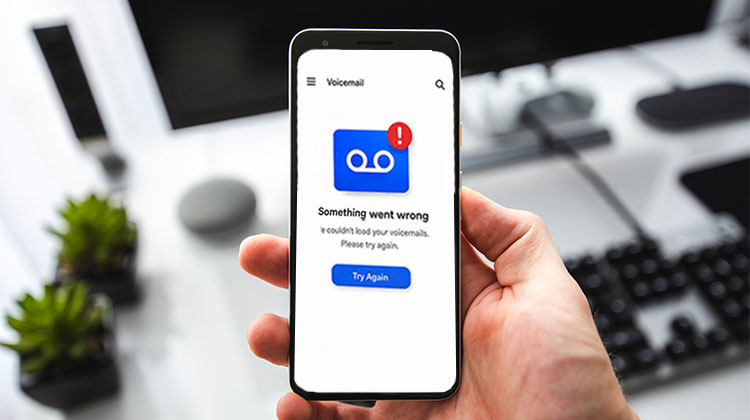
Once you have Visual Voicemail on your Android phone, it’s a challenge to return calls. It’s easier than calling your phone’s voicemail provider only to discover that most calls are spam or hang-ups. If visual voicemail not working on your Android device, this is how to fix it.
Common Reasons Why Visual Voicemail Not Working
There can be several reasons why Visual Voicemail stops working on Android. The most common causes include:
- Visual Voicemail is not activated.
- Required app permissions are not enabled.
- Cellular data is turned off.
- The internet connection is weak or unstable.
- The Visual Voicemail app is outdated.
- The Android OS is outdated.
- Your Android OS does not support the current app version.
- Visual Voicemail app files are corrupted.
Once you’ve identified the potential issue, try these solutions to remedy Visual Voicemail Not Working on Android Phone:
Also read: Blocked Voicemails on iPhone: How to Access and Manage Them
How to Fix Visual Voicemail Not Working?
1. Restart Your Phone
Temporary system glitches can sometimes affect Visual Voicemail and prevent it from working correctly. Restarting your phone gives the device a fresh start and refreshes its system processes. Therefore, if you are facing Visual Voicemail Not Working, restart your Android phone first and then check whether your voicemail messages are accessible.
Steps to restart your phone:
- Press and hold the Power button.
- Wait until the Power menu appears.
- Tap Restart.
- Wait for the device to restart.
- Open Visual Voicemail and check your messages.
2. Ensure Your Phone Is Using a Strong Internet Connection
Visual Voicemail needs a stable internet connection to download and synchronize voicemail messages. If your connection is weak, the service may fail to load messages correctly. So, when experiencing Visual Voicemail Not Working, check your internet connection and switch between mobile data and Wi-Fi to see whether the problem is resolved.
Steps to check your connection:
- Check your mobile network signal.
- Make sure cellular data is enabled.
- If using Wi-Fi, move closer to the router.
- Try switching from Wi-Fi to mobile data.
- Open Visual Voicemail again.
If the Wi-Fi connection continues to cause problems, resetting network settings may also help.
3. Disable and Enable Visual Voicemail
Sometimes temporary glitches with the Visual Voicemail service can cause it to stop working. In this situation, disabling and enabling the feature again can refresh the service. This is a simple method to try when Visual Voicemail Not Working occurs without making major changes to your Android phone.
Steps to disable and enable Visual Voicemail:
- Open the Phone app.
- Tap the three-dot menu.
- Select Settings.
- Tap Voicemail.
- Disable Visual Voicemail.
- Wait for a few seconds.
- Enable Visual Voicemail again.
- Check whether your voicemail messages appear.
4. Free Up Your Device Storage
If your Android phone is almost full, apps may not work properly. Visual Voicemail also needs available storage to handle voicemail messages and related data. Therefore, check your device storage and remove unnecessary files if you are experiencing Visual Voicemail Not Working because of insufficient space.
Steps to free up storage:
- Open Settings.
- Go to About phone or Storage.
- Check the available storage.
- Remove unused apps.
- Delete unnecessary photos and videos.
- Remove other unwanted files.
- Restart Visual Voicemail and check again.
5. Clear Cache & Data of Visual Voicemail
Over time, temporary cache and stored app data can become corrupted and cause problems. Clearing the cache can remove these temporary files and may help restore normal functionality. If clearing the cache does not solve the Visual Voicemail Not Working problem, you can also clear the app data and set up the service again if required.
Steps to clear cache and data:
- Open Settings on your Android phone.
- Tap Apps.
- Find and select Visual Voicemail.
- Tap Storage.
- Select Clear Cache.
- If required, tap Clear Data.
- Open Visual Voicemail again.
Note: Clearing app data may remove saved app settings, so you may need to configure Visual Voicemail again.
6. Check for Call Forwarding Option
Call forwarding can affect how incoming calls are handled before they reach voicemail. If call forwarding is incorrectly configured, it may interfere with voicemail functionality. So, checking your call forwarding settings is another useful method when Visual Voicemail Not Working on Android.
Steps:
- Open the Phone app.
- Open the dialer.
- Check your call forwarding settings.
- Disable unnecessary call forwarding if enabled.
- Test your voicemail again.
Because call-forwarding codes and settings can vary by carrier, contact your carrier if you are unsure which settings should be enabled or disabled.
7. Update the Visual Voicemail App
An outdated or buggy Visual Voicemail app may not work correctly with your current Android version. Installing the latest available version can fix known bugs and improve compatibility. If Visual Voicemail Not Working continues after trying the previous methods, check the Play Store for an available app update.
Steps to update the app:
- Open the Google Play Store.
- Tap your Profile icon.
- Select Manage apps & device.
- Go to Updates available.
- Find Visual Voicemail.
- Tap Update if available.
- Wait for the update to finish.
- Open the app and test your voicemail.
Quick Solution to Fix Visual Voicemail Not Working Issue
If none of the above methods solve the problem, the issue may be related to an Android system error rather than the Visual Voicemail app itself. In such cases, an Android repair solution may help identify and resolve certain system-related problems.
However, if the problem is caused by your carrier, voicemail activation, or network service, you should contact your carrier for further assistance.
How to Set Up Visual Voicemail on Android?
If Visual Voicemail has not been activated on your phone, you need to complete the setup before using the service.
Generally, you can follow these steps:
- Swipe up on your Android Home screen.
- Find and open the Voicemail app.
- Follow the on-screen instructions.
- Complete the voicemail setup.
- Check whether Visual Voicemail is now available.
The exact setup process may differ depending on your Android phone and mobile carrier.
Conclusion
Visual voicemail not working can be very frustrating. By following these troubleshooting tips, however, you should resolve this issue and restore essential functions to your device. Keep this in mind: the primary focus should be identifying whether an issue lies in the device, network, or service before taking appropriate steps.
FAQs: Visual Voicemail Not Working
Why is Visual Voicemail not showing new messages?
This usually happens when the voicemail service is not syncing properly. Check your internet connection, restart your phone, and try disabling and enabling Visual Voicemail again. Also make sure you have enough storage space on your device.
Why is my voicemail working when I call but not in Visual Voicemail?
If traditional voicemail works when you call the voicemail number but Visual Voicemail does not, the problem may be with the Visual Voicemail app or its configuration. Try refreshing the app and checking your voicemail settings.
How do I know if my carrier supports Visual Voicemail?
The easiest way is to check your carrier's voicemail features or contact customer support. You can also check whether Visual Voicemail appears in your Phone app. Availability can vary by carrier, plan, device, and location.
Does Visual Voicemail require an internet connection?
Visual Voicemail generally needs a network connection to synchronize voicemail information. If your connection is weak or cellular data is disabled, messages may not load or update correctly.






Leave a comment