






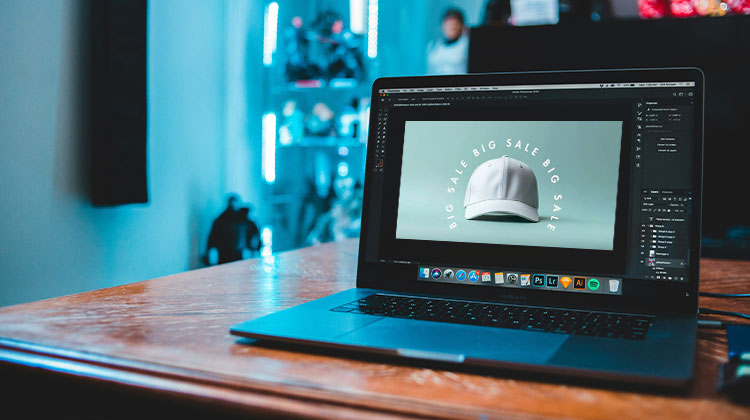
Creating attractive typography does not always require professional graphic design software. With a curved text generator, you can quickly turn ordinary text into an arc, circle, or other creative shape. Curved lettering is especially useful for logos, social media posts, posters, invitations, stickers, badges, and T-shirt designs.
If you are looking for an online curved text generator, there are plenty of tools that make the process simple. Some focus specifically on typography, while others provide complete graphic design features.
In this guide, we have listed 7 of the best curved text generators and explained what each one is best suited for.
What Is a Curved Text Generator?
A curved text generator is an online tool or design feature that lets you bend text along a curved path instead of keeping it in a straight line. Depending on the tool, you may be able to create an arc, semicircle, full circle, wave, or other curved effect.
A free curved text generator can be particularly useful when you need a quick design without installing complicated software.
Curved text can be used for:
- Logos and branding
- Circular badges
- Social media graphics
- Posters and flyers
- T-shirt designs
- YouTube thumbnails
- Invitations
- Stickers
- Certificates
- Website banners
7 Best Curved Text Generators
1. Canva
Canva is a popular online design platform that makes it easy to create stylized typography. Its text effects can be used to bend text into a curved shape.
The platform also provides templates, fonts, graphics, photos, and other design elements, so you can create an entire project rather than just generating curved lettering.
Key features:
- Simple drag-and-drop editor
- Large font selection
- Curved text effects
- Ready-made templates
- Social media design tools
- Browser-based editing
Best for: Beginners who want to create curved text as part of a larger graphic design.
Also read: 10 Best Canva Alternatives for 2025 (Free & Paid Tools Compared)
2. Adobe Express
Adobe Express offers a collection of browser-based design tools for creating graphics, social media posts, posters, and promotional materials.
Its text customization options make it useful when you want to curve text in an image while also adding backgrounds, photos, icons, and other design elements.
Key features:
- Easy online editor
- Typography customization
- Design templates
- Image editing features
- Multiple creative assets
Best for: Users who want an Adobe-powered design environment without using complex desktop software.
3. Fotor
Fotor combines photo editing and graphic design tools. It can be useful for creating promotional graphics and social media content that includes curved typography.
If your goal is to curve text in an image, a tool with both text and image editing capabilities can save you from switching between different applications.
Key features:
- Online photo editor
- Text customization
- Design templates
- Image effects
- Graphic design tools
Best for: Users who want to combine curved text with photographs and other visual elements.
4. Picsart
Picsart is another popular creative platform for editing images and producing social media graphics.
It includes text, effects, templates, stickers, and image-editing features. This makes it suitable for creators who want more than a basic round text generator.
Key features:
- Text editing tools
- Creative effects
- Photo editing
- Templates
- Social media design features
Best for: Social media creators and users creating visually detailed graphics.
5. Photopea
Photopea is a browser-based image editor designed for more advanced editing. It provides layers, masks, selections, and other features commonly associated with professional image-editing software.
Although it may take longer to learn than a simple online curved text generator, it provides greater control over your overall composition.
Key features:
- Advanced image editing
- Layers and masks
- Detailed typography control
- Browser-based workflow
- Support for multiple graphics formats
Best for: Experienced users who need more control over their designs.
6. MockoFUN
MockoFUN is a browser-based design tool with a dedicated curved text feature. It lets you create curved, arched, and circular text, as well as add text along custom paths. You can customize fonts, colors, spacing, curve settings, and other text effects directly online.
Key Features:
- Curved, arch, and circular text
- Text along custom paths
- Font and color customization
- Adjustable letter spacing
- Online editing
- PNG downloads
Best for: Users who want a dedicated online tool for creating curved and circular typography.
7. TextStudio
TextStudio focuses primarily on creating decorative and visually appealing text. It can be useful when your main goal is to create eye-catching typography rather than a complete graphic design.
You can experiment with different text styles and effects to create designs for logos, banners, thumbnails, and other creative projects.
Key features:
- Typography-focused tools
- Decorative text effects
- Customizable styles
- Multiple visual effects
- Text-based design options
Best for: Users who want decorative typography for creative projects.
Also read: Top 5 Brat Generators to Create Stunning Text and Memes
How to Choose the Right Curved Text Generator
Not every curved text generator is designed for the same purpose. The right choice depends on the type of design you want to create.
Ease of Use
If you are a beginner, choose a tool with a simple interface and straightforward text controls. Templates can also help you create a design faster.
Customization Options
Look for controls that allow you to change the font, size, color, spacing, curve direction, and curve intensity.
Image Editing
If you want to curve text in an image, choose a platform that also provides image editing features. This allows you to create and edit your complete design in one place.
Export Options
Consider the available download formats and image quality, particularly if you plan to print your design.
Templates
Templates can save time when creating social media posts, posters, invitations, logos, and promotional graphics.
How to Create Curved Text Online
Using an online curved text generator is usually a simple process:
- Open your preferred design tool.
- Add the text you want to curve.
- Choose your preferred font.
- Find the text effects or curve option.
- Adjust the curve, spacing, and text size.
- Select your text color and additional effects.
- Position the text within your design.
- Export the finished image.
For a logo or badge, you can create separate curved text elements above and below a central image or icon.
Tips for Better Curved Text Designs
Using a free curved text generator gives you plenty of room to experiment, but good typography still depends on how you use the available options.
Keep these tips in mind:
- Choose a font that remains readable when curved.
- Avoid excessive letter spacing.
- Make sure the text follows the shape smoothly.
- Use colors that contrast with the background.
- Keep important words away from extreme bends.
- Match the curve to the overall design.
- Preview the design at its final size before exporting.
If you are making circular branding, a round text generator can be especially useful for arranging words around a logo, badge, seal, or icon.
Curved Text Generator vs. Round Text Generator
Although the terms are sometimes used interchangeably, there can be a small difference between them.
A curved text generator generally refers to tools that bend text along an arc or curved path. The curve may be subtle or pronounced.
A round text generator, on the other hand, is usually intended for arranging text around a circular path. This makes it particularly useful for seals, badges, stamps, and circular logos.
The best option depends on the shape you need for your design.
Final Thoughts
Ready to make your designs stand out? A Curved Text Generator can turn simple words into eye-catching logos, badges, posts, and graphics in minutes. Whether you need a quick free tool or advanced editing features, these 7 options have you covered. Pick your favorite, experiment with different styles, and create curved text that grabs attention!
FAQs: Curved Text Generator
How can I curve text in an image?
Upload your image to a design editor that supports curved typography, add your text, apply the curve effect, and adjust its position, size, and color.
What is the best tool for creating curved text?
The right tool depends on your requirements. Canva, Adobe Express, Fotor, Picsart, Photopea, MockoFUN, and TextStudio offer different approaches to creating curved or circular typography.
Can I use a Curved Text Generator for free?
Yes, several tools offer free curved-text features. However, some may charge for premium fonts, advanced effects, templates, or high-resolution downloads.
Is curved text good for social media posts?
Yes. Curved lettering can add visual interest to Instagram posts, YouTube thumbnails, Facebook graphics, Pinterest images, and other social content.









Leave a comment