





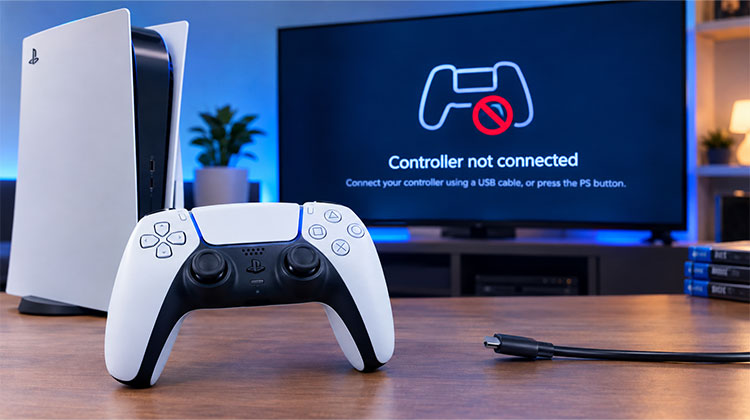
Is your PS5 controller not connecting to your PlayStation 5? A DualSense controller may stop working because of a low battery, Bluetooth pairing problems, a faulty USB cable, outdated software, or a temporary console glitch.
The good news is that most controller connection problems can be fixed at home without replacing the controller. In this guide, you’ll learn why your PS5 controller not connecting and how to fix it.
Why Is My PS5 Controller Not Connecting?
Your PS5 controller not connecting problem can happen for several reasons, ranging from a simple battery issue to a damaged USB-C port. Common causes include:
- The DualSense battery is low or completely drained
- The USB cable only supports charging and not data transfer
- Bluetooth pairing has failed
- The controller is still connected to another device
- A temporary PS5 software glitch is preventing detection
- The PS5 system software needs an update
- The controller firmware has encountered an issue
- Dust or damage is affecting the USB-C port
- The controller or console has a hardware problem
Identifying the likely cause helps you choose the right PS5 controller not connecting fix instead of trying each solution at random.
Also read: How to Fix PS5 Controller Drift and Restore Smooth Gameplay Easily
How to Fix PS5 Controller Not Connecting Issue
If you’re looking for a fix PS5 controller not connecting issue, start with the simple solutions below and work your way through them.
1. Charge Your Controller
Before trying anything complicated, make sure your DualSense has enough battery. A completely drained battery can prevent the controller from turning on or connecting to your PS5.
Steps:
- Connect the controller to your PS5 with a compatible USB cable.
- Leave it charging for around 15–30 minutes.
- Press the PS button.
- Check if the controller connects.
- If nothing happens, try a different USB port or another compatible cable.
- You can also try a different power source.
Sometimes the controller simply has a completely drained battery.
2. Use a USB Cable That Supports Data
If you deal with a wireless PS5 controller not connecting issue, try connecting it directly to the console with a USB cable. The important thing is to use a cable that supports data transfer, not just charging.
Steps:
- Turn on your PS5.
- Plug the DualSense into the console.
- Press the PS button.
- Wait a few seconds for the console to recognize it.
- Once connected, unplug the cable.
- Try using the controller wirelessly.
If it works with the cable but not wirelessly, the problem may be related to the wireless connection.
3. Reset the DualSense
Still having a PS5 controller not connecting problem? Resetting the DualSense can help clear temporary pairing problems, especially if the controller was previously connected to another device.
Steps:
- Turn off your PS5 first.
- Turn the DualSense over.
- Locate the small reset button near the Sony logo.
- Use a small pointed object to press the button.
- Hold it for about five seconds.
- Turn your PS5 back on.
- Connect the controller with a USB data cable.
- Press the PS button.
- Check if the controller connects.
This can help if the controller was previously paired with a phone, PC, or another PlayStation.
4. Restart the PS5
Sometimes the controller is fine, and the problem is actually with the console. A temporary Bluetooth or software glitch can stop the PS5 from recognizing the controller.
Steps:
- Turn the PS5 off completely.
- Don’t leave it in Rest Mode.
- Wait a few seconds.
- Turn the PS5 back on.
- Connect the DualSense with a USB data cable.
- Press the PS button.
- Check whether the controller connects.
A simple restart can often clear temporary connection problems.
5. Try a Different USB Port
If your PS5 controller not connecting issue is still there, the USB port or cable could be responsible. Trying another port is a quick way to rule out a connection problem.
Steps:
- Disconnect the controller from the current USB port.
- Check the controller’s USB-C port for visible dust or debris.
- Connect the cable to another USB port on the PS5.
- Press the PS button.
- Wait for the console to recognize the controller.
Don’t use a sharp object to clean inside the USB-C port. You could damage the connector. If another USB port works, the original port or cable may be the problem.
6. Disconnect Other Devices
Did you recently use your DualSense with a PC, phone, tablet, or another PlayStation? It may still be trying to connect to that device.
This can sometimes lead to a PS5 controller not pairing issue when you try to use it with your console again.
Steps:
- Check nearby devices with Bluetooth enabled.
- Turn off Bluetooth on those devices temporarily.
- Disconnect the DualSense from any previously connected device.
- Plug the controller into your PS5 with a USB data cable.
- Press the PS button.
- Wait for the PS5 to recognize the controller.
This gives the controller a fresh connection with the console and can sometimes fix the problem.
Also read: Is Your PS5 Overheating? Here’s What You Should Do
7. Update Your PS5
Keeping your PS5 software up to date is also important. An outdated system can sometimes cause compatibility or software problems with connected accessories.
Steps:
- Use another working controller if available.
- Open the PS5 Settings.
- Go to the System Software section.
- Check for available system software updates.
- Install an available update.
- Restart the PS5.
- Connect the DualSense and test it again.
If you don’t have another controller, move on to the other troubleshooting steps first.
8. Try Safe Mode
If your PS5 controller not connecting problem hasn’t been fixed yet, you can try PS5 Safe Mode. This can help determine whether the issue is related to the console’s software or settings.
Steps:
- Turn off the PS5 completely.
- Press and hold the power button.
- Keep holding it until you hear the second beep.
- Connect the DualSense with a USB data cable.
- Press the PS button.
- Check whether the controller works in Safe Mode.
If the controller works in Safe Mode but doesn’t work during normal startup, the problem could be related to the PS5’s software or settings.
Be careful during Safe Mode. Some of them can change settings or remove data from the console.
9. Test Another Controller
Another easy way to narrow down the problem is to try a different compatible controller. This helps you determine whether the issue is with your original DualSense or the PS5 itself.
Steps:
- Get another compatible PS5 controller.
- Connect it to the PS5 using a USB data cable.
- Press the PS button.
- Check whether it connects normally.
- If possible, test your problematic controller on another PS5.
- Compare the results.
If another controller connects to your PS5 without any trouble, the original DualSense could have an issue with its battery, pairing, firmware, or hardware.
Also read: PS5 Not Connecting to Internet? Easy Solutions Guide
10. Look for Physical Damage
If the PS5 controller not connecting issue persists after trying everything above, check the controller for physical damage. A damaged USB-C port or internal component can prevent the controller from connecting.
Steps:
- Check the USB-C port for visible damage.
- Check the buttons and charging connection.
- Inspect the controller housing for cracks or impact damage.
- Think about whether the controller has recently been dropped.
- Check whether it has been exposed to liquid.
- Try connecting it again with a compatible USB data cable.
If you see physical damage or your PS5 controller won’t connect, consider getting it checked by a professional.
Final Thoughts
Is your PS5 controller not connecting? Don’t rush to replace it just yet. A simple charge, USB data cable, reset, or PS5 restart may solve the problem in minutes. If nothing works, test another controller to identify the real issue. Try these fixes one by one before considering repair or replacement.
FAQs: PS5 Controller Not Connecting
Why is my PS5 controller connected but not working?
The controller may be connected but experiencing a temporary software or pairing issue. Restart the PS5, reconnect the controller with a USB data cable, and check whether another controller works.
How do I reset my PS5 DualSense controller?
Turn off your PS5 and locate the small reset button on the back of the DualSense near the Sony logo. Press and hold it with a small pointed object for about five seconds, then reconnect the controller using a USB data cable.
Can Safe Mode fix a PS5 controller not connecting problem?
Safe Mode can help determine whether the problem is related to the PS5's software or settings. Connect the DualSense with a USB data cable after entering Safe Mode and press the PS button.
What if my PS5 controller still won't connect after trying everything?
If charging, resetting, changing the USB cable and port, restarting the PS5, and testing another controller don't help, inspect the controller for physical damage. A professional repair may be necessary if the controller or USB-C port is damaged.





Leave a comment