






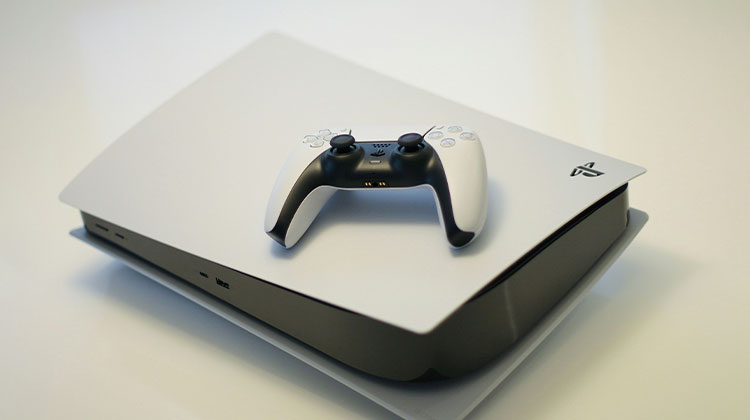
PS5 is Sony’s top console for an upgraded gaming experience. Due to the popularity of games, demand for the PS5 has exceeded supply. Some gamers have also noticed their PS5 isn’t connected to the Internet. For gamers, this isn’t something to worry about. This article will help fix the PS5 not connecting to Internet issue.
Why Is Your PS5 Not Connecting to Internet?
Before jumping into fixes, it’s important to understand why PS5 won’t connect to internet.
Here are the most common reasons:
- Weak or unstable WiFi signal
- Router or modem problems
- Incorrect WiFi password
- Network interference from other devices
- DNS or IP configuration issues
- Temporary system glitches on your PS5
- PlayStation Network server outages
If all your other devices are working fine but your PS5 isn’t, the issue is likely console-specific settings or software bugs.
Also read: How to Fix PS5 Controller Drift and Restore Smooth Gameplay Easily
How to Fix PS5 Not Connecting to Internet Issue
1. Check Server Status
As we’ve already mentioned, PlayStation Network servers may experience issues from time to time, and could cause interruptions for online functions. Most of the time, server issues don’t last long, so all you need to do is sit back and wait until the server is resolved. However, you can find out whether your region is affected by an outage or experiencing server issues by checking the official PSN server status page.
2. Check Your Internet Connection
To test your Internet connection, determine if your mobile or iPad works properly. If you notice the PS5 won’t connect to internet, move closer to the Wi-Fi network and eliminate any other devices that interfere with your network.
Additionally, you can restart your router and modem. The steps in detail are as follows:
- Disconnect the router’s hardware and modem.
- Wait for at least 30 seconds before cooling your gadget.
- Replug your modem, and hit the Power button if it does not turn on.
- Wait for about 60 seconds, then plug into your router. Certain routers might require that you press the Power button.
- Allow for about 2 minutes for the router to start.
After the router and modem restart, check to see whether the issue has been resolved.
3. Verify Your WiFi Password
It’s important to ensure you’re using the correct password to connect to your internet, or you could face a PS5 Wi-Fi issue.
Usually, look on the side, bottom, or back of your router for a sticker with a default username and password. Make sure you entered the correct password.
4. Restart Your PS5
To resolve the PS5 not connecting to WiFi problem, try restarting your PS5, and this could solve a few small glitches or issues with your device. Turn off the device, then turn it on. In this procedure, ensure that you unplug the power cable from the console.
6. Run the PS5 Network Test
Try the PS5’s built-in network connectivity test to determine if the issue is there.
- Open your device and navigate to Settings.
- Click Connection Status, after which click on the Connection Status.
- Select to test your Internet Connection to run an additional test.
Also read: PS5 Not Turning On? 8 Easy Fixes to Get It Working
6. Change DNS Settings
By default, the PS5 will use the DNS settings your router assigns it. However, there are instances when your ISP’s DNS servers are causing problems.
To check if DNS is causing your network issue, switch to a free gaming DNS and see if the connection improves.
Steps:
- Go to Settings → Network → Set Up Internet Connection
- Choose WiFi or LAN → Select Custom
- Set:
- IP Address: Automatic
- DHCP: Do Not Specify
- Set DNS Settings → Manual
- Enter:
Primary DNS: 8.8.8.8
Secondary DNS: 8.8.4.4 - Finish setup and test the connection
7. Factory Reset Your PS5
The final option is to factory reset your PS5; however, this will delete your game file. Before you do this, you should reach out to Sony support or have the PS5 restored or replaced by Sony, since it might be triggered by hardware issues.
- Open the PS5 and then go to Settings.
- Select the System first, then the System Software from the left side.
- Select the Reset options from the right and select Reset Your Console.
- Select Reset to confirm your selection.
After resetting, you can reboot your PS5 and try to connect to the Internet.
Bottom Line
This article will help you solve the “PS5 not connecting to Internet” problem. We hope you enjoy a great gaming experience.
FAQs: PS5 Not Connecting to Internet
Why won’t my PS5 connect to WiFi?
Common reasons include incorrect password, weak signal, network interference, or router restrictions.
How do I reconnect when PS5 not connecting to internet suddenly?
When your PS5 not connecting to internet, restart your router and reconnect through network settings.
Why does PS5 not connecting to internet on WiFi but works on LAN?
If PS5 not connecting to internet on WiFi but works on LAN, your wireless network is likely unstable or misconfigured.
How do I fix PS5 not connecting to internet quickly?
Restart your PS5 and router, check your WiFi password, and run a network test. These basic steps fix most connection problems.










Leave a comment