




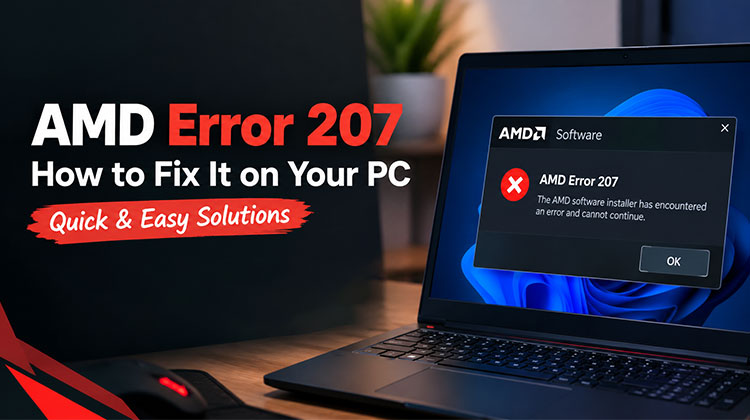
Seeing AMD Error 207 after installing or updating your graphics driver can be frustrating. The error usually appears when Windows cannot properly recognize or load the AMD GPU driver. It may happen because the graphics card is disabled, driver files are corrupted, Windows updates interfere, or there are compatibility issues. In this guide, we’ll show you simple ways to fix it.
What Causes AMD Error 207?
If you’re seeing an AMD software installer error, you may see AMD Error 207 after installing or updating your graphics driver.
There isn’t always one reason behind AMD Error 207. Common causes include:
- AMD GPU drivers were not installed correctly.
- The graphics card is disabled in Device Manager.
- Old AMD driver files are conflicting with the new installation.
- Windows Update replaced your AMD driver.
Before trying advanced solutions, restart your computer and check whether the error disappears. If it continues, move on to the fixes below.
How to Fix AMD Error 207 on Your PC
1: Check Your AMD GPU in Device Manager
One of the first things you should check is whether Windows has disabled your AMD graphics card.
- Press Windows + X.
- Select Device Manager.
- Expand Display adapters.
- Find your AMD graphics card.
- Right-click it and select Enable device if the option is available.
- If it is already enabled, select Disable device and then enable it again.
- Restart your PC.
After restarting, open AMD Software and check whether AMD Error 207 has disappeared.
If you see a yellow warning icon next to your GPU, Windows may be reporting a separate driver or hardware problem. In that case, reinstalling the driver can help.
2: Reinstall the AMD Graphics Driver
A damaged or incomplete driver installation is another common reason for AMD Error 207. Reinstalling the driver can remove the damaged installation and replace it with a clean copy.
First, download the correct graphics driver for your GPU and Windows version from AMD’s official website.
Then:
- Open Settings and go to Apps.
- Find AMD Software and uninstall it.
- Restart your computer.
- Install the correct AMD graphics driver.
- Follow the installation instructions.
- Restart Windows after the installation finishes.
Make sure you download the driver that matches your exact AMD graphics card and Windows version. Installing the wrong driver can create additional compatibility problems.
Also read: NVIDIA GeForce Experience Error Code 0x0003 Explained + Quick Fixes
3: Remove Old AMD Driver Files
If reinstalling the driver normally does not work, old AMD files may conflict with the new installation.
AMD provides tools designed to remove existing AMD graphics software and drivers before you perform a fresh installation.
A clean driver installation can be especially useful if you recently:
- Upgraded your AMD graphics card
- Downgraded to an older driver
- Installed multiple driver versions
- Experienced a failed driver update
- Changed your Windows installation
After removing the previous driver, restart your PC and install the latest compatible driver again.
4: Check for Windows Update Driver Conflicts
Windows can sometimes install or replace hardware drivers through Windows Update. This can create a mismatch if the Windows-installed driver is different from the driver you intended to use.
To check for updates:
- Press Windows + I.
- Open Windows Update.
- Select Check for updates.
- Install available updates.
- Restart your computer.
You should also check Advanced options > Optional updates > Driver updates. If an AMD display driver is listed, review it before installing.
If AMD Error 207 appeared immediately after a Windows update, rolling back the display driver may also be worth trying.
5: Install the Driver Provided by Your PC Manufacturer
If you’re using a laptop or a prebuilt desktop, the latest driver directly from AMD isn’t always the best option for your particular system.
Manufacturers such as Dell, HP, Lenovo, ASUS, and Acer may customize graphics drivers for their hardware.
Visit your computer manufacturer’s support page and search for your exact model. Download and install the recommended AMD graphics driver.
This can help when the standard AMD driver causes compatibility issues with your laptop or OEM system.
6: Check BIOS or UEFI Graphics Settings
If Windows cannot properly detect your AMD GPU, check your BIOS or UEFI settings.
Restart your computer and enter BIOS/UEFI using the key shown during startup. Depending on your motherboard, this may be Delete, F2, F10, or another key.
Look for graphics-related settings such as:
- Primary Display
- Initial Display Output
- Integrated Graphics
- PCIe Graphics
- Dedicated Graphics
The available options depend on your motherboard or laptop. Avoid changing BIOS settings unless you know what they control. If you’re unsure, use the manufacturer’s recommended settings.
7: Check Whether Windows Detects the GPU
After reinstalling the driver, return to Device Manager > Display adapters.
Your AMD graphics card should appear without a warning icon.
You can also open the GPU’s Properties and check the Device status section. If Windows reports a specific device error, search for it separately because it may provide more information about the underlying problem.
If the AMD GPU is completely missing, the problem may involve BIOS settings, hardware detection, a connection issue, or the graphics card itself.
Also read: GPU Fans Not Spinning? 6 Quick Solutions for a Safe PC
What If AMD Error 207 Still Appears?
If none of the solutions above work, don’t repeatedly install different drivers at random. Instead, identify what changed before the problem started.
For example, ask yourself:
- Did the error appear after a Windows update?
- Did you recently update the AMD driver?
- Is the GPU visible in Device Manager?
- Does Device Manager show a warning code?
- Are you using a laptop or desktop?
- Does the manufacturer’s driver work correctly?
These details can help narrow down whether you’re dealing with a software conflict, driver problem, Windows issue, or possible hardware detection problem.
Final Thoughts
AMD Error 207 can usually be fixed by checking your GPU in Device Manager, reinstalling the AMD graphics driver, removing old driver files, or checking Windows and BIOS settings. Start with the simple fixes before trying advanced solutions. If the error still appears, check your PC manufacturer’s driver support. Try these fixes and get your AMD GPU working again.
FAQs: AMD Error 207
What does AMD Error 207 mean?
AMD Error 207 appears when AMD Software installs successfully, but Windows detects a potential problem with the AMD graphics device through Device Manager.
Is AMD Error 207 the same as an AMD driver installation failure?
No. AMD states that Error 207 means the AMD Software installation completed successfully, but Windows subsequently detected a potential problem with the graphics device.
How do I check the Device Manager error causing AMD Error 207?
Right-click the Start button, open Device Manager, expand Display adapters, right-click your AMD GPU, and select Properties. Check the Device status section for additional information.
Should I roll back my AMD driver for Error 207?
A driver rollback may help if AMD Error 207 started immediately after a recent driver update. In Device Manager, you can check the driver properties and use the rollback option when it is available.







Leave a comment