






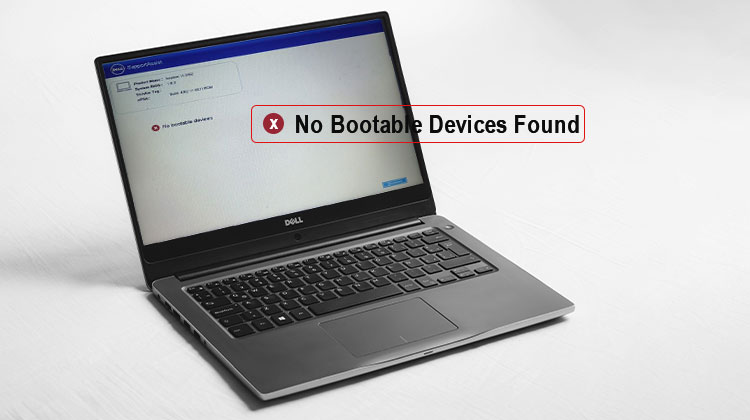
“No Bootable Devices Found” errors can appear suddenly on any PC. They often indicate an unconfigured boot sequence, disk file corruption, or physical damage to connectors and drives that you must repair to restore normal PC operation. You can solve these challenges and get your desktop back to normal – continue reading below to discover more!
What Does “No Bootable Devices Found” Mean?
A bootable device is a storage device containing the files required to start an operating system. Usually, this is an internal HDD or SSD containing Windows.
When your computer displays “No Bootable Devices Found,” the firmware cannot find a valid boot device or cannot access the information required to launch Windows. On older systems, this may involve the Master Boot Record (MBR). Modern computers generally use UEFI and an EFI System Partition to start the operating system.
You may see slightly different versions of the same problem, including:
- No bootable device found
- No bootable devices found
- Boot device not found
- No boot device available
- Boot device not found – Hard Disk 3F0
- No boot device – insert boot disk and press any key
Although each computer manufacturer phrases its messages differently, most issues stem from the boot drive, firmware configuration, boot files, or storage hardware.
Also read: WHEA Uncorrectable Error on Windows? Try These 10 Fixes First
Why Does My Computer Say No Bootable Devices Found?
Several problems can trigger this error:
- Incorrect BIOS/UEFI boot order
- Loose or damaged HDD/SSD connections
- Corrupted Windows boot files
- Disk errors or bad sectors
- Incorrect partition configuration
- Wrong UEFI or Legacy boot mode
- Failed Windows updates
- Failing HDD or SSD
Investigate the cause before trying any solutions, since some solutions might interfere with partitions or your boot configuration.
How to Fix No Bootable Devices Found
Try these solutions from the simplest checks to more advanced Windows recovery methods.
1. Remove External Storage Devices
Start by disconnecting unnecessary USB devices from your computer.
Remove:
- USB flash drives
- External hard drives
- Memory cards
- USB storage adapters
- External optical drives
Restart the computer after removing them.
Sometimes BIOS/UEFI firmware attempts to boot from an external drive instead of the internal Windows drive. If Windows starts normally afterwards, check your firmware settings for boot priority.
2. Check Your HDD or SSD Connection
A loose connection can cause No Bootable Devices Found because the motherboard may not detect the hard drive.
For a desktop computer:
- Turn off the computer.
- Disconnect the power.
- Open the computer case.
- Check the SATA data cable.
- Check the power connection.
- Reseat the cables securely.
- If possible, test another SATA cable or port.
Note: If you have an M.2 SSD, make sure it is properly seated in its slot.
Once your connections are verified, boot up the computer and enter BIOS/UEFI to determine whether the drive is recognized.
Also read: Hard Drive Not Installed Error on Windows 11/10? Here’s How to Fix It
3. Check the BIOS/UEFI Boot Order
An incorrect boot order can prevent Windows from starting. Check BIOS/UEFI settings and ensure the correct Windows drive or Windows Boot Manager is selected as the first boot device.
Restart your computer and enter BIOS/UEFI. Depending on the manufacturer, you may need to press F2, F10, F12, Delete, or Esc during startup.
Look for Boot Order, Boot Priority, or a similar option.
Make sure the correct Windows drive is selected as the primary boot device.
On many modern UEFI systems, Windows Boot Manager may appear rather than only the physical SSD names
Save the changes and restart your computer.
If the boot order was the problem, Windows should start normally.
4. Check Whether the Drive Is Detected
If the message “No Bootable Devices Found” persists, check whether your HDD or SSD is visible in the BIOS/UEFI.
If the drive appears in the firmware but Windows fails to start up, the issue could be related to boot files or the Windows installation.
If the drive does not appear at all, the issue may be:
- A loose connection
- A faulty cable
- An incorrect storage setting
- A damaged SSD or HDD
- A motherboard or storage-controller problem
When the drive is not detected by the firmware, Windows repair commands usually cannot solve the underlying hardware problem.
5. Use Windows Recovery Environment
If the storage drive is detected but Windows will not start, use the Windows Recovery Environment.
You can access recovery tools through Windows installation media.
After booting from the installation USB:
- Select Repair your computer.
- Select Troubleshoot.
- Open Advanced options.
- Choose the appropriate recovery tool.
Available options can include Startup Repair, System Restore, Command Prompt, and other recovery features.
Startup Repair can quickly identify and rectify start-up-related problems.
6. Run CHKDSK
File system or disk errors may cause No Bootable Devices Found.
From the Windows Recovery Command Prompt, CHKDSK allows users to check a volume for file system problems and file corruption.
A commonly used command is:
chkdsk C: /f /x /r
However, the Windows partition may not always be assigned the letter C: in the Recovery Environment.
Use DiskPart or similar commands to identify the Windows volume before running CHKDSK.
CHKDSK can take some time, particularly on larger HDDs or drives with issues. Please allow it to complete without interrupting it.
7. Repair Windows Boot Files
Corrupted boot information is another possible cause of No Bootable Devices Found.
Windows Recovery Environment provides tools such as Bootrec that can help repair boot information on appropriate system configurations.
Common commands include:
bootrec /fixmbr
bootrec /fixboot
bootrec /scanos
bootrec /rebuildbcd
Before changing anything on your system’s boot configuration, understand the boot system.
Modern UEFI/GPT systems may require different boot repair steps than older BIOS/MBR systems. Therefore, do not blindly apply legacy repair commands on all computers.
Also read: 7 Ways to Fix “Operating System Not Found” Error on PC Quickly
8. Check the System Partition
On some legacy BIOS/MBR installations, the system partition must be marked as active.
DiskPart can be used from the Windows Recovery Command Prompt to inspect disks and partitions.
For example:
diskpart
Then:
list disk
After identifying the correct disk, you can inspect its partitions.
Do not automatically select disk 0 or partition 1. Disk and partition numbering differ between computers, and selecting the wrong partition can create additional startup problems.
This method is mainly relevant to legacy MBR configurations. UEFI/GPT systems normally use an EFI System Partition instead.
9. Check the Health of Your Storage Drive
If the previous methods do not resolve No Bootable Devices Found, your storage device may be failing.
Watch for symptoms such as:
- The drive disappears from BIOS/UEFI
- Files suddenly become inaccessible
- Windows freezes frequently
- The system becomes unusually slow
- The HDD makes clicking or grinding sounds
- The SSD disconnects unexpectedly
- Drive diagnostics report serious errors
If the drive shows signs of physical failure, avoid repeatedly running repair operations.
If important files are saved on a drive, prioritise recovering or backing up this data before attempting extensive repairs.
Can You Fix No Bootable Devices Found Without Losing Data?
In many cases, yes.
If the issue stems from incorrect boot order, loose connections, or damaged boot configuration, your personal files could remain undisturbed.
However, you should not assume that every repair is risk-free.
Before making major changes:
- Check whether the drive is accessible.
- Back up important files if possible.
- Avoid formatting the drive.
- Avoid deleting partitions unnecessarily.
- Investigate hardware failure if the drive is unstable.
If the drive is failing, data recovery should take priority over repeatedly trying to repair Windows.
How to Prevent No Bootable Devices Found
Although every boot failure can be prevented, a few habits can reduce the risk.
- Keep regular data backups.
- Monitor HDD/SSD health.
- Avoid unnecessary partition changes.
- Keep BIOS/UEFI settings correct.
- Maintain Windows recovery media.
- Replace failing drives early.
Final Thoughts
“No Bootable Devices Found” is a serious error that needs to be corrected right away to recover data on your drive and access it properly. A regular backup schedule is a good option to protect from data loss regardless of the root cause.
FAQs: No Bootable Devices Found
Can changing the BIOS boot order fix the problem?
Yes. If the wrong drive is selected as the first boot device, choosing the correct Windows drive or Windows Boot Manager may resolve the issue.
Should I reinstall Windows if this error appears?
Not immediately. Try repairing the boot configuration and checking the drive first, especially if you have important files that are not backed up.
What if my SSD or HDD is not showing in BIOS?
Check the drive connection and BIOS/UEFI storage settings. If the drive remains undetected, it may have a hardware problem.
Should I format my drive when this error appears?
No. Formatting can erase your data. Try non-destructive troubleshooting methods first, especially if important files are stored on the drive.









Leave a comment