




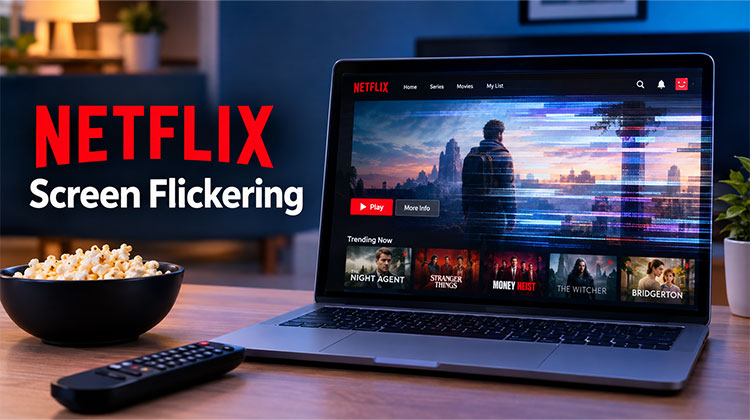
Seeing your screen flash, blink, or briefly turn black while watching Netflix can be frustrating. Netflix Screen Flickering may happen because of browser extensions, outdated graphics drivers, hardware acceleration, display settings, app issues, or video-streaming issues.
Fortunately, the Netflix screen flickering issue can be fixed without replacing your monitor or computer. Try the solutions below one at a time and check Netflix after each fix.
What Causes Netflix Screen Flickering?
Before trying the fixes, it helps to understand why the problem happens. Netflix Screen Flickering may be caused by several different factors, including:
- Outdated graphics or display drivers
- Hardware acceleration in your browser
- An outdated Netflix app or browser
- Incorrect display refresh-rate settings
- HDMI or external-monitor problems
- Corrupted browser cache or app data
- Internet or video-streaming problems
- Conflicts with other applications
- HDR or display compatibility issues
The exact cause can vary depending on whether you’re watching Netflix on a Windows PC, Mac, smart TV, phone, tablet, or external monitor. Netflix also recommends checking supported browsers, device software, video drivers, and display connections when playback problems occur.
Also read: Seeing Netflix Error Code M7361-1253? Here’s How to Fix It
How to Fix Netflix Screen Flickering Issue
1. Clear Your Browser Cache
A damaged or outdated browser cache can interfere with Netflix playback. Your browser stores temporary files to make websites load faster, but those files can occasionally become corrupted. Clearing the cache forces the browser to create fresh temporary data and can resolve strange playback behavior, including flashing, blinking, or intermittent black screens.
Steps:
- Open your browser.
- Go to Settings.
- Open Privacy and security.
- Select Clear browsing data.
- Choose Cached images and files.
- Clear the data.
- Restart the browser.
- Open Netflix and test a video.
2. Disable Browser Extensions
Browser extensions can interfere with video playback, particularly extensions that modify webpages or monitor streaming content. Ad blockers, privacy tools, video enhancers, and screen-recording extensions can sometimes conflict with Netflix. Temporarily disabling your extensions is a quick way to determine whether an add-on is responsible for the Netflix screen flickering.
Steps:
- Open your browser.
- Go to the Extensions section.
- Turn off all extensions temporarily.
- Restart the browser.
- Open Netflix.
- Play a movie or show.
If the problem disappears, enable extensions individually to find the culprit. Netflix also recommends disabling unnecessary browser extensions when troubleshooting browser-related playback problems.
3. Update Your Graphics Driver
Your graphics driver helps Windows communicate with your GPU and display. An outdated, corrupted, or incompatible driver can cause problems when streaming video. If Netflix Screen Flickering started after a system or driver change, checking your graphics driver.
Install the latest compatible driver from your GPU manufacturer’s official software or website. Netflix specifically recommends keeping video drivers updated when video playback problems occur.
Steps:
- Identify your graphics card.
- Open your GPU manufacturer’s update utility or official support page.
- Check for a newer compatible driver.
- Install the driver.
- Restart your computer.
- Open Netflix and test playback.
4. Disable Hardware Acceleration
Hardware acceleration allows the browser to use your graphics processor for certain tasks. While this can improve performance, compatibility problems between the browser, GPU, and video playback can sometimes create flickering.
Temporarily disabling the feature can help determine whether graphics acceleration is responsible for the Netflix Screen Flickering problem.
Steps:
- Open your browser settings.
- Search for hardware acceleration.
- Turn off Use hardware acceleration when available.
- Restart the browser.
- Open Netflix again.
- Play the same video and check the screen.
Also read: How to Enable or Disable Chrome Hardware Acceleration in 2026: Easy Guide
5. Sign Out of Other Netflix Devices
If your Netflix account is being used across several devices, signing out of devices you no longer use can help eliminate account or playback conflicts. This is not the most common cause of Netflix Screen Flickering, but it is a simple troubleshooting step if Netflix is active on many TVs, computers, phones, or streaming devices.
Steps:
- Open Netflix.
- Go to your account settings.
- Find the option for managing signed-in devices.
- Sign out of devices you no longer use.
- Sign back into your current device.
- Test Netflix again.
6. Use a Higher Performance Power Mode
On laptops, aggressive power-saving settings can reduce available system performance. In some situations, this can affect graphics-heavy applications and video playback. Switching temporarily to a higher-performance power mode can help determine whether limited system performance is contributing to Netflix Screen Flickering.
Steps:
- Open Windows Settings.
- Select System.
- Choose Power & battery.
- Find the Power mode option.
- Select a performance-oriented setting when available.
- Connect your charger if you’re using a laptop.
- Restart Netflix and test playback.
7. Update Your Browser
Netflix relies on modern browser technologies for video playback. If your browser is outdated, compatibility problems can occur with streaming, graphics rendering, or protected video content. Updating the browser ensures you have the latest fixes and security improvements.
Netflix currently supports browsers including Chrome, Edge, Firefox, Opera, and Safari, with minimum version requirements that vary by operating system.
Steps:
- Open your browser.
- Open the browser menu.
- Go to Help or About.
- Let the browser check for updates.
- Install an available update.
- Restart the browser.
- Sign in to Netflix and test playback.
8. Try a Different Browser
If Netflix flickers in one browser but works correctly elsewhere, the problem is likely connected to the original browser’s settings, extensions, cache, or video-rendering system. Testing another supported browser is therefore a useful diagnostic step.
You do not need to permanently switch browsers unless the alternative provides a more stable Netflix experience. Trying another browser can also help identify compatibility problems.
Steps:
- Install or open another supported browser.
- Sign in to Netflix.
- Play the same movie or episode.
- Watch for several minutes.
- Compare the playback with your original browser.
If the flickering disappears, troubleshoot the original browser.
9. Test Another Internet Connection
A weak or unstable network connection can cause unusual streaming behavior, especially when flickering happens alongside buffering, quality changes, or repeated playback interruptions. Testing another connection helps determine whether your home network is involved.
You can use another WiFi network or a wired connection if your device supports one.
Steps:
- Disconnect your current network.
- Connect to another reliable Wi-Fi network.
- Alternatively, use an Ethernet connection.
- Open Netflix.
- Play the same content.
- Compare the playback.
- If necessary, restart your router and reconnect.
10. Change Mac Pointer Settings
Mac users experiencing Netflix Screen Flickering can also test their pointer-related display settings. Some users have reported that disabling the feature that enlarges or highlights the pointer when it is moved quickly can stop flickering during Netflix playback.
The reason this works is not always clear, so treat it as a troubleshooting test rather than a guaranteed solution.
Steps:
- Open System Settings.
- Select Accessibility.
- Open Display.
- Find the pointer-related settings.
- Turn off Shake mouse pointer to locate if available.
- Restart Netflix.
- Play a video and check the result.
11. Reinstall the Netflix App
If Netflix flickers inside the dedicated application but works normally in a browser, the app installation may contain damaged or outdated files. Removing and reinstalling Netflix gives the application a clean installation.
This happens when the problem started after an application update or when other app-specific troubleshooting has not helped. Netflix also provides app reset and update steps for Windows when playback problems occur.
Steps:
- Close Netflix completely.
- Uninstall the Netflix application.
- Restart your device.
- Open your official app store.
- Search for Netflix.
- Install the latest version.
- Sign in again.
- Test video playback.
Also read: How to Fix Netflix Not Working on Roku (6 Simple Solutions)
12. Check Your Display and External Connections
If Netflix screen flickering mainly when connected to a second monitor or TV, the problem may not be Netflix itself. An HDMI cable, DisplayPort, refresh-rate setting, HDR configuration, or external screen can affect video output.
Netflix recommends checking video cables, display connections, monitor settings, and external displays when video playback problems occur.
Steps:
- Disconnect the external monitor or TV.
- Play Netflix on your main display.
- If the flickering stops, reconnect the external display.
- Try another HDMI cable or port.
- Check the display’s refresh rate.
- Temporarily disable HDR.
- Test Netflix again.
Final Thoughts
Netflix Screen Flickering can have several causes, but many cases can be resolved by restarting the device, updating software, changing browser settings, checking display configurations, or testing the HDMI connection. Start with the simple fixes and then move toward graphics drivers, HDR, refresh rates, and hardware troubleshooting if the problem continues.
FAQs: Netflix Screen Flickering
Why is Netflix Screen Flickering on my laptop?
Netflix may flicker on a laptop because of graphics-driver problems, browser settings, hardware acceleration, power settings, or an outdated Netflix app. Updating the driver and browser can often help.
Why is Netflix flickering but other apps work normally?
If only Netflix flickers, the problem is more likely related to the Netflix app, browser, cache, extensions, or video-rendering settings rather than your entire display.
Can browser extensions cause Netflix Screen Flickering on Chrome?
Yes. Some extensions can interfere with video playback. Temporarily disable your extensions and test Netflix again. If the flickering stops, enable extensions individually to find the one causing the problem.
What should I do if Netflix keeps flickering after all fixes?
Test Netflix on another browser or device. If the problem occurs across multiple applications, investigate your graphics driver, monitor, cable, or display hardware. If only Netflix is affected, contact Netflix Support.





Leave a comment