






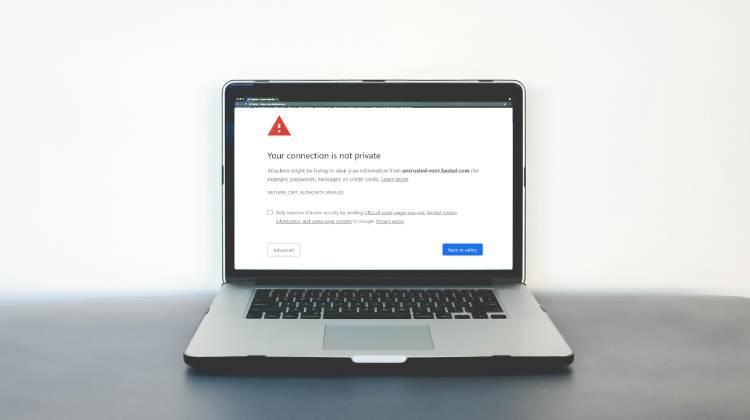
The internet is an endless ocean of information, cat videos, and the occasional Tribble (yes, just like the ones from Star Trek: Deep Space Nine). But even when you’re boldly surfing where no one has surfed before, you may run into an unexpected obstacle: the dreaded “Your Connection Is Not Private” error. It’s like stumbling upon a red-dressed glitch in the Matrix—unexpected, confusing, and a little unsettling.
Fellow explorer, do not fear! We’re here to help you get to the bottom of this digital mystery. In this guide, we will discuss what common issues might cause the ” Your Connection Is Not Private error, then let you troubleshoot the problem one bit and one byte at a time, and get back to browsing safely!
Common Causes of the “Your Connection Is Not Private” Error
Several factors can trigger the “Your Connection Is Not Private” error. The most common include:
- Expired or Invalid SSL Certificates: Expired or invalid SSL certificates can make a website unsafe.
- Domain mismatch: If the SSL certificate doesn’t match the website’s domain, browsers show a security alert.
- Secure Connection Errors: Incorrect server configuration or SSL installation can block secure connections.
- Compromised Servers: Hackers can get into the server’s security and compromise encrypted connections.
Also read: ERR_CONNECTION_TIMED_OUT Error: 6 Proven Ways to Fix It Quickly
How to Fix the “Your Connection Is Not Private” Error
You don’t have to worry if you’re getting the “Your Connection Is Not Private” error – it is quite common, but there are ways to fix it. There are several easy troubleshooting tips to solve the problem and restore secure browsing.
1. Reload the Page
The “Your Connection Is Not Private” error may happen because of a temporary browser error. Press the F5 key on Windows or Cmd + Shift + R on Mac to try again with a secure connection.
If the Chrome privacy error still occurs, go to the next step in the troubleshooting process.
2. Review Date and Time Settings.
If the date and/or time are set incorrectly, it can affect SSL certificate validation. Set the date, time, and computer’s clock correctly. If they’re incorrect, update them and try accessing the website again.
- Open the Date & Time Settings on your computer.
- Check whether the date, time, and time zone are correct.
- Enable Set time automatically and Set time zone automatically, if available.
- Save and restart your browser.
- Revisit the website to see if the error is resolved.
3. Clear the Cache and Cookies.
Outdated or corrupted cache files and cookies can sometimes interfere with secure connections. Clearing your browser’s cache and cookies may help fix the issue. Here’s how:
- Chrome: Go to Settings > Privacy and security > Clear browsing data. Select Cookies and other site data and Cached images and files, then click Clear data.
- Firefox: Open Options > Privacy & Security > Cookies and Site Data. Click Clear Data and select the relevant options.
- Edge: Go to Settings > Privacy, search, and services > Clear browsing data. Select cookies and cached files, then clear them.
If so, close your browser, restart it, and visit the website again.
4. Use an Incognito or Private Browser window.
Private browsing mode lets you browse the web without any existing cookies or cached data. It can also help identify whether browser extensions are causing the issue.
Go into incognito or private mode (Ctrl + Shift + N in Chrome, Ctrl + Shift + P in Firefox) and access the site again. If successful, the error may be due to an extension or to cached data.
5. Update Your Browser
An outdated browser can put you at risk for security threats and connection problems. So update to the latest security patches and enhancements.
- Chrome: Go to the three-dot menu > Help > About Google Chrome. Available updates will install automatically.
- Firefox: Open the three-line menu > Help > About Firefox and install any available updates.
- Edge: Go to the three-dot menu > Help and feedback > About Microsoft Edge to check for updates.
Once updated, restart your browser and try accessing the website again.
6. Verify the SSL Certificate is correct.
An SSL certificate verifies a website’s identity and protects data exchanged between your browser and the server. Validity, expiration date, and domain name are all checked to detect certificate problems and solve the ‘Your Connection Is Not Private’ error.
- Open the website.
- Click the site information icon,
- Select Connection is secure.
- Check the SSL certificate information.
- Check the domain name and expiration date.
- Contact the website administrator if the certificate is invalid or expired.
7. Check Your Antivirus and Firewall
An antivirus program or firewall may interfere with secure SSL connections and trigger privacy warnings. Temporarily turn off HTTPS scanning or modify security settings to see if they are causing the issue. Don’t leave protection off, and turn it back on after testing.
Also read: 6 Easy Ways to Fix ERR_CACHE_MISS Error in Google Chrome
8. Go to the Website using HTTP.
For a temporary diagnostic solution, use http:// instead of https:// in the website URL and attempt to access it again. If you can access the site, the problem may be related to the SSL configuration. However, HTTP isn’t secure; don’t enter passwords or sensitive information, and switch to HTTPS.
9. Change DNS Servers
A DNS converts a domain name into its IP address. DNS problems can sometimes cause website connection issues. Switching to a reliable DNS service provider may help solve the issue.
Either of these is acceptable:
- Google DNS: 8.8.8.8 and 8.8.4.4
- Cloudflare DNS: 1.1.1.1 and 1.0.0.1
Change your device’s DNS configuration, save it, and check the website again.
Wrapping Up
Establishing a strong online security setup is like learning a new skill; it takes continuous effort. This article will help you understand what to do about the “connection is not private” error. Don’t assume that you are not a potential target for hackers. We all make online payments to purchase goods from retailers. This is all they need. So, be safe and don’t ignore errors such as Your Connection Is Not Private.
FAQs: Your Connection Is Not Private Error
What does Your Connection Is Not Private mean?
This error means your browser cannot verify a website's SSL certificate or establish a secure HTTPS connection. It may indicate an expired certificate, incorrect system settings, or a website security issue.
Why does the error appear on all websites?
If the warning appears across multiple websites, check your computer's date and time, antivirus settings, network connection, DNS configuration, and Wi-Fi security.
Is it safe to bypass the Your Connection Is Not Private warning?
No. Bypassing this warning can expose your personal information, passwords, and payment details to security risks. Avoid proceeding unless the issue has been verified and resolved.
Does this error mean a website has been hacked?
Not necessarily. It usually indicates a problem with certificate validation or secure connections. However, it can sometimes signal a security risk, so always treat the warning seriously.






Leave a comment