





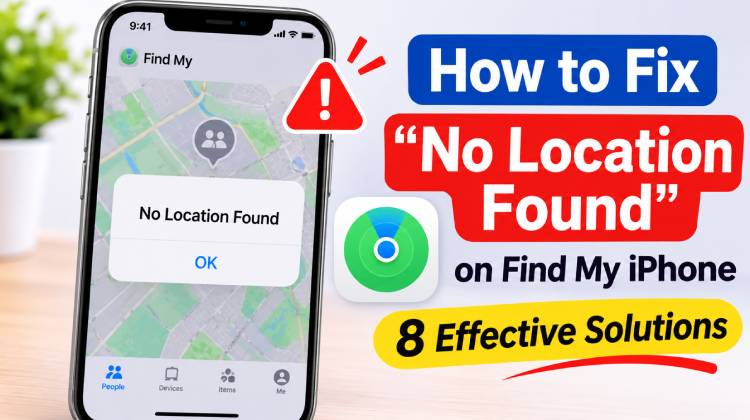
Find My on iPhone lets users find lost or stolen Apple products and view the location of friends and family. However, sometimes it displays “No Location Found” instead of showing someone’s location, even when neither person has changed any settings.
So, what is this message and why does it appear in the first place? This guide covers the top 8 ways to fix the No Location Found issue. An iPhone Location Changer might also be good if you want to conceal your real GPS location.
What Does “No Location Found” Mean?
No Location Found message usually means Find My cannot find the current location of the person or device you want to locate. The iPhone might not be able to get or broadcast its location due to GPS, Wi-Fi, cell reception, or location settings.
This does not just mean that the other party has stopped sharing; it could be many other reasons, such as an iOS glitch or disabling Location Services, weak signal data, or privacy restrictions, that may prevent Find My from showing a location.
If you are using an older iPhone, such as one that is running iOS 12 or earlier, you may see “Location Not Available. If it doesn’t seem like anyone is deliberately stopping the sharing, check both devices.
Why Does Find My Say “No Location Found”?
Common reasons for “No Location Found” in Find My include:
- iOS bugs after software updates.
- Changes in settings after resetting an iPhone.
- iPhone switched off or low battery.
- Disabled Location Services.
- Weak signals or poor internet connectivity.
- Privacy settings restricting location sharing.
Also read: Why Is Google Maps Not Working on My Phone? (9 Easy Solutions)
How to Fix “No Location Found” on iPhone
So these are 8 ways to fix the No Location Found error on your iPhone. Depending on how you fix it, you may need to make sure the receiving and sending devices work together.
1. Enable Location Services
Location Services help apps determine a device’s position. If disabled, Find My may not access the location information it needs.
Open Settings > Privacy & Security > Location Services and turn on Location Services. Then return to Settings, tap your Apple Account name, select Find My, and check that Share My Location is enabled.
Ask the person whose location you’re trying to view to check their settings too. Their iPhone must have Location Services enabled, and they must be sharing their location with you. Turning on Location Services on your device does not enable sharing on someone else’s iPhone.
2. Restart Your iPhone and the Find My App
A temporary glitch can stop Find My from refreshing location information or show No Location Found. Close the app, reopen it, and check the People tab. If the message remains, restart your iPhone and ask the other person to restart theirs. Then check Find My.
Restarting may clear software problems, but it will not correct disabled sharing or a missing network connection.
3. Make Sure Both iPhones Are Online
If you’re facing No Location Found ” on iPhone. If the other person’s iPhone is off, out of battery, or disconnected from a network, its current location may not be available.
Check that both devices are powered on and have sufficient battery. Open Control Center and make sure Airplane Mode is off. Connect to a working Wi-Fi network or enable cellular data. You can test the connection by opening a website.
GPS reception can be weaker indoors, underground, or in remote areas. If possible, move to a place with better reception and check again after the device reconnects. Find My may show a last known location rather than a live position, so check the timestamp where available.
4. Check Apple’s System Status Page
The problem may be an Apple service interruption rather than an iPhone setting. Apple’s System Status page shows whether its services are available.
Open Apple’s System Status webpage and find Find My in the list. A green indicator generally means the service is available. A yellow or red indicator may show that Apple is investigating an issue or that the service is experiencing an outage.
If Find My is affected, wait for Apple to restore the service and try again later. Changing settings on your iPhone is unlikely to solve a server-side outage.
5. Set the Correct Date and Time
Incorrect date or time settings may contribute to synchronization problems. Automatic settings help keep your iPhone’s local time correct.
Open Settings > General > Date & Time, then turn on Set Automatically. Check that the displayed time zone is correct. Ask the other person to check this setting on their iPhone too.
After updating the settings, close and reopen Find My. This is not a guaranteed fix, but it rules out an avoidable configuration problem.
6. Check That You’re Using the Correct Apple Account
Find My is linked to your Apple Account. If you switched accounts, the new account may not have the same location-sharing permissions.
Open Settings and tap your name at the top of the screen. Confirm that you’re signed in with the Apple Account you normally use for Find My. Then open Find My and review the Share My Location setting.
If you changed accounts, ask the other person to share their location with the account you currently use. They may need to send a new invitation. Accepting it allows the sharing arrangement to be set up again.
7. Turn On Precise Location
Precise Location gives supported apps more accurate location information. Turning it off may reduce accuracy, but it is not necessarily the cause of a “No Location Found” message.
Open Settings > Privacy & Security > Location Services, then select Find My. If the Precise Location option appears, turn it on. Also confirm that the app has appropriate location access permission.
The other person can check the corresponding settings on their device. Precise Location can improve accuracy, but it cannot make an offline iPhone share its current location or override someone’s decision not to share.
Also read: 5 Ways to Fix Find My Location Not Updating in Real-Time
8. Set Up Location Sharing Again
If the previous steps have not helped, refresh the location-sharing arrangement. Ask the other person to review their settings and, if appropriate, send a new invitation.
Open Find My and select the People tab to review the current sharing status. If you remove an existing connection, do so only when necessary, because the other person will need to share their location again. Ask them to choose your correct contact or Apple Account when sending the invitation.
Once the person accepts and shares their location, reopen Find My and check the map. This method requires their cooperation; you cannot restore access to another person’s location without their permission.
Summary Up
You may be encountering the ‘No Location Found’ message on your iPhone due to Location Services being turned off, a bad internet connection, incorrect settings, or an iOS issue. Use one of the 8 fixes above to resolve the issue so that it can share location information with the Find My app. Ensure that all required settings are enabled on both devices, and a stable internet connection. If you’re still having trouble, check the Apple System Status or contact Apple Support.
FAQs: No Location Found
Does No Location Found mean someone stopped sharing their location?
No. It may also indicate that the person's iPhone is offline, switched off, or experiencing network problems.
Can Find My locate an iPhone that is turned off?
In some cases, Find My can locate supported iPhones through the Find My network even when they're powered off, depending on the device and settings.
What is the difference between No Location Found and Location Not Available?
Both messages indicate that Find My cannot currently display someone's location. The wording may vary depending on the iOS version and situation.
Does turning on Precise Location fix No Location Found?
Enabling Precise Location can improve location accuracy, but it may not fix the issue if the device is offline or location sharing is disabled.







Leave a comment