





Were you in the middle of an exciting Roblox session when you suddenly got kicked out due to Roblox error code 524? You’re not alone. This relatively common issue affects many players, but the good news is that it’s usually easy to resolve.
In this guide, we’ll explain why Roblox error code 524 occurs and show you how to fix it.
What Causes Roblox Error Code 524?
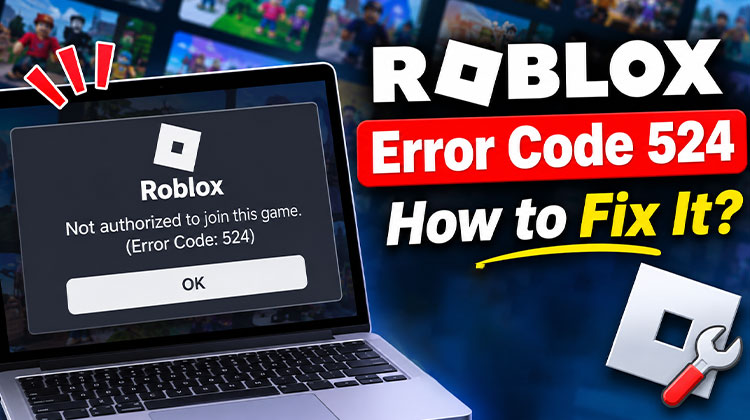
Roblox error code 524 typically occurs when you try to join a game but don’t have the required permissions to access it. When this happens, you may see the following message: “Not authorized to join this game. (Error Code: 524).”
However, the error isn’t limited to joining games. It can also appear mid-session, unexpectedly disconnecting you from the game.
There are several possible reasons why you might encounter Roblox error code 524, including:
- Private server permission restrictions.
- Roblox account is less than 30 days old.
- Roblox server outages or maintenance.
- Incorrect privacy settings.
- App or browser glitches.
- Unstable internet connection.
In the following sections, we’ll cover how to resolve each of these potential issues and fix Roblox error code 524 using straightforward troubleshooting methods.
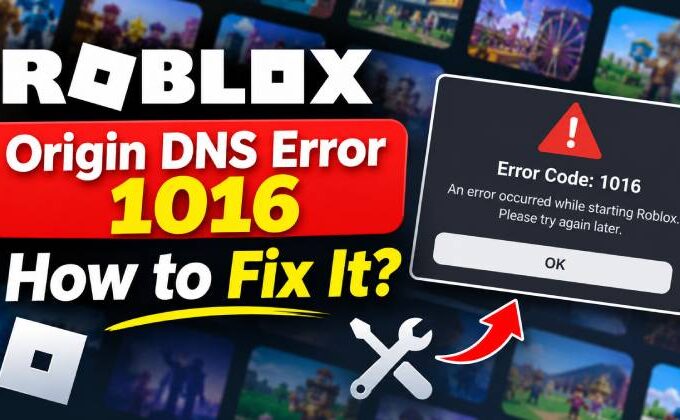
Also read: Roblox Origin DNS Error 1016: Causes and How to Fix It
How to Fix Roblox Error Code 524
Below are seven troubleshooting methods you can try to resolve Roblox error code 524 and get back to playing your favorite games.
1. Check Your Account Age
If your Roblox account is less than 30 days old, you may not be able to access certain game servers. Some experiences have account age restrictions that prevent newer users from joining. If this applies to you, you’ll need to wait until your account meets the required age limit before trying again.
Not sure how old your account is? Check the date of the confirmation email Roblox sent you when you first created your account. This will help you determine whether your account meets the server’s age requirements.
2. Ask for Permission to Join a Private Server
If you’re trying to join a friend’s private server, ask them to check and update their VIP server settings to grant you access. To do this, they simply need to open the game’s page and select the Servers tab.
Next, click Configure. Check the box beside Friends Allowed, enter your Roblox account name in the provided field, and select Add to grant your account permission to join the private server.
This is one of the most straightforward ways to resolve the Roblox 524 join error when private server permissions are the problem.
3. Check Roblox Server Status
You may encounter Roblox error code 524 if the platform’s servers are undergoing maintenance or experiencing technical issues. To find out whether this is the cause, check for outage reports and updates on social media platforms like Twitter or Facebook. You can also visit Down Detector or the official Roblox status page to check for server problems.
4. Troubleshoot Your Network Connection
An unstable or slow internet connection can prevent Roblox from connecting to its servers properly. To check whether your internet is working correctly, try opening a webpage in your browser. You can also run an internet speed test to verify that your download and upload speeds are within the expected range.
If you discover a connection problem, start by restarting your router and temporarily disabling your VPN, if you’re using one.
5. Change Your Privacy Settings
Your Roblox privacy settings may be preventing you from joining private servers, resulting in Roblox error code 524. To update these settings, follow these steps:
- Open Roblox and log in to your account.
- Click the Settings (gear) icon.
- Select Privacy.
- Find Who can make me a member of their private server?
- Change the setting to Everyone.
- Try joining the game again to see if the error is fixed.
6. Clear Your Browser’s Cookies and Cache
Corrupted cookies and cached files can interfere with Roblox when playing through a web browser. Clearing your browser’s stored data may help resolve error code 524 Roblox and restore normal game access.
On Google Chrome:
- Click the three-dot menu and open Settings.
- Go to Privacy and security.
- Select Clear browsing data.
- Check Browsing history, Cookies, and Cached images and files.
- Click Clear data.
Also read: Roblox Error Code 277: Why It Happens and How to Fix It
7. Reinstall the Roblox App
If none of the previous solutions have worked, your next option is to uninstall and reinstall the Roblox app. This can help resolve corrupted installation files or persistent software problems that may be causing Roblox error code 524.
To uninstall Roblox on a Windows PC:
- Open the Start Menu and search for Control Panel.
- Click Uninstall a program.
- Find Roblox, right-click it, and select Uninstall.
- You can also open Settings by pressing the Windows key + I. Go to Apps, find Roblox, and click Uninstall.
After uninstalling Roblox, download and reinstall it from the official Roblox website or your device’s app store.
Conclusion
Roblox error code 524 can be annoying, especially when it interrupts your gaming session. Fortunately, the problem is usually related to server permissions, account restrictions, or connectivity issues. By following the troubleshooting steps in this guide, you should be able to identify the cause, resolve the error, and get back to playing Roblox without further interruptions.
FAQs: Roblox Error Code 524
Does Roblox error code 524 mean I am banned?
No, error code 524 doesn't necessarily mean your account is banned. It may be related to private server permissions, account restrictions, privacy settings, or connectivity problems.
Why can't I join my friend's Roblox private server?
You may not have permission to join the server. Ask your friend to review their private server configuration and allow your account to access it.
How long does Roblox error code 524 last?
The duration depends on the cause. Permission-related errors may be resolved immediately after updating server settings, while server outages or technical problems may require waiting until Roblox resolves them.
How do I fix Roblox error code 524 quickly?
Check the server status, verify private server permissions, review your privacy settings, and restart your internet connection. These are good initial troubleshooting steps.




Leave a comment