






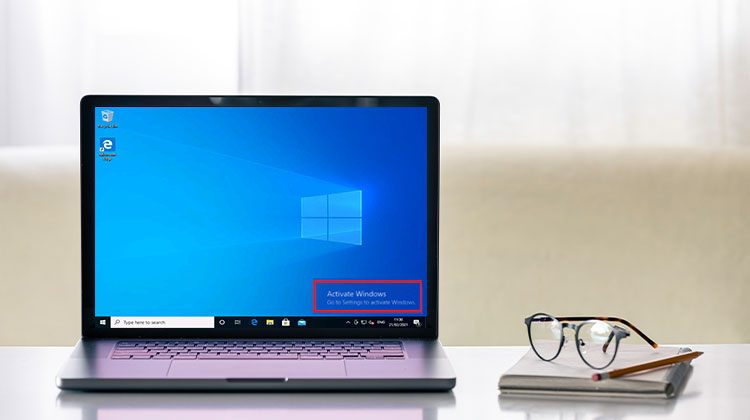
Windows 10 is one of the most reliable operating systems to date. It’s a stable, user-friendly, and safe OS that’s been in use since. Even after the launch of Windows 11, many people not updated their software.
An operating system can have errors, glitches, and other functions that can harm your computer’s performance. One of them is the Activate Windows watermark that appears in the lower right corner of the display.
This is a measure developed by Microsoft to ensure you are aware that you don’t have a valid license or your product key has expired. It’s designed so that background images can’t make it disappear.
In this article, we’ll explore seven methods you can use to remove the Activate Windows watermark on Windows 10.
What Is the Activate Windows Watermark?
The Activate Windows Watermark is a security measure Microsoft designed to ensure users are aware that they’re using software that doesn’t have a license. Perhaps you’re not using an authentic product key, or you’ve installed Windows 10 on your desktop that is not activated.
Compared to other software such as CorelDRAW and Microsoft Office, which blocked users from performing any. The operating system displays the activation watermark.
It may initially appear that the activation status does not seem to change. In reality, it’s only an image. However, as time goes by, you’ll begin to observe that other functions of your application aren’t functioning.
How To Check If My Windows Is Activated?
If you’re trying to determine whether the Windows 10 product key is valid before the time that the Activate Windows watermark appears, then you should take these steps:
- Use the Windows key to launch the Start menu.
- Write “Activation.”
- Click on the activation tab, then check the results.
If your Windows 10 activation was successful, the application will show “Active” in the Activation State. If it wasn’t, you’ll be shown an activation trial and a few days to complete your activation.
Also read: Windows Update Stuck: 9 Easy Ways to Solve It
Why Does the Activate Windows Watermark Appear?
You may see the watermark due to the following reasons:
- Windows was installed without a product key
- Your Windows license has expired
- You changed hardware (motherboard, SSD, etc.)
- You installed a different edition (Home vs. Pro)
- Activation failed after a system reset or update
What Happens If Windows Is Not Activated?
The interesting thing concerning”Activate Windows” Watermark ” is that it not only affects the Windows homepage. This means that you’re not activating Windows, and as such, you’ll face the following limitations and locked features. In the following section, we will describe what happens when you do not follow the “Activate Windows” Watermark on your computer.
Activation Reminders
If you don’t own an activated Windows 10, you’ll have an incessant reminder for activation. These messages will also show up in a pop-up window before the trial expires.
Security Features
Security features will not be available if you use an operating system without Windows activation. This includes Firewall or Windows Defender. If you don’t have a valid product key, your files, including system files, will be at risk to hackers.
No Updates Available
If you don’t have a valid Windows licence, you will not receive any Windows updates. This isn’t a small inconvenience. Without timely updates, your operating system could be outdated and vulnerable to security flaws.
Restricted Microsoft Features
If you’re running an unactivated Windows account, your Microsoft account will be inactive. If you want access all features, you must activate your Windows.
As you can observe, this isn’t something you can ignore if you want to experience Windows completely.
How to Remove the Activate Windows Watermark
We’ve discussed several different ways to activate Windows. We understand you want to disable the Activate Windows watermark and enjoy the full Windows experience.
Activate Windows with a Windows Activation CD Key
The most efficient and honest method to remove the Activate Windows Watermark is to get an original CD key. If you visit the Microsoft Windows page and try to obtain one, the cost will be approximately $199 just to get the basic version. Then, if you decide move to the Pro version, you will need to shell out more money to get it.
It’s a lot of money to purchase an item that removes watermarks.
Some sellers purchase keys in bulk and then sell them. In this way, you will obtain genuine Windows 10 CD keys for a low price, from $2.40 and $3.90. This means that you can obtain a genuine Product key at a low cost instead of spending hundreds.
It is possible to tell it’s genuine since you’ll need to activate it using the same procedure as if you were using an official website.
This serial is also compatible when you select its “Change Product Key” option to make sure you don’t have an expired serial.
Disable Windows 10 System Tips
Deleting Windows 10 tips from your PC is an effective option to remove the “Activate Windows 10” watermark. Be aware that this will remove all tips that are part of the OS.
How to do it:
- Click on the search bar, then press the Windows key or your keyboard shortcut Windows + I to open the System tab from the Control Panel.
- Click on Notifications and Action and turn off “Get tips, tricks, and suggestions when using Windows.”
If everything went as planned, remove activate watermark on windows 10 and make the computer on your screen more visible.
Also read: 10 Best Windows Update Blocker Software for Windows 11
Using Ease of Access Center
The Ease of Access Center (Access Centre in the UK) can help to remove the “Activate Windows” watermark.
This is the first step you must take to eliminate “Activate Windows.” Go to the settings and Control Panel, or use Windows + I to open the System. You might need to use large icons to view it.
Then:
- Look for the Ease of Access Center.
- If you spot it, click “make the computer easier to see.”
- Close the window, then restart the computer.
Following this, you have completed this step. After that, disable the Activate watermark on Windows 10.
Creating a Script
This technique requires intermediate to advanced computer expertise. If you aren’t at ease, don’t try it.
You can create a code (batch document) to override a reminder function from Windows Explorer. This is far better than using CMD Windows and using the command taskkill /f explorer.exe.
Here’s what you need to do:
- Make a notepad using Open Notepad access.
- Copy/type the following values data:
@echo off
taskkill /F /IM explorer.exe
explorer.exe
exit
- Save the file to any file folder you can locate. You can name it however you like, but you must save it in “All files” when you choose the Notepad option.
- Locate the Bat file and then start “run as Administrator.”
Reboot your PC to remove Activate Windows watermarks from your computer.
Windows PowerShell
Windows PowerShell is a predetermined tool – similar to the CMD window – that the operating system provides and allows you to alter the core files. In this way, you can change and fix issues with the Activate Windows Watermark.
Follow these steps for using the command prompt in PowerShell:
- Go to the Start menu and type in Windows PowerShell.
- Do not double-click it. Instead, use a right click to launch it as an administrator.
- After the window has opened, type “slmgr /renew” and click to enter.
- Restart your computer and sit.
If you’ve done this correctly, then your Windows 10 watermark should disappear.
Also read: How to Find Network Security Key on Windows 10
Windows Registry Editor (Regedit)
This registry editor could be among the riskiest methods to resolve the Activate Windows Watermark issue. If you’re new to the field and know nothing about the options for personalizing your system, the best thing you can do to avoid using this method is to.
- Click Windows + R and then choose Run.
- Enter “Regedit” and then hit Enter. Then wait until a new window appears.
- Enter this address “HKEY_CURRENT_USER\Control Panel\Desktop” in the search bar and then look for the Desktop folder. Double-click it.
- Scroll down the device to see “Paint Desktop Version” on the right side of the screen and then click it.
- Wait until a text dialog box opens.
- Navigate to “Value Data” and change the number to 1. Close the registry editor.
- Reboot your computer, and the watermark will disappear.
This is an option for modifying the registry that anyone can do by following the directions in the previous paragraphs. If you are unable to find the folder or dialog box, don’t alter any other settings.
Summing Up: Activate Windows Watermark
There are several methods to remove your Activate Windows watermark. In comparison to other options, these methods are easy to follow.
When you’re finished, you’ll get the Windows features enabled. You can personalize your PC in any way you like – such as the cursor, user sidebar, applications you launch when you start your computer, and the image displayed.
FAQs – Activate Windows Watermark
Can I use Windows 10 without activation?
Yes, you can use Windows 10 without activation, but some features such as personalization settings will be limited, and the activation watermark will remain on your screen.
Is it safe to remove the Activate Windows watermark using third-party tools?
No, using third-party activation tools or cracks is not safe. These tools may contain malware, violate Microsoft’s terms, and put your system at security risk.
Does the Activate Windows watermark affect performance?
No, the watermark itself does not affect system performance. However, using an unactivated version may limit certain features and personalization options.
Will resetting Windows remove the activation watermark?
No, resetting Windows will not remove the watermark unless you activate Windows with a valid license after the reset.







Leave a comment