






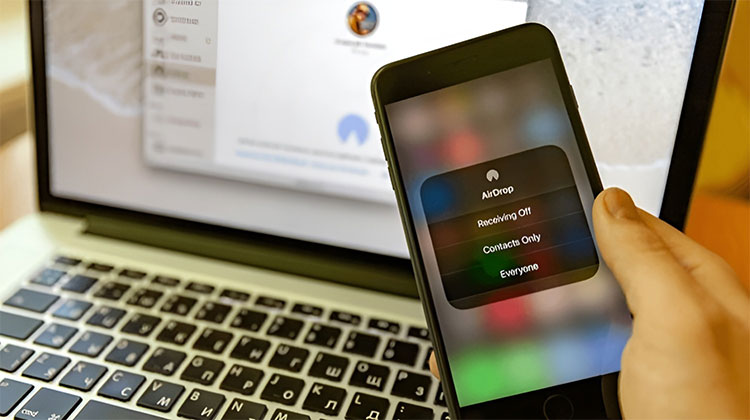
Airdrop is an interesting application that uses a peer-to-peer wireless network to transfer information across compatible mobile devices. Once installed, Airdrop makes sharing files easy most of the time. If you’re looking for a solution to the issue that AirDrop not working on Mac and iPhone, this guide is perfect for you!
Airdrop was introduced with Mac OS X Lion and iOS 7. All Apple devices running those OS should be able make use of the feature, so you have wireless or Bluetooth. Like everything else Apple, AirDrop works flawlessly almost all the time. Find an internet connection, then send an email, and the task is accomplished.
If you are trying to find the reason why is my AirDrop not working, there are some solutions to common problems.
AirDrop Not Working? Common Reasons
If AirDrop failed, the issue is usually caused by one of the following:
- Bluetooth or Wi-Fi is turned off
- AirDrop is set to Receiving Off
- Devices are too far apart
- Personal Hotspot is enabled
- Do Not Disturb or Focus mode is active
- Software bugs or outdated iOS/macOS
- Device compatibility issues
Quick Checklist Before Troubleshooting
Before trying advanced fixes, make sure to try these AirDrop not working fixes:
- Both devices have Bluetooth ON
- Both devices have Wi-Fi ON
- Devices are within 9–10 meters (30 feet)
- Airplane Mode is OFF
- Personal Hotspot is OFF
If AirDrop still isn’t working, try the fixes below.
Also read: Screen Mirroring Not Working? How to Fix It in 5 Minutes
7 Easy Ways to Fix AirDrop Not Working Issue
1. Device Not Discoverable
Airdrop requires that you manually activate each device to make it discoverable via the network. If you’ve failed to make a device detectable, AirDrop does not work.
- Swipe up in iOS and choose the Airdrop option. Select Off Contacts Only or Everyone. If you reside in your home, the Everyone setting has the fewest configuration problems.
- Choose the Finder application on the Mac and then select Airdrop on the right sidebar. Select the ‘Allow me be discovered setting and then choose off, contact only, or Everyone.
If the settings are set correctly, reset either or both to Off, and then change them to Contacts Only or Everyone can refresh the function. Rebooting can accomplish the same thing if the changes don’t work.
2. Check Wi-Fi and Bluetooth Connection
To use Airdrop, two Apple devices must be in proximity to each other. It is essential to check that Wi-Fi or Bluetooth is enabled on both devices. Airdrop uses Bluetooth to locate the device in proximity and Wi-Fi for data transfer. Both should be turned on in both devices.
- Click the icon in the Airdrop menu on iOS to turn on Wi-Fi and Bluetooth automatically.
- Choose Airdrop on a Mac and then manually enable both using the button at the center that says
- ‘Turn on Wi-Fi and Bluetooth. Check in Settings to see if it’s still unable to connect.
When Wi-Fi and Bluetooth are on, test the strength of network connections on each device. Are they both using the internet without issue? Can they stream video? Are they located within 30 feet of one another? This one is hard to assess, but the further they are, the more secure connections will occur. Bluetooth is the most effective range, and staying within it is vital.
3. Turn Off Airplane Mode
One easily overlooked setting that could stop Airdrop from happening is Airplane Mode. I’ve seen this feature in person with a friend who wanted to share a photo that he had composed. We spent nearly half an hour resetting iPhones along with my Mac to check the config and settings, and at the end, we found that the user had not turned off Airplane Mode since leaving work.
This setting is easy to overlook. If you’re constantly having problems connecting to Airdrop, ensure that Airplane Mode isn’t on.
4. Restart Your Devices
Anyone who is a seasoned tech expert must be aware that a reboot can solve all types of problems. Sometimes, network settings and device glitches cause issues with AirDrop not working. Rebooting the device might solve your AirDrop not working issue. With the ease of it to do, it’s well worth a shot.
5. Turn Off Personal Hotspot
The ability to operate hotspots with your iPhone is a great method, but it can prevent Airdrop from working. The apps don’t want to share, and Airdrop is worse than many. When it’s running, it needs exclusive use of the Wi-Fi chip. If it’s a hotspot, Personal Hotspot also demands exclusive usage of Wi-Fi. Turn off Personal Hotspot off and retest Airdrop. The Airdrop should be working properly.
Also read: iMessage Not Working? 8 Easy Ways to Fix It
6. Reset Device Network Settings
If you’ve restarted and checked the settings, relocated devices within range, ensured that Airplane Mode and Personal Hotspot are disabled, and Airdrop not working, try resetting your mobile network settings. It’s a little drastic if everything else is great; you’re out of alternatives.
In the iPhone and iPad
- Navigate to Settings, General, and Reset.
- Select Reset Network Settings.
- Set up your network’s settings starting from scratch.
As stated, this may be somewhat extreme, but when you’ve tried everything, it is the only option.
7. Check Device Compatibility
After resetting the device if AirDrop not working, you must verify that your devices are compatible with AirDrop. If your device runs Mac OS X Lion and iOS 7 or later, they’re likely to be compatible, but let us verify.
- Tap the screen of your iOS device. If Airdrop is available in Control Center, it’s compatible.
- On a Mac, go through About This Mac and generate the System Report. Select Wi-Fi from the left menu. Locate Airdrop in the middle pane. It should show that it is supported if your equipment is compatible.
If the devices are both compatible but AirDrop not working, check Bluetooth by pairing both devices with a Bluetooth accessory. If this works, then call Apple. If it’s not working, then you need to troubleshoot the Bluetooth settings of the device that doesn’t pair.
FAQs: AirDrop Not Working
How do I fix AirDrop not showing nearby devices?
Make sure both devices have Bluetooth and Wi-Fi turned on, set AirDrop to Everyone, keep the devices within 30 feet, and restart both devices.
Why is AirDrop not sending or receiving files?
This issue can occur if the receiving device is locked, storage is full, network connections are unstable, or AirDrop is set to Receiving Off.
Why did AirDrop stop working after an iOS or macOS update?
Software updates may reset network settings or cause temporary bugs. Restart your device, check AirDrop visibility settings, and ensure your system is updated to the latest version.
Why is AirDrop not working between iPhone and Mac?
AirDrop may fail between iPhone and Mac if Bluetooth or Wi-Fi is disabled, the Mac is not discoverable, or both devices are not signed into iCloud. Make sure AirDrop visibility is set to Everyone and both devices are nearby.








Leave a comment