






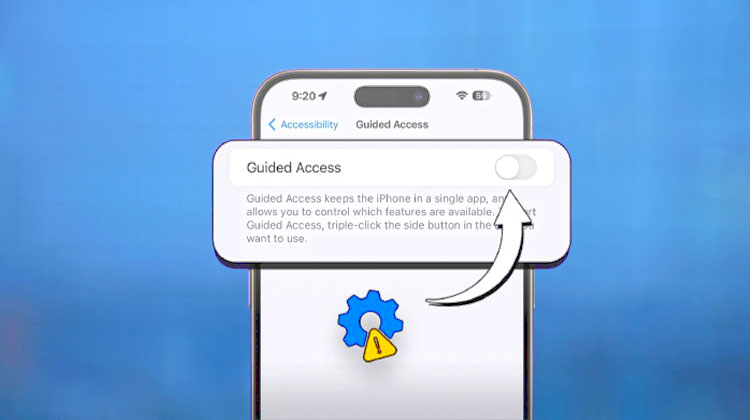
Guided Access is a feature on iOS devices that lets users limit the device to a single application and manage the features available. For those who want to restrict access to particular features or content in the iPhone or iPad, this feature is extremely beneficial.
What if you have your guided access not working on your iPad or iPhone? What do you do? In the following article, we’ll discuss 8 ways to solve this issue!
Why is My Guided Access Not Working
No program is perfect; there are problems with its operation, and Guided Access for iOS devices is no exception. Here are some possible causes of guided access not working on the iPhone and iPad, which you can look into before you tackle the issue.
- Guided Access is not enabled
- Accessibility Shortcut (triple-click) is not set up properly
- No passcode (or Face ID/Touch ID) is configured
- A temporary iOS glitch
- Hardware issue (like a faulty power or home button)
Also read: iPhone Touch Screen Not working? Try These 11 Quick Fixes
How to Fix Guided Access Not Working on iPhone/iPad
1. Re-enable Guided Access Feature
Before you attempt to resolve the issue of Guided Access not working, to ensure there’s no error, you’ll need to determine if you have the Guided Access feature is on: Access Settings > Accessibility > Guided Access. If it’s enabled and everything is configured, it could be a glitch that isn’t apparent within the function. Turn off Guided Access, and exit the Settings App to re-enable the feature.
2. Check Guided Access Settings
If Guided Access is enabled on your iPhone, it is important to ensure that other related settings are set up correctly.
Start by opening the Settings > Accessibility, and then Guided Access, and select the Passcode settings. Once you have that, you can set a passcode for controlling Guided Access.
If needed, you may switch on Accessibility Shortcut by tapping Settings> Accessibility > Accessibility Shortcut. In this manner, you can enable Guided Access after triple-clicking on the Home button. If this shortcut is not turned off, Guided Access won’t appear when you triple-click.
3. Check Screen Time Restrictions
“Screen time” lets you restrict the time an app is utilized for on both the iPhone and iPad, but you aren’t able to use its guide access during this timeframe. Go to “Screen Time” to check if applications that need guided access are listed on the restricted list. You can also try turning off Guided Access in a different app to determine if the Guided Access not working problem persists.
4. Restart Your Device
Restarting your device is a solution to many of the unknown problems that may be present on the iPhone and iPad. Additionally, if your device is running slowly due to insufficient RAM, the reason Guided Access not working may be that your iPhone is slow to respond to commands. Also, the iPhone can free up RAM space on reboot.
If your device is stuck on the guided access page and unable to open the shutdown slider, you can force it to restart.
5. Update iOS
Things aren’t running as smoothly as you’d expect. If restarting your device does not resolve the issue of “Guided Access triple click not working” on your iPhone or iPad, you should see other options, like upgrading iOS to the latest version. This could be a glitch in a previous iOS version, and Apple’s tech team has solved the issue in the latest iOS version.
6. Reset All Settings
If you decide to reset the settings on your iPad or iPhone, the system settings will reset to their default settings. However, it won’t erase your personal data.
Tap Settings> General > Transfer or Reset iPhone>Reset > Reset All Settings. Then, enter the screen password to confirm that you have reset it. Then it will reset WiFi passwords and settings, wallpaper settings, and other settings to default settings. You can set the same settings later.
Also read: Cannot Verify Server Identity on iPhone: 8 Ways to Fix It Fast
7. Use an iOS Repair Tool
As we’ve mentioned before, the iPhone or iPad could be experiencing a system glitch where Guided Access not responding, or the passcode display is not working, and the passcode isn’t entered or accepted. The best solution is to repair your iOS system with the iOS System Recovery tool.
Final Thoughts
No doubt that Guided Access is a great feature, but things aren’t always perfect, and occasionally there’s a glitch. We’ll share the best solution in this post, hoping this guide helps fix Guided Access not working on your iPad or iPhone.
FAQs: Guided Access Not Working
What is Guided Access on iPhone?
Guided Access is a feature on iPhone that locks the device to a single app and restricts access to other features, helping users stay focused or limit usage.
Why is Guided Access not working after an iOS update?
Sometimes new updates introduce bugs or reset settings. If Guided Access stops working after updating iOS, try re-enabling the feature or resetting all settings.
Why is Guided Access not available in Accessibility Shortcut?
Guided Access may not appear if it’s disabled in settings. Enable it first under Accessibility, then add it to the shortcut menu.
Why does Guided Access not show up when I triple-click?
This happens when: Accessibility Shortcut is disabled Guided Access is not selected in the shortcut list Enable it from Accessibility settings to fix the issue.
How do I fix Guided Access stuck or frozen?
If Guided Access is stuck: Force restart your iPhone or iPad Update to the latest iOS version Reset all settings if needed This usually fixes freezing or unresponsive issues.









Leave a comment