






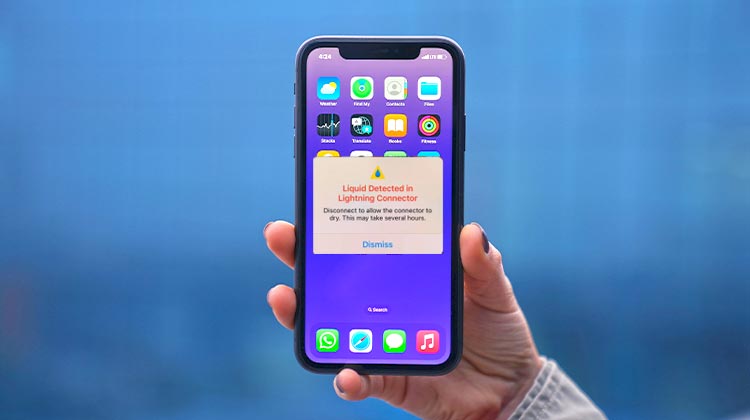
Some users on Reddit have reported that their iPhone displays a” Liquid Detected in Lightning Connector” warning when charging. After realizing this, they tried to disconnect to allow it to dry, but it didn’t work. Some users said that their iPhone was wet at the time. What’s the cause of this issue? What is the solution to fixing an iPhone that states that liquid is detected, but not wet? This article will provide solutions.
What Does Liquid Detected in Lightning Connector Mean?
Indeed, the iPhone has a built-in feature that informs users when liquids in the Lightning port or on the charging cable. It could be due to moisture, though it’s not necessarily that there’s liquid in the charging port, or your cable is wet.
Why Does It Say There’s Liquid When There Isn’t?
There are occasions when an accessory or cable causes the “Liquid Detected in Lightning Connector” message to show only. If this is the case, you may have a malfunctioning connector. To determine if it fixes the issue, consider using a different Lightning cable.
What You Can Do If You Need an Emergency Charge
The Liquid Detected show on your iPhone is a reminder to be a disaster. Two options to choose from: Dismiss and Emergency Override. If you choose to dismiss the message, it will disappear from your display, and your device won’t be charged until it’s fully charged. If you choose the “Dismiss” option is always the best. However, if you’re sure that there’s a glitch causing the pop-up or you’re certain that the charging port is dry, you may use the “Emergency Override option to allow normal iPhone charging. There’s no issue! By using an Emergency Override option, you can charge your smartphone without worrying about water damage.
Also read: Cannot Verify Server Identity on iPhone: 8 Ways to Fix It Fast
How to Fix Liquid Detected in Lightning Connector When iPhone is Wet
What should you do if there’s liquid detected in charging port?
If your iPhone and/or Lightning accessory have become submerged in water, there are a few things to consider to drain the liquid from the charging port.
- Unplug the Charger: Immediately remove your iPhone from the charging port and any other cables.
- Remove moisture: Wipe the iPhone using a dry, clean cloth or lightly shake the device (5-10 several times) while the ports are facing downwards to remove any liquid.
- Dry Naturally: Put the iPhone in a dry and well-ventilated area for 30 minutes.
- Check the Alert: After 30 mins, verify whether the liquid detection persists. If cleared, charge the device.
- Extend drying time: If the alert is still, allow the iPhone to dry in a dry area for 24 hours.
- Avoid objects and heat: Don’t use heating sources such as hair dryers that could damage the Lightning connector. Do not insert either cotton wool or other swabs in the port.
Things You Should Not Do:
If you own an iPhone or a Lightning accessory, there are a few tips to avoid:
- Don’t try anything crazy, such as drying your phone with a heating device or using compressed air, as both could cause damage to your phone!
- Make sure to only stick cables into the Lightning connector, particularly not paper towels.
- Avoid putting the phone in rice. Even the tiniest bit of substances could cause damage to your phone and cause grave problems!
- If the problem persists for more than 24 hours, you can try another Lightning cable to diagnose the problem with the cable. You can use compressed air (carefully) to dry the connector out; however, if you’re not sure you’re in the right place, consult a professional.
How to Fix Liquid Detected in Lightning Connector When iPhone is Not Wet
If you see a message like Liquid Detected in Lightning Connector on your iPhone, but it is not wet, fix it using the following methods.
1. Use iOS Repair Software
Use iOS repair software that can assist users in fixing various problems on iPhone, iPad, and iPod touch. This software has a variety of impressive features and is easy to use. With its easy-to-use interface, even novice users can fix their iOS devices, including liquid-detected iPhones, in only a few clicks.
2. Reset All Settings
If you ensure your iPhone is dry, but you see the lightning connector’s liquid alert, it is due to a poorly configured setting. The issue can be sorted using default settings without losing data. Take these actions to fix it.
- Open the Home screen and select the Settings tab.
- Tap on General and then select Reset by scrolling down.
- Next Click on Reset All Settings and type in the device’s passcode.
- Next, confirm the reset settings. The process is now complete. Check your iPhone’s screen to see if the issue has been resolved or not.
3. Force Restart iPhone
Most often, liquid detected in lightning connectors that do not trigger a wet alert due to a glitch on your device. When your device is completely dry. Simply remove this glitch (liquid detected in lightning connector but not water) by forcing a restart.
- Press the volume up button, then release it quickly. After that, press and release the volume down button.
- At the final step, you keep the side button in place for a couple of seconds until the Apple logo is displayed. Once the phone is restarted, check the liquid detection error.
Also read: iPhone Error 4013: Why It Happens and How to Solve It
Contact Apple Support
If everything doesn’t fix Liquid Detected in Lightning Connector, then you should seek assistance from professionals in Apple Support. You can take an iOS gadget to the Apple Store as well as a Genius Bar to get your iPhone repaired. If your iPhone is in warranty, this won’t cost much.
Wrap up
With these tips and tricks, the next time you get that alarming “Liquid Detected in Lightning Connector,” you’ll never have to be concerned. However stressful it may be when you see the warning, it’s easy to fix the issue and easy to try.
FAQs: Liquid Detected In Lightning Detector
Why does my iPhone say “Liquid Detected” when it’s not wet?
This can happen due to humidity, condensation, a faulty cable, debris in the port, or a software glitch—not just actual water.
Is the “Liquid Detected” warning serious?
Yes, it’s a protective feature designed to prevent damage like short circuits or corrosion inside your iPhone.
Can I charge my iPhone when “Liquid Detected in Lightning Connector” appears?
You can use Emergency Override, but charging with the “Liquid Detected in Lightning Connector” warning is risky and may damage your device.
What should I do if I see “Liquid Detected in Lightning Connector”?
If you see “Liquid Detected in Lightning Connector,” unplug the charger, dry your device, and let it air dry completely before charging again.








Leave a comment