






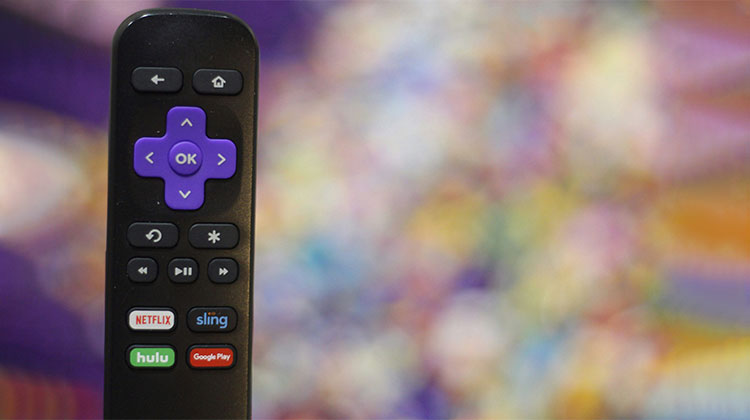
If you find that your Roku remote not working, you should get a new one. Before deciding whether to throw it or dispose of it, the experts provide the best tips to help you save money on fixes and new ones. Sometimes an easy fix takes a few minutes, and here are troubleshooting tips to fix the Roku remote not working.
Why is My Roku Remote Not Working?
Before jumping into fixes, it helps to understand what might be going wrong. A Roku remote stops working due to:
- Dead or weak batteries
- Remote unpairing from the device
- Blocked or weak infrared (IR) signal
- Wi-Fi or network issues (for voice/Wi-Fi remotes)
- Software glitches in the Roku device
- Physical damage to the remote
Whether you’re using a standard IR remote or a Roku Voice Remote, the troubleshooting steps vary slightly.
Also read: How to Fix Netflix Not Working on Roku (6 Simple Solutions)
How to Fix Roku Remote Not Working in Minutes
1. Replace the Roku Remote Batteries
Sometimes, your Roku remote does not work just because it needs new batteries. If you want to determine if that’s the situation, replace the batteries first. This is the best option for regular infrared remotes (Roku IR remote).
How to fix it:
- Slide open the battery cover
- Remove the old batteries
- Insert fresh, high-quality batteries
- Close the cover and test the remote
In many cases, this simple step instantly fixes the issue.
2. Move Closer to the TV (IR Remote Issue)
If you do not have a “point anywhere” remote, you’ll need to be within the Roku device. Test the Roku remote when you are closer to the TV’s screen. Point the remote towards the TV to see whether it is working.
3. Remove Any Obstructions
Upgraded Roku remotes are more flexible, but interference can still cause issues.
To improve performance:
- Remove objects blocking the TV or Roku device
- Avoid placing soundbars, boxes, or décor in front of it
- Ensure the signal path is clear
Even small obstructions can cause a Roku remote not working problem.
4. Restart or Re-Pair Your Roku Remote
If the previously mentioned Roku remote troubleshooting suggestions failed, you may have to perform a factory reset or reconnect your Roku remote and your TV. Roku enhanced remotes include a reset button; the standard IR remote (infrared remote [1]) doesn’t. It’s just a matter of replacing the batteries.
Steps to reset:
- Remove batteries from the remote
- Unplug your Roku device from power
- Wait 5–30 seconds
- Plug it back in and wait for the home screen
- Reinsert batteries
To re-pair the remote:
- Press and hold the pairing button (inside or back of the remote)
- Wait until the pairing light starts blinking
- Follow on-screen instructions
After a successful pairing, your remote should work normally again.
5. Inspect HDMI and Wi-Fi Connections
If the steps above do not work, it may be a non-faulty remote, but the WiFi network. No matter what Roku devices you own, streaming content requires a stable internet connection. If you share bandwidth in your home. Make sure you check your Wi-Fi signal and upgrade it.
It’s possible that HDMI interference could also be the reason the Roku remote not working. This is the case when using a Roku connected through an HDMI port, for instance, the Roku Streaming Stick. Use extenders that permit users to position their Roku Streaming Stick away from the HDMI port to minimize interference.
Also read: How to Browse the Internet on Roku: Best Roku Web Browser in 2025
6. Use the Roku Mobile App
If all else fails, you can always count on your smartphone to rescue. Download the Roku remote app that transforms your smartphone into a remote control. You can download the Roku app for both Apple and Android devices from the Apple App Store and the Google Play Store.
- Download the Roku mobile app (Android or iOS)
- Connect your phone to the same Wi-Fi network
- Select your Roku device
- Use the virtual remote on your screen
7. Try a Universal Remote
Another option is if your Roku remote is not working. You can use a universal remote with a Roku remote or a Roku device. It’s not the simple option, but it’s effective.
You must have the remote’s codes to enable it to work. The code is usually on the back of your remote, or you could find it online. The remote will come with setup instructions and should include codes.
The steps will guide you through the brand-new Roku remote into pairing mode. Once the device is established, you’ll have to enter the correct code to complete the connection.
Conclusion
A Roku remote not working could be a great indicator to upgrade the original remote with a new Voice Remote. The Roku Voice Remote comes with additional capabilities. Maybe switching to an app would be a practical option, but be sure that the one you choose is compatible with your Roku device.
FAQs About Roku Remote Not Working
Why is my Roku remote blinking but not working?
A blinking light usually means the remote is trying to pair with the Roku device but cannot connect. This may happen because of weak Wi-Fi, low batteries, or pairing failure.
Can I use my phone as a Roku remote?
Yes, you can use the official Roku mobile app on Android and iPhone devices. Connect your smartphone and Roku device to the same Wi-Fi network to use the virtual remote feature.
How do I pair a Roku Voice Remote?
Press and hold the pairing button located inside the battery compartment until the status light starts flashing. Your Roku device should automatically detect and connect to the remote.
How do I fix a Roku remote not working issue quickly?
To fix a Roku remote not working problem, replace the batteries, restart the Roku device, and re-pair the remote. These troubleshooting steps usually work within a few minutes.










Leave a comment