






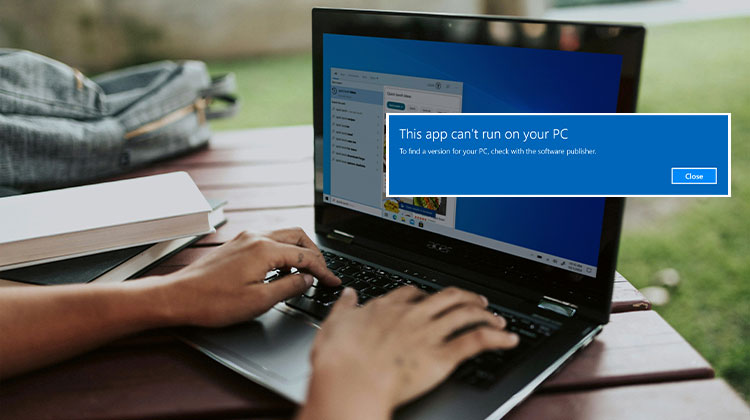
Do you see the warning ” This app can’t run on your PC” on your Windows 11 or 10? Do not fret, you’re certainly not the only one. The common problem can arise because of a variety of causes, including incompatible software, system updates, or corrupted files.
However, don’t worry because this article helps you navigate the steps needed to troubleshoot this issue and get your application running efficiently. If you follow the easy steps and suggestions in the article, you’ll be able to solve the issue quickly.
Why Does “This App Can’t Run on Your PC” Appear?
This error typically occurs when Windows detects a compatibility issue between your operating system and the application you’re trying to run.
Common causes include:
- Installing a 64-bit application on a 32-bit system
- Outdated Windows operating system
- Corrupted administrator account
- Damaged system or registry files
- Malware or virus infections
- Windows SmartScreen restrictions
- Corrupted application files
- Proxy or VPN conflicts
- Insufficient system permissions
- Temporary file or cache issues
Understanding the root cause can help you apply the correct fix more quickly.
Common Forms of This App Can’t Run on Your PC
First, let us look at several common examples of the errors. These are:
- “This app can’t run on your PC. Access is denied.”
- “This app can’t run on your PC. Check with the software publisher.”
- “This app can’t run on your PC” while opening games.
- “This app can’t run on your PC” in Windows Store apps.
- Antivirus-related errors involving Kaspersky, Avast, or Bitdefender.
- Batch file execution errors.
Regardless of the cause, there’s no need to worry; we’re providing a full list of possible solutions to help fix the This app can’t run on your PC error.
Also read: Your Device Ran Into a Problem and Needs to Restart – Fix in 8 Steps
How to Fix This App Can’t Run on Your PC Error
Here are some quick solutions to remove the ‘This app can’t run on your PC’ issue. These solutions have been effective in eliminating this issue. You may find a few of these solutions a little complicated. We have described some steps.
1. Create a New Administrator Account
In the beginning, we’ll try making a new Administrator account, as you cannot open Windows applications. Creating a new Administrator account is quite easy. Take a look at the steps.
Steps:
- Open Settings.
- Go to Accounts > Family & Other Users.
- Click Add Account.
- Select I don’t have this person’s sign-in information.
- Click Add a user without a Microsoft account.
- Enter a username and password.
- Create the account.
- Select the new account and click Change Account Type.
- Choose Administrator and click OK.
According to some users, the error message is displayed when they attempt to connect to basic Windows applications. Creating an Admin account and then accessing apps via it could be beneficial.
2. Disable Windows SmartScreen
If creating a new Admin account was not helpful, you can try this method: turn off the SmartScreen feature in Windows 10. Take a look at how to do it…
Steps:
- Press Windows + S and search for SmartScreen.
- Open App & Browser Control.
- Select Reputation-Based Protection Settings.
- Temporarily disable SmartScreen protection.
- Try launching the application again.
SmartScreen is an inbuilt Windows feature designed to protect your computer from malware attacks. If you’re experiencing the error mentioned above, turning off this feature is known to work.
3. Enable App Side-Loading
You can enable App Side-loading by following these steps. Take a look
Steps:
- Open Settings.
- Navigate to Privacy & Security > For Developers.
- Enable Developer Mode.
- Restart your computer.
This is among the most efficient ways to correct this issue. If you are still having the problem, you should look into the next method.
4. Run a Copy of the Application’s EXE File
If you’re getting the This app can’t run on your PC error when you attempt to run a specific app, then creating copies of the application’s .exe file could help fix the issue.
Steps:
- Locate the application’s .exe file.
- Press Ctrl + C to copy it.
- Paste it into the same folder using Ctrl + V.
- Launch the copied executable.
5. Update Microsoft Store
If the issue affects Microsoft Store applications, updating the Store may solve it. Learn more about the steps below.
Steps:
- Open Microsoft Store.
- Click your profile icon or the three-dot menu.
- Select Downloads and Updates.
- Click Get Updates.
6. Disable Proxy or VPN Connections
After the Windows update, if you’re still getting the’ this app can’t run on your PC error, you can disable the proxy or VPN you’re currently using.
Steps:
- Open Control Panel.
- Select Internet Options.
- Go to the Connections tab.
- Click LAN Settings.
- Uncheck Use a Proxy Server for your LAN.
- Click OK.
7. Repair Corrupted System Files
Faulty or any corrupted registry keys could be responsible for the application issue on your Windows PC. Therefore, if you fix the registry, the error will disappear.
Steps:
- Click the Start menu and type Command Prompt or cmd in the search bar
- Right-click Command Prompt and select ‘Run As Administrator’.
- Now, type “sfc/scannow‘.
The scan will begin right away. Once the scan is complete, you need to restart your computer. When you reboot, the affected files will be restored.
8. Check Your Hard Drive for Errors
Applications may not run on your Windows PC due to a hard drive issue. Thus, running the disk check can help determine the problem and allow you to resolve it in a matter of minutes.
Steps:
- Open Command Prompt as Administrator.
- Type the following command and press Enter:
chkdsk C: /f
- Restart your PC if prompted.
- The /f parameter allows CHKDSK to automatically repair any file system errors in the selected drive. Once the scan is complete, try launching the application again.
9. Clear Browser Cache and Download the App Again
Clearing your browser cache is also essential. Sometimes, due to low memory space, downloads become damaged. Sometimes, certain folders fail to download completely or fail to downloaded even. We recommend clearing your browser cache and any other apps that may have been causing issues.
10. Delete Temporary Files
Cleaning Temporary files is essential to ensure that the OS and the programs that run it run properly. Windows includes an integrated cleanup tool. You can try it.
Steps:
- Search for Disk Cleanup from the Start menu.
- Open the tool.
- Select the system drive.
- Click OK.
- Choose Clean Up System Files.
- Remove temporary and unnecessary files.
These files can slow down your computer’s processing speed and cause applications to run slowly or not to run properly at all.
Also read: Easily Solve the Preparing Automatic Repair Loop on Windows 10
11. Run a full system scan
It is also recommended to run an entire scan of the system. Windows comes with a built-in “Defender tool. You can utilize it to finish the scan.
Steps:
- Click the Start menu and type Windows Security or Microsoft Defender, then open the app
- Click Virus & Threat Protection.
- Select Scan Options.
- Choose Full Scan.
- Start the scan and wait for completion.
12. Update Windows
Also, you must ensure that you’re running the most recent Version of Microsoft Windows. For now, the Windows update is quite easy. In the search box, enter “Update”. Check for updates and install if updates are available.
If you’ve installed the latest update, however, and the problem is appearing, you should try the next method.
Summing Up
The “This App Can’t Run on Your PC” error is a common Windows issue. But most problems can be resolved quickly. We’ve covered the most effective ways to fix This app can’t run on your PC in the article. Check them out.
FAQs: This App Can’t Run on Your PC
Why does Windows say 'This App Can't Run on Your PC'?
Windows displays this error when an application is incompatible with your system, lacks required permissions, contains corrupted files, or is blocked by security settings.
How can I check if an app is compatible with my PC?
Check the application's system requirements and verify that they match your Windows version, processor architecture (32-bit or 64-bit), and hardware specifications.
Can malware cause the 'This App Can't Run on Your PC' error?
Yes. Malware can corrupt system files, block applications, and interfere with Windows processes, causing apps to fail to launch.
What is the fastest way to fix the 'This App Can't Run on Your PC' error?
Start by running the app as an administrator, checking compatibility settings, updating Windows, and reinstalling the application. These are often the quickest and most effective fixes.








Leave a comment