






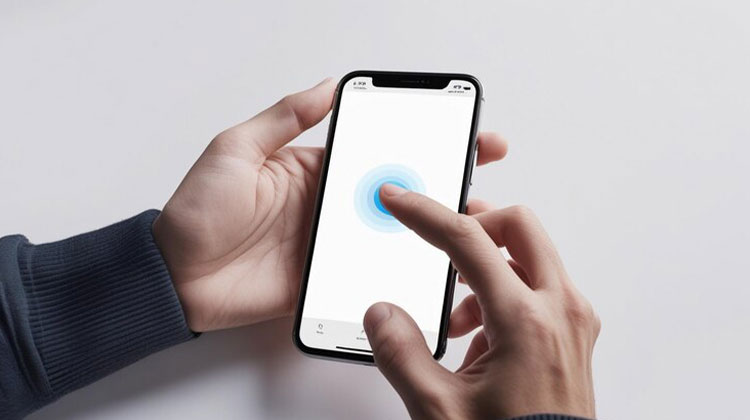
When the first iPhone was released in 2017, it was upgraded with new features, making it more attractive. Also, when 3D Touch came into the picture, the feature’s name generated so much excitement among iPhone users that many of them were anticipating it. Many users have been facing various issues with the iPhone’s touch capabilities. People are concerned about the iPhone touch screen not responding.
If you’re also struggling with the same problem of “why is my iPhone touch screen not working? “, here are the top solutions to fix an unresponsive iPhone touchscreen.
Common Reasons Why iPhone Touch Screen Not Working
Let’s begin by determining what’s wrong with the iPhone. We explore some possible reasons why is my iPhone touch screen not working.
1. App or iOS Software Issues
When you open multiple apps, or you encounter an issue in one, the touchscreen will be stuck and not respond to tapping. It could happen if there’s an iOS software update that has bugs on the device, or if you’re running an older iOS version.
2. Broken or Replaced Touch Screen
If you’ve ever dropped your phone on the ground, the screen is likely damaged, or the internal components are sagging, causing the digitizer to be inoperable and unable to transmit the touch input to the software. Additionally, non-Apple screens could also cause the iPhone touch screen not working, such as when the screen doesn’t light up when you adjust the brightness after the screen replacement, or it doesn’t work in certain areas.
3. Screen Protector Problems
A screen protector that isn’t properly seated, or stuffed with dust, water, or lint, could cause the unresponsive iPhone touchscreen.
4. Touch Disease or Temperature Issues
It isn’t common, but it’s an option to blame the iPhone touch screen problem. Another reason that is not widely known is the incorrect temperature.
Also read: iPhone Error 4013: Why It Happens and How to Solve It
How to Solve iPhone Touch Screen Not Working Issue
Follow the steps to resolve the iPhone touch screen not working issue, and get the screen working again.
1. Restart Your iPhone
You can try to resolve the issue by performing a simple restart of your iPhone. This will eliminate any software issues and solve the problem. Follow the steps below to restart your iPhone.
- iPhone X and newer: Press and hold the Volume button + Side button
- iPhone 8 and earlier: Press and hold the Power (Top) button
Slide to power off, then turn the device back on.
2. Force Restart the iPhone
What happens if you cannot slide down the slider that turns off the iPhone due to an unresponsive screen, or the restart does not work? A hard reset will bring the screen back to normal without losing data.
3. Delete the Faulty App
A few iPhone users complained that their screens don’t work or respond properly only when they run a specific application. If this is the scenario, you need to remove the malfunctioning application. On the iPhone home screen, make sure you touch and hold the app, which will make the screen unresponsive. From the menu that appears, select Remove the App. To confirm the selection, press Delete App.
4. Clean the Screen Protector
Use a soft and dry cloth and gently wipe the screen protector until you’ve dried off the moisture and clear any dust, fingerprints, or other imperfections. After that, you can unlock your device and swipe the screen to see whether it is responding. If the iPhone touch screen is not working, the second step should be to remove the protective screen.
5. Remove the Screen Protector and Case
Applying the wrong case or screen protector can prevent the touchscreen from making an effective connection with the program. To avoid this possibility, a simple solution is to remove the protector for the screen or case. Be gentle during the removal procedure to avoid any damage to your phone.
6. Disconnect All Accessories
In certain cases, when you notice your iPhone display is not working, the issue is with the connected accessory. Remove all Lightning cables, and visit the Control Center to switch off Bluetooth connection, then verify if it has unfrozen your iPhone screen.
7. Adjust Touch Sensitivity
In case the touchscreen in your iPhone is too sensitive, so that it responds even when you don’t touch the screen, you can try adjusting the Haptic or 3D Touch sensitivity.
- Go to Settings > Accessibility > Touch
- Adjust Haptic Touch or 3D Touch sensitivity
Also read: Why Is My iPhone So Slow? 12 Fixes to Speed Up The iPhone
8. Update to the Latest iOS Version
A bug in the software used by your device could impact your iPhone’s memory or performance, resulting in the iPhone’s touchpad crashing randomly at the lower right-hand corner of the display. Fortunately, Apple will publish periodic updates to resolve these types of problems. All you need to do is install the update to your device.
- Open iPhone Settings and scroll down to General and click Software Update, and see if any updates you can download and installation
Update via iTunes
If the iPhone touch screen not working, then you may require updating the iPhone software manually on a computer. Open iTunes or Finder. Then, connect your iPhone to the computer and click the icon of your device as it pops up. Next, press General or Settings, and then click the check for update button.
9. Use iOS System Recovery Software
What type of software-level errors put your iPhone’s touch screen in a glitch state, so that when you touch the screen, it does not open or respond? iOS System Recovery can obliterate the entire issue without impacting your personal contacts or system data. After completing the simple installation process and adjusting the recovery settings, the tool makes it an easy process to fix issues like the unresponsive iPhone screen, a stuck black screen, or a frozen screen that doesn’t go beyond that Apple logo.
10. Restore iPhone Using DFU Mode
If you’ve tried all the steps to fix the iPhone touch screen not working issue. Restore the device using DFU. The first step is to make a backup of your iPhone and then put your device in DFU mode. Then, connect your iPhone to your computer using USB, and then open iTunes or the Finder.
11. Repair a Broken or Replaced Screen
The screen that you have replaced on an iPhone that’s not installed in an authorized Apple Service Provider isn’t going to perform well with the device’s hardware and software. Additionally, if the phone ever fell on the ground or sank into water, the sublayers of your touch display, including the LCD screen digitizer, and the tiny cables that link with the logic board, could be damaged to the point that they aren’t able to make the proper connection between your fingers and the LCD screen.
Final word
We discuss the top 11 fixes to the problem iPhone touch screen not working. We recommend using iOS System Repair to solve the problem. Let us know what solution worked for you, and leave feedback on similar issues in the comments below.
FAQs: iPhone Touch Screen Not Working
Why does my iPhone screen stop responding after an update?
Some iOS updates may contain bugs that affect touch performance. Updating to the latest version or restoring the device usually fixes the issue.
Why is my iPhone screen not responding while charging?
This can be caused by a faulty charger, uncertified cable, overheating, or electrical interference.
Why does my iPhone screen freeze on one app?
A buggy or incompatible app may cause the touchscreen to freeze. Updating or deleting the app usually fixes it.
How can I prevent iPhone touch screen issues?
Use a quality screen protector, avoid drops and water exposure, keep iOS updated, and avoid overheating.






Leave a comment