






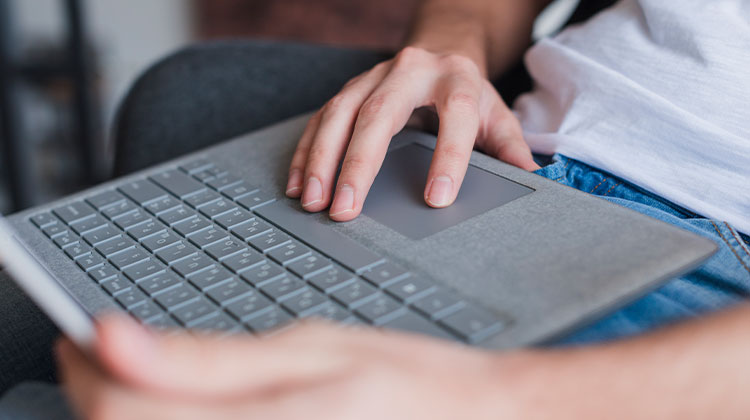
A laptop touchpad not working is a frustrating experience, particularly when you’re engaged in critical work or don’t have an extra mouse. Touchpad issues on Windows laptops can be due to software issues and outdated drivers, or even accidental changes to the system’s settings. The positive side is that the majority of these issues are fixable by following a few easy processes.
This guide will walk you through 5 simple solutions to fix the laptop touchpad not working on Windows.
Common Reasons Why a Laptop Touchpad Not Working
Before jumping into fixes, it helps to understand the root causes of the laptop trackpad not working:
- Touchpad accidentally disabled via keyboard shortcut
- Touchpad turned off in Windows settings
- Corrupted or outdated touchpad drivers
- BIOS/UEFI touchpad disabled
- Windows update conflict
- Hardware or cable damage
Also read: Laptop Camera Not Working? Try These Simple Tips
How to Fix a Laptop Touchpad Not Working
1. Roll back or Update Touchpad Drivers
Here is the method: we’ll directly connect to the device manager and upgrade the drivers for touchpads. It’s a straightforward approach for those who are not familiar with computers. Many people have reported that their laptop touchpad not working after upgrading their operating system to Windows 10. This clearly indicates that the Windows 10 touchpad driver is malfunctioning in your device manager. What can you do to fix it? Let’s look at the following:
Step 1. Start by turning on your computer and then press “Windows logo + R” to activate”Run” search panel “Run” search panel. It will appear in your eye as a small search box in the lower left corner of the home screen.
Step 2. Enter “devmgmt.msc” and press “Ok” in the search box. It will open the “Device Manager” window.
Step 3. Turn off all devices on the list, right-click your finger to see whether it’s enabled or not. If it is active, click “Update driver” to see if any updates are available for it.
When you update your computer, the problem should be eliminated.
2. Re-enable Touchpad using Mouse Properties
Sometimes your touchpad is disabled without knowing due to mishandling, and Device Manager does nothing about it aside from checking its status. If you notice it is disabled, as you did in the previous example, it is imperative to make it available for your benefit. Follow the steps to do it correctly:
Step 1. From the main home screen, start typing “Mouse” in the Windows search box, and then navigate through the Mouse Settings by pressing the result.
Step 2. Within the settings for your mouse, select “Advanced mouse settings” and a new operating window will be displayed in the form of “Mouse Properties”.
Step 3. Click on “Device Settings” or “Touchpad” from the upper right-hand side of the tabs.
Step 4. Find your touchpad in the list and click on “Enable”.
3. Use Fn Key to Enable the Touchpad
It happened several years ago, and I accidentally pressed the Fn key and realized that it actually disabled my touchpad, since it was a touchpad icon. I struggled for days to come up with a solution. But in the end, I was able to figure it out by pressing the Fn key and pressing a function key. It could be different between models, but it will be a good thing that other function keys is turn on in combination. When you try the function keys, turn off your screen. If this happens, repeat one more time to turn it on.
Also read: Laptop Keyboard Not Working? 10 Easy Fixes You Can Try
4. Remove Extra Mouse Drivers
This is among the crucial aspects of setting the correct touchpad. If you’ve got different mouse drivers installed in your touchpad laptop, they may affect the normal functioning of the touchpad. This is a reason the touchpad not working on Laptop. You must remove all installed mouse drivers. This is how you’re supposed to accomplish this:
Step 1. Open the Device Manager again by entering “devmgmt.msc” in the Run search box.
Step 2. Click the adjacent to the “Mice and other pointing devices” option to first choose it, then right-click it to uninstall the mouse. Repeat this process for each mouse option you can see under the “Mice and other pointing devices” option.
If you’ve completed everything correctly, then you can resolve the Laptop touchpad not working problem.
Ending Notes
The laptop touchpad not working issue can be solved. Try these solutions that are mentioned in the post. This means you try each solution one by one to fix your touchpad not responding issue. If all methods don’t work in your case, don’t be disappointed. It’s time to seek help from a laptop technician.
FAQs: Laptop Touchpad Not Working
Why is my laptop touchpad not working suddenly?
A laptop touchpad not working suddenly is usually caused by accidental keyboard shortcuts, disabled touchpad settings, outdated drivers, or a recent Windows update.
Why does my touchpad not work but an external mouse works?
If your laptop touchpad is not working but a mouse works, the touchpad may be disabled in settings, BIOS, or affected by driver conflicts.
How do I enable my touchpad if it’s disabled?
You can enable a disabled touchpad by going to Settings → Bluetooth & Devices → Touchpad, using the Fn shortcut key, or enabling it from Mouse Properties.
How can I prevent laptop touchpad problems in the future?
To prevent laptop touchpad not working issues, keep drivers updated, avoid disabling it accidentally, clean the touchpad regularly, and be careful during Windows updates.










Leave a comment