






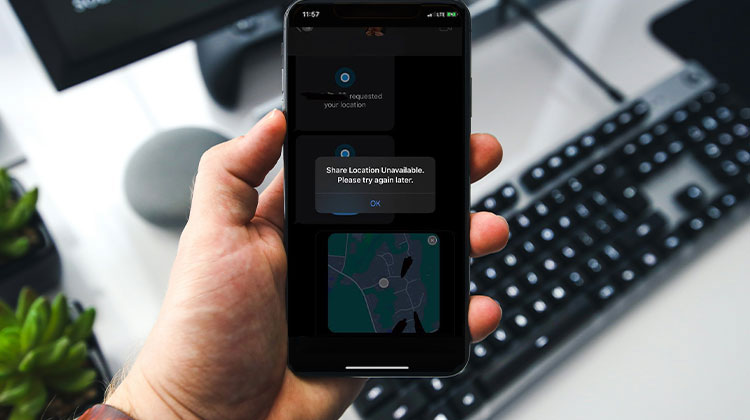
I’ve been an iPhone user, and I’m a huge enthusiast of the built-in location-sharing feature. It allows you to find family and friends. However, when I attempted to share my current location via text this week, an error pop-up showed, ” Share Location Unavailable. Please try again later.” I was confused at the time, but now I can resolve the issue.
Because I’m sure many users face this issue, I want to share my experience on this blog: how to solve Share Location Unavailable issue. Let’s get started!
Why Is “Share Location Unavailable” Showing on My iPhone?
Your iPhone may show “Share Location Unavailable” when it cannot access or share your current location. Common reasons include:
- Location Services are turned off.
- Share My Location is disabled.
- Find My doesn’t have location permission.
- Your internet connection is unstable.
- iCloud isn’t syncing properly.
- Your iPhone has a temporary software glitch.
- Incorrect date and time settings may interfere with location services.
Checking these settings and restarting your iPhone can often fix the issue.
Also read: Why Is Google Maps Not Working on My Phone? (9 Easy Solutions)
9 Ways to Fix “Share Location Unavailable” on iPhone
Here are 9 ways to fix Share Location Unavailable on iOS devices. Try the following solutions in order, starting with the simplest ones.
1. Turn On Location Services
Share Location Unavailable can appear when Location Services are disabled on your iPhone. Your device needs location access to determine your current position and provide it to apps such as Find My. Turning on this setting is the first solution you should try.
Steps:
- Open Settings.
- Tap Privacy & Security.
- Select Location Services.
- Turn on Location Services.
- Try sharing your location again.
2. Enable Share My Location
If Share My Location Not Working, check whether the location-sharing feature is enabled. Even when Location Services are active, your iPhone may not share your location if this specific option is turned off in Find My.
Steps:
- Open the Find My app.
- Tap Me.
- Turn on Share My Location.
- Check the Sharing From option.
- Select Use This iPhone as My Location if required.
3. Check Find My Permissions
Incorrect permissions can prevent Find My from accessing your location. If Share Location Unavailable continues to appear, review the Location Services permission for Find My and make sure the app has the required access to your device’s location.
Steps:
- Open Settings.
- Tap Privacy & Security.
- Select Location Services.
- Find Find My.
- Allow the appropriate location access.
- Open Find My and try again.
4. Check Your Internet Connection
A stable internet connection is important when sharing your location. If Find My Location not updating, an unstable WiFi or mobile data connection could prevent your location from updating or reaching the person you’re sharing it with.
Steps:
- Check your Wi-Fi or mobile data.
- Open a website to test your connection.
- Switch between Wi-Fi and mobile data.
- Turn Airplane Mode on and off.
- Try sharing your location again.
5. Restart Your iPhone
A temporary software or connectivity glitch may interfere with location-sharing features. Restarting your iPhone refreshes system processes and can resolve minor problems without changing your settings or deleting any personal data.
Steps:
- Turn off your iPhone.
- Wait a few seconds.
- Turn it back on.
- Make sure Location Services are enabled.
- Open Find My.
- Try sharing your location again.
6. Check iCloud Sync
If Share My Location Unavailable appears after switching to a new iPhone or changing your Apple Account, iCloud sync could be responsible. Check your iCloud settings for any pending sync issues and follow Apple’s instructions to resume syncing.
Steps:
- Open Settings.
- Tap your Apple Account.
- Select iCloud.
- Look for synchronization warnings.
- Follow any available instructions to resume syncing.
- Check Find My again.
7. Update iOS
Running an outdated iOS version can sometimes cause software-related problems with Apple services. If Share Location Unavailable remains after checking your settings, updating your iPhone may resolve bugs or compatibility issues affecting location-sharing features.
Steps:
- Open Settings.
- Tap General.
- Select Software Update.
- Check for an available update.
- Download and install the update.
- Restart your iPhone if necessary.
8. Reset Location & Privacy Settings
If the previous solutions haven’t fixed the problem, resetting Location & Privacy settings can help resolve incorrect or corrupted permission configurations. This option restores location and privacy permissions, so apps will ask for permission again when they need access.
Steps:
- Open Settings.
- Tap General.
- Select Transfer or Reset iPhone.
- Tap Reset.
- Choose Reset Location & Privacy.
- Re-enable location permissions when requested.
Also read: Need to Change Your iPhone Location? Try These 10 iOS Location Changer Apps
9. Contact Apple Support
If Share Location Unavailable still appears after trying all the previous solutions, the problem may involve your Apple Account, iOS software, or device configuration. Apple Support can provide additional troubleshooting and determine whether your iPhone requires further assistance.
Steps:
- Visit Apple’s official support website.
- Select iPhone.
- Choose the relevant location or Find My issue.
- Follow the recommended troubleshooting steps.
- Contact Apple Support if the issue continues.
Final Thoughts
Location sharing is a great feature that allows you to share your current location when you meet others. It is a real pain when location sharing isn’t working. Before spending a significant amount of time commuting to an Apple repair shop, you should take advantage of these suggestions in this article to fix the Share Location Unavailable issue. If you have found this to be helpful, please share it with others.
FAQs About “Share Location Unavailable” on iPhone
Why is Share My Location not working even though Location Services is on?
Location Services being enabled does not always mean location sharing is active. Check Find My > Me > Share My Location and make sure Find My has permission to access your location.
Does Share Location Unavailable mean someone blocked me?
No. The message does not necessarily mean someone blocked you. Location sharing can become unavailable because of disabled settings, internet problems, device issues, iCloud synchronization, or temporary software glitches.
Why does Find My say my location is unavailable?
Find My may show an unavailable location if your iPhone cannot access location information, has connectivity problems, or isn't configured correctly for location sharing. Checking Location Services and Find My settings is a good starting point.
How do I fix location sharing after an iOS update?
Check whether the update changed your Location Services or Find My permissions. Restart your iPhone, install any additional iOS update available, and verify that Share My Location is still enabled.








Leave a comment