






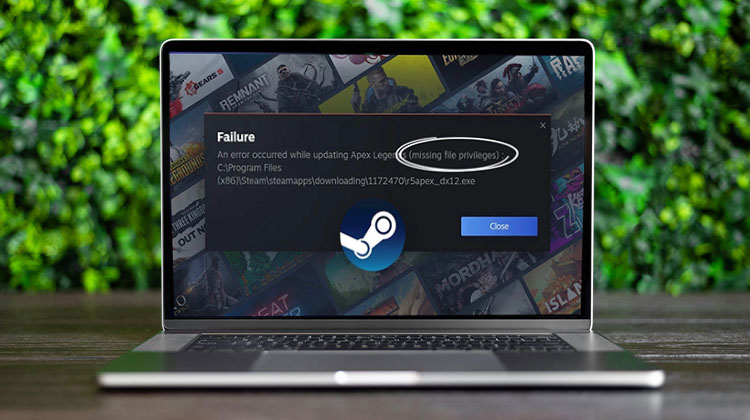
If you encounter a Steam missing file privileges error when you wait for your game’s installation or update in Steam You’re not the only one. A lot of gamers have experienced the same issue. They have thankfully solved the issue with the steps below to follow, so take a look.
Why is my Steam Missing File Privileges?
Starting with the basics, Steam may not have the necessary rights if it isn’t able to gain access to all the required resources. It is also important to determine if the game’s cache is correct or damaged, as it could cause an error.
Different download regions can lead to overload, which can lead to the problem at hand. Intel modules that are part of the Graphics Driver are also a factor in this, and removing them can help a lot. The damaged Steam Library folder also needs to be inspected when discussing Steam Missing File Privileges. We’ll discuss this issue and look into ways to resolve them to fix the issue.
Also read: How to Fix Steam Disk Read Error in 2025: Step-by-Step Guide
6 Ways to Fix Steam Missing File Privileges
Here are some solutions to fix the Steam missing file privileges on Windows 11, 8, and 7. You don’t have to test them all, but just go through the list until you locate the one that works best for you.
1. End the igfxEm Module in Task Manager
Killing the igfxEm Module As reported by most users, is an extremely efficient way to solve this Steam file privileges missing issue. To do so:
1.) On your keyboard, hit Ctrl, Shift, and Esc simultaneously to launch the Task Manager.
2.) Find the igfxEm module. Click on IgfxEm Module > Close task.
3.) Re-launch Steam, then download or update the game and test whether it’s working.
2. Change the Download Region
Technically speaking, the Steam content system has been broken down into various regions. The Steam client automatically detects which area you’re located in and sets it as the default. Sometimes, some servers experience overload problems, which is the reason for the missing file privileges errors. If that’s the case, you can change the download region to fix the issue, and again:
1) Open Steam. Then, click the Steam Settings.
2.) Select Downloads. Then, select the download region by selecting the drop-down list and selecting “OK.”..
3.) Re-download or update the game and check if it is working now.
3. Repair Steam Library Folder
A corrupted/misconfigured Steam library folder might also be responsible for the missing file privileges error. It is possible that we need to fix the folder and see whether that solves the issue:
1.) Make sure your system is restarted, and start Steam.
2) Click Steam > Settings.
3) Click Downloads> STEAM LIBRARY FOLDERS.
4.) Right-click in the Window and select Repair the Library Folder.
5.) Re-try the installation/update, and hopefully, this time, it works.
4. Verify the Integrity of the Game File
The fix 4 will ensure that our game’s files aren’t corrupt. To do so:
1) Click LIBRARY.
2.) Click on the right-click icon that gives the error, and then choose Properties.
4) Click LOCAL FILES > VERIFY INTEGRITY OF GAME CACHE.
5) It may take hours to allow Steam to check the game’s file.
6.) I hope this fixes the Steam missing file privileges error in your case.
Also read: Best VPN for Steam: Reduce Lag & Bypass Restrictions
5. Grant administrator rights to Steam
Sometimes Steam isn’t able to access files. This occurs because you don’t have all the rights to use Steam. Therefore, to allow Steam administrator rights:
1.) If you’re using a keyboard, you need to press the Windows Logo button + R simultaneously. Copy and paste the %ProgramFiles(x86)% in the window, and then click OK.
2.) Right-click Steam and select Properties.
3) Click Security > Advanced.
4.) Check that the first two rows are given full control. If not, you can click edit and change the row accordingly.
5.) Run Steam as an administrator and then check whether the mid-download/update issue gets solved.
6. Uninstall and Reinstall Your Steam Game
If Steam is still showing a “Missing File Privileges” error when you start the game, your game’s core files could be causing problems. Uninstall and reinstall the game as a simple method to fix the missing file privileges Steam problem.
Final word
If the solutions above did not work and you’re not time to solve the Steam missing file privileges error by yourself, seek help from a professional. Visit Steam Chat support, where you will receive direct assistance from experts who will analyze and assist in resolving the problem remotely.
How have the fixes above helped you with your troubleshooting? Do you have any ideas or tips to share with us? Drop a comment below and let us know your thoughts.
FAQs: Steam Missing File Privileges
What does “Steam Missing File Privileges” mean?
It means Steam cannot access or modify certain game files during updates. This usually happens due to permission issues, read-only files, antivirus interference, or Steam Cloud conflicts.
Can Steam Missing File Privileges stop a game from launching?
Yes, this error can prevent Steam from updating or launching games until file access issues are resolved.
Do I need to reinstall Steam to fix Missing File Privileges
Reinstalling Steam is rarely required. Most cases are solved by permissions, verifying files, or adjusting security settings.
How can I prevent Steam Missing File Privileges in the future?
Always run Steam as administrator, maintain antivirus exceptions for Steam, avoid manual file changes, and regularly verify game files to prevent this error










Leave a comment