






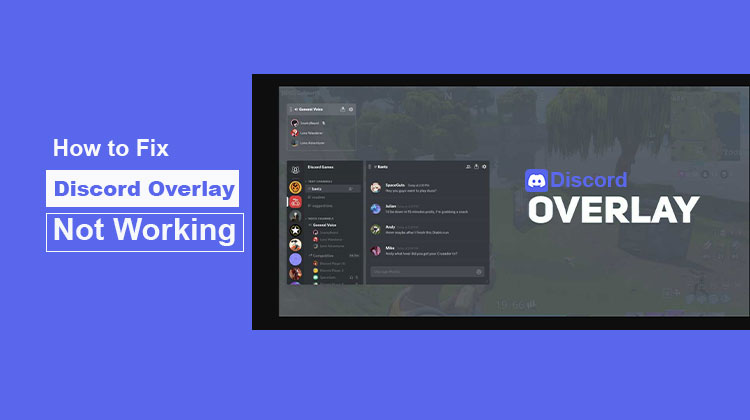
If you notice your Discord overlay not working, then you may require a guide. This is where we step in. The Discord overlay error is among the most frequent issues that can be encountered on Discord. This troubleshooting guide has all the fixes.
Discord overlay is helpful because it allows you to reply to chat notifications, make a voice call, and use its interface more comfortably while you’re playing. It’s a pain when you do not have that convenience, and you don’t want to be able to Alt-Tab out of your favourite game each time you receive messages at the end. The Discord overlay can be very beneficial for streamers who want to display in their chat.
If your Discord overlay not working or failing to show up in-game, we’ll take you through a troubleshooting process that can help you identify every possible cause one by one.
Common Reasons Why Discord Overlay Isn’t Working
Before jumping into fixes, it helps to understand the root causes of the Discord overlay not working:
- Overlay is disabled in settings
- Game not added to Discord
- Administrator permission conflicts
- Hardware acceleration issues
- Conflicts with other overlays (like NVIDIA or Steam)
- Outdated Discord or graphics drivers
Also read: Discord Mic Not Working? 7 Fixes You Should Try Now
How to Fix Discord overlay not working
This guide provides easy steps to fix Discord Overlay not working issue. We suggest trying them in order.
1. Restart the PC
Simple, but it works as a magic trick in nearly all cases. If you restart your computer, Discord, along with the associated services, will be launched from scratch. Therefore, before you move on to the advanced troubleshooting procedure, you must restart your PC at least once.
2. Run Discord as Administrator
Although unlikely. The next time you want to use Discord, click on the right button and then run it with administrator permissions. If it works, you must create an unassisted shortcut to Discord that allows you to start Discord using administrator permissions.
3. Enable Discord Overlay for Specific Game
Discord has settings for every game, allowing you to choose whether overlays work with it. If you’ve turned off the overlay, then forgotten about it, and then think about what went wrong, that’s the cause.
Visit the Library to check the game’s list. Right-click on the game and select the Disable Overlay option. When you next engage in the game, test whether this worked.
4. Ensure No Other Overlay Is Active
Like Discord, Xbox Game Bar provides an overlay when you play. It could conflict with the game, and even if Discord Overlay is working, it won’t appear because the overlay is already in place. Make sure that all overlays are shut down.
5. Check Display Scaling
Depending on your monitor settings, display scaling can cause the overlay to become hidden, misaligned, or not appear properly on the screen. Windows allows you to alter the size of text, apps, and other objects, which can be adapted to your display.
Go to Settings > Display > Scale and Layout. Here you can use the settings to fix the issue.
6. Toggle Overlay Button in Settings
- Go back to User Settings in the Discord application
- You can go to Game Activity when you scroll to the lowest
- After all of that’s completed, you’ll be able to see a green box that has your name in the game that you’re currently playing.
- To the right of the game, you’ll see the option to turn on or off the overlay.
- Click here and choose the option that will be displayed.
Also read: Discord No Route Error: Causes & Easy Fixes (2026 Guide)
7. Disable Hardware Acceleration
We’ve found that the primary reasons the Discord overlay not showing feature are related to hardware acceleration.
At the very least, it affects certain systems; there is no guarantee that everyone will have any issues.
For things to move towards the correct direction, head back to user settings in Discord. Be sure to head into Appearance, then go to the Hardware Acceleration section. Press the switch to the left to disable it.
If you are unable to resolve the Discord overlay not working issue, then you might need to reinstall the Discord application. Be sure to clear any remaining files to ensure there’s no conflict.
8. Disable Antivirus or Security Software
This is again not likely, but if it is a security program that does not allow this overlay, as it could be insecure, you should adhere to this. If you disable your Antivirus and security software on your computer, and then try the overlay again. If this is successful, you’ll need to determine the security settings blocking the overlay.
Conclusion
We hope this guide was helpful. If none of the above resolve your Discord overlay not working issue, we suggest contacting Discord support directly via their Help Section on their official website.
FAQs: Discord Overlay Not Working
Why is Discord overlay not showing in games?
This usually happens if the game is not added to Discord, overlay is disabled for that game, or another overlay (like Steam or Xbox Game Bar) is interfering.
Why is my Discord overlay lagging or crashing?
This can be caused by hardware acceleration, outdated drivers, or too many background apps running alongside Discord.
Why is Discord overlay not working in fullscreen mode?
Discord overlay may not work in fullscreen because some games restrict overlays in exclusive fullscreen mode. Switching to borderless windowed mode often fixes this.
How do I fix Discord overlay not working on Windows 10?
Run Discord as administrator, enable overlay in settings, disable hardware acceleration, update drivers, and turn off other overlays.
How do I know if Discord overlay is enabled?
Go to User Settings → Game Overlay and check if “Enable in-game overlay” is turned on and active for your game.






Leave a comment