






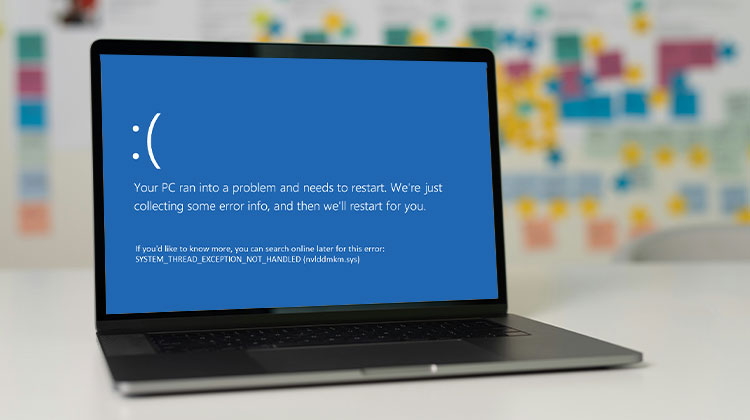
Often, Windows users face the common error: system_thread_exception_not_handled (nviddmkm.sys or atikmpag.sys). This is a problem that can affect all Windows 10/11 user for several reasons. For instance, due to outdated drivers.
This error may appear suddenly on your laptop or computer screen while you’re using it. Also, the same “System Thread Exception Not Handled Windows 10 error can occur once you turn on your system. Some people even refer to it as an “eternity screen” since they think their Windows OS is all done.
In real life, there are easy solutions to this issue. In this article, we will discuss how to fix the System Thread Exception Not Handled error on Windows 10/11.
What Does System Thread Exception Not Handled Mean
This error means that an error has been caused through the system thread, which the error handler does not handle.
There are a variety of reasons that could cause this error; the most frequently cited culprit is a device driver. When a driver becomes obsolete or damaged, it can create problems for your system.
Another reason for this issue is a damaged system file. System files are crucial to allow Windows to function. If they are damaged, the result could be a variety of issues. For instance, this error could occur when there are problems in the Registry and Winsock files. You can fix this issue using a variety of techniques.
Also read: How to Fix Stop Code Memory Management in Windows 10/11
System Thread Exception Not Handled Error Causes
The system error could occur for a variety of reasons. Here are some causes.
Corrupt Files
Your system’s corrupted files are the main reason an error can destroy your experience. Therefore, in this instance, it is advisable to repair those corrupted files (More about this later). This way, you will be able to get rid of the blue death screen.
Problem with a Background Program
When you see the error message “stop code system thread exception not handled,” a problem occurs with one of the programs running in the background. The software is responsible for tasks like drawing images and playing sounds.
Malfunctioning Device DriverThe
BSOD System Thread Exception Not Handled Error is generally caused by a malfunctioning device driver. Device drivers are software that allow your computer to connect to hardware devices. If there’s an issue with a device driver, the system thread could fail, leading to an error message.
How to Fix System Thread Exception Not Handled Error
Now, for the “BSOD system thread exception not handled Windows 10” error, there are some fixes that you can implement. We’ll be presenting six possible solutions to this error. You can choose one or more of these solutions to eliminate this error. Let’s take the time to look at these solutions.
1. Boot Into Safe Mode
The best way to fix this problem is to enter the PC in safe mode. Before we get into it, we need to understand the importance of this safe mode. Safe mode in Windows helps you identify the probable causes behind any unintentional Windows error.
In this case, we are trying to fix the “System Thread Exception Not Handled Windows 10” error. Therefore, we must switch our system to safe mode. Follow the steps to do this.
- Click on “Start”. By pressing the Shift button on the keyboard, select “Restart” from the Start menu.
- The next screen will appear. This is the Windows RE (recovery environment screen). From there, select “Advanced options”.
- Then click on “Startup Settings” to view the boot options.
- On this page, you can click “Restart”.
- After Windows restarts, it will show you the following options for booting the system. Choose option 4, “Enable safe mode,” to boot your system in safe mode.
In this way, you can boot your system in safe mode. Be aware that some solutions require you to turn on your computer in Safe Mode. This is required for some fixes to the issue we’re trying to get rid of.
2. Uninstall Incompatible Programs
The system thread exception Error can also occur due to an incompatible application installed. In most cases, the user dont have ideas that a specific software on their Windows 10/11 might cause these unintentional error messages.
In other words, you need to eliminate the particular program that caused this problem. Most often, a newly installed application or program could be the cause. This is why you should uninstall that particular software first. To do this, go through these directions.
- Select the Start menu, then go to “Settings”. The screen above will pop up. From there, you need to go to “Apps”.
- In the listing of installed apps, select the one you recently installed. Select it and click “Uninstall”.
In this manner, you can easily uninstall the latest program installed on Windows 10/11.
Also read: Bluetooth Driver Error: Easy Fixes to Restore Connectivity
3. Uninstall or Upgrade a Faulty Driver
The recently updated or some faulty drivers can also cause the System Thread Exception Not Handled error in Windows. In this case, if you have a newly downloaded program updated driver could cause your Windows to behave this way.
To resolve this issue, you’ll need to remove or update the defective driver.
- Select the Start menu, and then look up “Device Manager”. If it shows up, then click on it.
- Device Manager shows the drivers installed on Windows 10/11. From here, you will need to identify the problem or the driver that was recently installed.
- Right-click the driver that is in error. You get several options. Choose “Uninstall”.
- And that’s it. The driver that isn’t working is no longer a component of the Windows OS.
4. Check and Repair Problematic System Files
We have discussed how a flawed program or driver can create errors. Let us now explain an additional reason behind the problems. Your system’s problematic files could be the cause of this problem. The best solution for this issue is to repair the damaged files.
- Start the Command Prompt through the Start menu, then run it as administrator.
- Then type DISM/Online ScanHealth /Cleanup Image. Press Enter to start this command.
- Once you’ve entered the command, you must wait a few minutes. After that, Windows will automatically repair the damaged files.
5. Perform Startup Repair
Another method to resolve this issue is to fix the startup issue. This repair procedure is simple and can fix those damaged, old, faulty, or missing files on your system. Here’s how to perform your startup repair.
- You need to open your Windows Advanced Startup options to repair your startup. To enter the mode, you must hold F11 after your system starts. Then click on “Troubleshoot” to proceed further.
- Once you’ve accessed your Advanced Startup options, click “Advanced options”.
- From there, click on “Startup Repair”. The window will prompt you to enter the account name and the password. Simply enter it. The windows will begin repairing the corrupted files to your convenience.
Also read: 10 Easy Fixes for Error Opening File for Writing on Windows 10 & 11
6. Perform System Restore
If none of the previously mentioned strategies work, you can choose the option to restore your system. here steps you need to follow.
- Go to “Settings” and click “Updates & Security”. Then, select”Recovery” and click on the “Recovery” option.
- You will be taken to the Advanced Start menu of Windows. Select “Restart now”.
- After that, click “System Restore”. The next time, the window will ask you to enter your account name and password. Enter that. The system will begin to repair itself.
7. Reinstall Windows
If the above strategies fail, you may try to reinstall Windows. Before doing that, you’ll have to transfer your important files off the computer that is not bootable.
Ending Notes
The causes for this error can be several, but you can fix the System Thread Exception Not Handled error on Windows 10/11. Here are 7 easy solutions you can try each of them to solve this error.
FAQs: System Thread Exception Not Handled Error
What is System Thread Exception Not Handled error?
System Thread Exception Not Handled is a Blue Screen of Death (BSOD) error in Windows that occurs when a system thread crashes and Windows cannot handle the exception. It usually happens due to faulty drivers or corrupted system files.
What is nvlddmkm.sys in this error?
nvlddmkm.sys is a file related to NVIDIA graphics drivers. If it appears with the error, it means your GPU driver is causing the crash.
Does reinstalling Windows fix this error?
Yes, reinstalling Windows can fix the issue, but it should be used as a last resort after trying other troubleshooting methods.
Can I fix System Thread Exception Not Handled without Safe Mode?
Yes, you can try updating drivers, running SFC/DISM, or uninstalling programs directly. However, Safe Mode is recommended if your system keeps crashing.










Leave a comment