






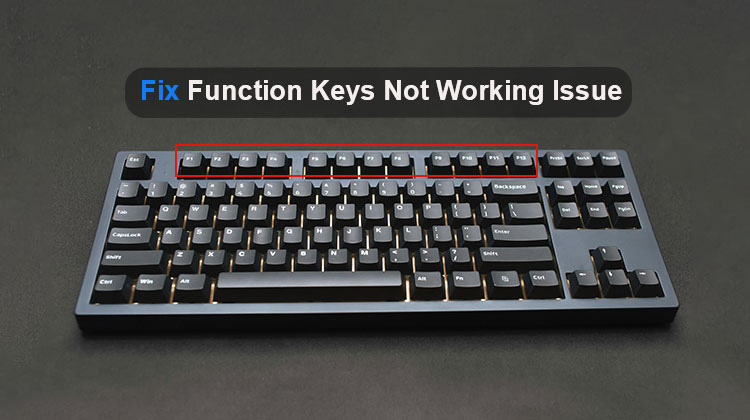
If you find that your Fn keys not working, there are solutions to resolve the issue. This article will find the causes of this problem and explore options for resolving it.
Let’s first address the question, “Why are the function keys not working on my keyboard?” Then, we’ll move on to ways to solve the function button not working on your personal computer.
Why Are My Function Keys Not Working
Let’s look at the most common reasons your function keys stop working. They could be extremely diverse in their severity, ranging from basic to more complicated hardware and software issues.
- Sometimes the Fn Lock button can be activated, thereby turning off the function keys.
- Grime, dirt, or other debris trapped under the function keys may render the keys inoperable.
- A damaged or defective function key circuitry may cause keyboard keys to stop working.
- Outdated drivers, software conflicts, or system issues are among the well-known reasons that could affect the function key operation.
Also read: Mouse Not Working? Try These 10 Quick Solutions
Easy Fixes to the Function Keys Not Working Issue
Restart Your Computer
The most popular and common solution is to restart your computer. It can fix minor software issues that, for some reason, prevent the function keys from functioning effectively.
Clean Your Keyboard
It’s also crucial that your keyboard is clean, so gently wipe it with compressed air to remove any grime or dirt that could create the the fn button not working issue.
Try Key Combinations
A few users also said they were able to get their function keys working by pressing the F11 and F12 keys. It’s not a bad idea to try using the same approach. Try it and then see whether it solved the problem.
If none of the above suggestions help, then you’re now ready to tackle advanced solutions to solve the fn button not working issue.
Advanced Solutions to Fix Function Keys Not Working
Check If Function Keys Are Locked
In most cases, the reason your Function keys not working is that you accidentally pressed the F key lock. But don’t fret, we’re here to help you learn how to unlock fn key in Windows 10 and 11.
We recommend searching for the Fn Lock(F Lock) or Fn Mode(F Mode) key on your keyboard. If one is present, you can try pressing it, and then test whether the Fn keys are working.
Updating Your Keyboard Driver
The Fn keys could begin to malfunction or stop functioning entirely if the keyboard driver on your system is damaged, corrupted, or outdated. Fortunately, this issue is easily fixed by upgrading your drivers.
Via Device Manager
- If you are using a keyboard, type Windows keys + X.
- From the drop-down menu, select Device Manager.
- Then, you can expand the content within the Keyboards category.
- Right-click your keyboard, then click the Update Driver option.
- Choose the option to search automatically for drivers.
From the manufacturer’s website
Be aware that even if you update your keyboard driver via Device Manager, your system could be unable to find the correct version. To avoid this, you must visit the official website and then find the correct keyboard driver compatible with your specific processor and operating system.
Run Hardware and Devices Troubleshooter
- Find the Search icon, then enter “cmd”.
- Right-click on the first result and choose “Run as Administrator.
- Copy and paste this command, and then press enter.:
msdt.exe -id DeviceDiagnostic
The Troubleshooter for Hardware and Devices will appear. Click next, and then click apply fix. If the troubleshooter suggests that you resolve problems with your keyboard.
Run Keyboard Troubleshooter
- Press the Windows key and then select the Gear icon. This will start Settings.
- In the search box, enter the keyboard problem solver and then select the option Fix and find keyboard issues.
- Select Next and follow the instructions to determine and fix any recommended issues.
Turn Off Filter Keys
- Press the button Windows key + I to open the Settings.
- Select accessibility and then select keyboard.
- In the Sticky, Filter, and Toggle key section ( Use Filter Keys in Windows 10), toggle the switch to turn off filter keys. If it’s turned off.
Also read: Laptop Touchpad Not Working? 4 Simple Ways to Fix It
Restart HID Service
“Hidserv,” or Human Interface Device Service, is a service responsible for ensuring the proper functioning of devices, including keyboards, mice, game controllers, etc.
- Right-click Start and choose Task Manager.
- Select the Services tab.
- Scroll down until you find HidServ in the list.
- Right-click the HidServ icon and choose Restart from the context menu.
- Close the Task Manager.
Conclusion
You can resolve the issue of the function keys not working on your personal computer. From simple restarts to advanced troubleshooting solutions, you are now equipped with the knowledge to fix your issue once and for all.
FAQs: Function Keys Not Working
Why are my laptop function keys not working but other keys work?
If only function keys are not working, the issue is likely related to Fn settings, drivers, or system configuration rather than a full keyboard failure.
Is there a shortcut to fix function keys not working quickly?
A quick way to fix function keys not working is to press Fn + Esc, restart your computer, and check for driver updates.
How do I fix function keys not working on Windows 10 or 11?
To fix function keys not working, start by restarting your computer, updating keyboard drivers, and checking the Fn Lock key. These steps solve most common issues.
Do I need to replace my keyboard if function keys are not working?
Not always. Function keys not working is often caused by software or settings issues, which can be fixed without replacing the keyboard.










Leave a comment